J-Link Debugging
Introduction
This chapter describes the three debugging modes supported by the development board.
Direct J-Link Debugging
Support halting the CPU and obtaining the current CPU status directly.
Allow direct access to the target device’s memory.
GDB-Based J-Link Debugging
Run on the host directly and communicate with the target device via GDB Server.
Support using the
.axffile to set breakpoints at the corresponding source code locations.
Ozone-Based J-Link Debugging
Provide graphical user interface debugging operations.
Hardware Connection
SWD Pin Configuration
All chips provide a default set of SWD_CLK and SWD_DATA pins, as detailed in SWD Pins. After power-on, these pins are automatically configured for SWD function and can be directly connected and used according to Connection Method.
Some chips support custom SWD pins. When using custom pins, the pin function configuration must first be completed in the code, and hardware connection can only be made after the code takes effect.
Custom Configuration
To use custom SWD pins, add code as follows:
Pinmux_Config(SWD_CLK_PIN, PINMUX_FUNCTION_SWD);
PAD_PullCtrl(SWD_CLK_PIN, GPIO_PuPd_UP);

Pinmux_Config(SWD_DATA_PIN, PINMUX_FUNCTION_SWD);
PAD_PullCtrl(SWD_DATA_PIN, GPIO_PuPd_UP);
Note
SWD_CLK_PINandSWD_DATA_PINare the target pin names, such as_PA_12,_PB_10, etc.For supported pin names, refer to Pin Multiplexing Table.
Custom configuration is not supported.
Custom configuration is not supported.
Custom configuration is not supported.
Custom configuration is not supported.
Custom configuration is not supported.
// Method 1: Dedicated Pin Function Group
Pinmux_Config(SWD_CLK_PIN, PINMUX_FUNCTION_SWD);
PAD_PullCtrl(SWD_CLK_PIN, GPIO_PuPd_UP);

Pinmux_Config(SWD_DATA_PIN, PINMUX_FUNCTION_SWD);
PAD_PullCtrl(SWD_DATA_PIN, GPIO_PuPd_UP);
or
// Method 2: Fully Programmable Pin Function Group
Pinmux_Config(SWD_CLK_PIN, PINMUX_FUNCTION_SWD_CLK);
PAD_PullCtrl(SWD_CLK_PIN, GPIO_PuPd_UP);

Pinmux_Config(SWD_DATA_PIN, PINMUX_FUNCTION_SWD_DAT);
PAD_PullCtrl(SWD_DATA_PIN, GPIO_PuPd_UP);
Note
SWD_CLK_PINandSWD_DATA_PINare the target pin names, such as_PA_6,_PA_7, etc.For supported pin names, refer to Pin Multiplexing Table.
Connection Method
Refer to the following diagram to connect J-Link’s SWCLK and SWDIO to the SoC’s SWD_CLK and SWD_DATA pins, then connect J-Link to the PC.
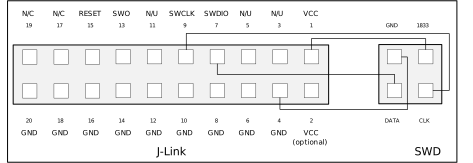
Wiring diagram of connecting J-Link to SWD
Note
The J-Link version must be v9 or higher.
Direct J-Link Debugging
JLink Connect and Configure
Download and install the latest J-Link from SEGGER official website
Connect J-Link
Execute ameba.py jlink -k km4 in the root directory of the SDK. Follow the prompts to enter connect and Enter (default value). As shown below, confirm successful connection between KM4 and J-Link:
Type "connect" to establish a target connection, '?' for help
J-Link>connect
Specify target interface speed [kHz]. <Default>: 4000 kHz
Speed>
Device "CORTEX-M33" selected.

Connecting to target via SWD
InitTarget() start
InitTarget() end
Found SW-DP with ID 0x6BA02477
DPIDR: 0x6BA02477
AP map detection skipped. Manually configured AP map found.
AP[0]: APB-AP (IDR: Not set)
AP[1]: AHB-AP (IDR: Not set)
AP[2]: AHB-AP (IDR: Not set)
AP[2]: Core found
AP[2]: AHB-AP ROM base: 0xE00FF000
CPUID register: 0x721FD22A. Implementer code: 0x72 (Realtek)
Feature set: Mainline
Found Cortex-M33 r1p10, Little endian.
FPUnit: 4 code (BP) slots and 0 literal slots
Security extension: implemented
Secure debug: enabled
CoreSight components:
ROMTbl[0] @ E00FF000
[0][0]: E000E000 CID B105900D PID 000F9133 DEVARCH 47702A04 DEVTYPE 00 SCS
[0][1]: E0001000 CID B105900D PID 000F9035 DEVARCH 47701A02 DEVTYPE 00 DWT
[0][2]: E0002000 CID B105900D PID 000F9034 DEVARCH 47701A03 DEVTYPE 00 FPB
Cortex-M33 identified.
Execute ameba.py jlink -k km0 in the root directory of the SDK. Follow the prompts to enter connect and Enter (default value). As shown below, confirm successful connection between KM0 and J-Link:
Type "connect" to establish a target connection, '?' for help
J-Link>connect
Specify target interface speed [kHz]. <Default>: 4000 kHz
Speed>
Device "CORTEX-M23" selected.

Connecting to target via SWD
InitTarget() start
******************************************************
J-Link script: AmebaDplus KM0 J-Link script
******************************************************
InitTarget() end
Found SW-DP with ID 0x6BA02477
DPIDR: 0x6BA02477
AP map detection skipped. Manually configured AP map found.
AP[0]: APB-AP (IDR: Not set)
AP[1]: AHB-AP (IDR: Not set)
AP[2]: AHB-AP (IDR: Not set)
AP[1]: Core found
AP[1]: AHB-AP ROM base: 0xE00FF000
CPUID register: 0x721CD20A. Implementer code: 0x72 (Realtek)
Feature set: Baseline
Found Cortex-M23 r1p10, Little endian.
FPUnit: 4 code (BP) slots and 0 literal slots
Security extension: not implemented
CoreSight components:
ROMTbl[0] @ E00FF000
[0][0]: E000E000 CID B105900D PID 000F9013 DEVARCH 47702A04 DEVTYPE 00 SCS
[0][1]: E0001000 CID B105900D PID 000F9015 DEVARCH 47701A02 DEVTYPE 00 DWT
[0][2]: E0002000 CID B105900D PID 000F9014 DEVARCH 47701A03 DEVTYPE 00 FPB
Cortex-M23 identified.
Execute ameba.py jlink -k km4 in the root directory of the SDK. Follow the prompts to enter connect and Enter (default value). As shown below, confirm successful connection between KM4 and J-Link:
Type "connect" to establish a target connection, '?' for help
J-Link>connect
Specify target interface speed [kHz]. <Default>: 4000 kHz
Speed>
Device "CORTEX-M33" selected.

Connecting to target via SWD
InitTarget() start
InitTarget() end
Found SW-DP with ID 0x6BA02477
DPIDR: 0x6BA02477
AP map detection skipped. Manually configured AP map found.
AP[0]: AHB-AP (IDR: Not set)
AP[1]: AHB-AP (IDR: Not set)
AP[2]: AHB-AP (IDR: Not set)
AP[3]: APB-AP (IDR: Not set)
AP[0]: Core found
AP[0]: AHB-AP ROM base: 0xE00FF000
CPUID register: 0x721FD228. Implementer code: 0x72 (Realtek)
Feature set: Mainline
Found Cortex-M33 r1p8, Little endian.
FPUnit: 8 code (BP) slots and 0 literal slots
Security extension: implemented
Secure debug: enabled
CoreSight components:
ROMTbl[0] @ E00FF000
[0][0]: E000E000 CID B105900D PID 000F9133 DEVARCH 47702A04 DEVTYPE 00 SCS
[0][1]: E0001000 CID B105900D PID 000F9035 DEVARCH 47701A02 DEVTYPE 00 DWT
[0][2]: E0002000 CID B105900D PID 000F9034 DEVARCH 47701A03 DEVTYPE 00 FPB
Cortex-M33 identified.
Execute ameba.py jlink -k km4 in the root directory of the SDK. Follow the prompts to enter connect and Enter (default value). As shown below, confirm successful connection between KM4 and J-Link:
Type "connect" to establish a target connection, '?' for help
J-Link>connect
Specify target interface speed [kHz]. <Default>: 4000 kHz
Speed>
Device "CORTEX-M33" selected.

Connecting to target via SWD
InitTarget() start
InitTarget() end
Found SW-DP with ID 0x6BA02477
DPIDR: 0x6BA02477
AP map detection skipped. Manually configured AP map found.
AP[0]: AHB-AP (IDR: Not set)
AP[1]: AHB-AP (IDR: Not set)
AP[2]: AHB-AP (IDR: Not set)
AP[3]: APB-AP (IDR: Not set)
AP[0]: Core found
AP[0]: AHB-AP ROM base: 0xE00FF000
CPUID register: 0x721FD228. Implementer code: 0x72 (Realtek)
Feature set: Mainline
Found Cortex-M33 r1p8, Little endian.
FPUnit: 8 code (BP) slots and 0 literal slots
Security extension: implemented
Secure debug: enabled
CoreSight components:
ROMTbl[0] @ E00FF000
[0][0]: E000E000 CID B105900D PID 000F9133 DEVARCH 47702A04 DEVTYPE 00 SCS
[0][1]: E0001000 CID B105900D PID 000F9035 DEVARCH 47701A02 DEVTYPE 00 DWT
[0][2]: E0002000 CID B105900D PID 000F9034 DEVARCH 47701A03 DEVTYPE 00 FPB
Cortex-M33 identified.
Execute ameba.py jlink -k km4 in the root directory of the SDK. Follow the prompts to enter connect and Enter (default value). As shown below, confirm successful connection between KM4 and J-Link:
Type "connect" to establish a target connection, '?' for help
J-Link>connect
Specify target interface speed [kHz]. <Default>: 4000 kHz
Speed>
Device "CORTEX-M33" selected.

Connecting to target via SWD
InitTarget() start
InitTarget() end
Found SW-DP with ID 0x6BA02477
DPIDR: 0x6BA02477
AP map detection skipped. Manually configured AP map found.
AP[0]: AHB-AP (IDR: Not set)
AP[1]: AHB-AP (IDR: Not set)
AP[2]: AHB-AP (IDR: Not set)
AP[3]: APB-AP (IDR: Not set)
AP[0]: Core found
AP[0]: AHB-AP ROM base: 0xE00FF000
CPUID register: 0x721FD228. Implementer code: 0x72 (Realtek)
Feature set: Mainline
Found Cortex-M33 r1p8, Little endian.
FPUnit: 8 code (BP) slots and 0 literal slots
Security extension: implemented
Secure debug: enabled
CoreSight components:
ROMTbl[0] @ E00FF000
[0][0]: E000E000 CID B105900D PID 000F9133 DEVARCH 47702A04 DEVTYPE 00 SCS
[0][1]: E0001000 CID B105900D PID 000F9035 DEVARCH 47701A02 DEVTYPE 00 DWT
[0][2]: E0002000 CID B105900D PID 000F9034 DEVARCH 47701A03 DEVTYPE 00 FPB
Cortex-M33 identified.
Execute ameba.py jlink -k km4 in the root directory of the SDK. Follow the prompts to enter connect and Enter (default value). As shown below, confirm successful connection between KM4 and J-Link:
Type "connect" to establish a target connection, '?' for help
J-Link>connect
Specify target interface speed [kHz]. <Default>: 4000 kHz
Speed>
Device "CORTEX-M33" selected.

Connecting to target via SWD
InitTarget() start
InitTarget() end
Found SW-DP with ID 0x6BA02477
DPIDR: 0x6BA02477
AP map detection skipped. Manually configured AP map found.
AP[0]: AHB-AP (IDR: Not set)
AP[1]: AHB-AP (IDR: Not set)
AP[2]: AHB-AP (IDR: Not set)
AP[3]: APB-AP (IDR: Not set)
AP[0]: Core found
AP[0]: AHB-AP ROM base: 0xE00FF000
CPUID register: 0x721FD228. Implementer code: 0x72 (Realtek)
Feature set: Mainline
Found Cortex-M33 r1p8, Little endian.
FPUnit: 8 code (BP) slots and 0 literal slots
Security extension: implemented
Secure debug: enabled
CoreSight components:
ROMTbl[0] @ E00FF000
[0][0]: E000E000 CID B105900D PID 000F9133 DEVARCH 47702A04 DEVTYPE 00 SCS
[0][1]: E0001000 CID B105900D PID 000F9035 DEVARCH 47701A02 DEVTYPE 00 DWT
[0][2]: E0002000 CID B105900D PID 000F9034 DEVARCH 47701A03 DEVTYPE 00 FPB
Cortex-M33 identified.
Execute ameba.py jlink -k ca32_0 in the root directory of the SDK. Follow the prompts to enter connect and Enter (default value). As shown below, confirm successful connection between CA32 Core0 and J-Link:
Type "connect" to establish a target connection, '?' for help
J-Link>connect
Specify target interface speed [kHz]. <Default>: 4000 kHz
Speed>
Device "CORTEX-A32" selected.

Connecting to target via SWD
InitTarget() start
******************************************************
J-Link script: AmebaSmart (Cortex-A32 CPU0) J-Link script
******************************************************
******************************************************
J-Link script: ResetTarget()
******************************************************
EDPRSR: 0x0000000B
InitTarget() end
Found SW-DP with ID 0x6BA02477
Skipped AP map detection. User manually configured AP map
Skipped APB-AP search. User manually configured AP[3] as debug ABP-AP
AP[0]: AHB-AP
AP[1]: AHB-AP
AP[2]: AHB-AP
AP[3]: APB-AP
ROM table scan skipped because DebugRegs and CTI addr. are manually specified
Cortex-A32 @ 0x80030000 (configured)
CoreCTI @ 0x80038000 (configured)
Debug architecture: ARMv8
6 code breakpoints, 4 data breakpoints
Processor features:
EL0 support: AArch32
EL1 support: AArch32
EL2 support: N/A
EL3 support: N/A
FPU support: Single + Double + Conversion
Add. info (CPU temp. halted)
Current exception level: EL1
Exception level AArch usage:
EL0: AArch32
EL1: AArch32
EL2: AArch32
EL3: AArch32
Non-secure status: Non-secure
Cache info:
Inner cache boundary: none
LoU Uniprocessor: 1
LoC: 2
LoU Inner Shareable: 1
I-Cache L1: 32 KB, 256 Sets, 64 Bytes/Line, 2-Way
D-Cache L1: 32 KB, 128 Sets, 64 Bytes/Line, 4-Way
Unified-Cache L2: 256 KB, 512 Sets, 64 Bytes/Line, 8-Way
Cortex-A32 identified.
Execute ameba.py jlink -k ca32_1 in the root directory of the SDK. Follow the prompts to enter connect and Enter (default value). As shown below, confirm successful connection between CA32 Core1 and J-Link:
Type "connect" to establish a target connection, '?' for help
J-Link>connect
Specify target interface speed [kHz]. <Default>: 4000 kHz
Speed>
Device "CORTEX-A32" selected.

Connecting to target via SWD
InitTarget() start
******************************************************
J-Link script: AmebaSmart (Cortex-A32 CPU0) J-Link script
******************************************************
******************************************************
J-Link script: ResetTarget()
******************************************************
EDPRSR: 0x0000000B
InitTarget() end
Found SW-DP with ID 0x6BA02477
Skipped AP map detection. User manually configured AP map
Skipped APB-AP search. User manually configured AP[3] as debug ABP-AP
AP[0]: AHB-AP
AP[1]: AHB-AP
AP[2]: AHB-AP
AP[3]: APB-AP
ROM table scan skipped because DebugRegs and CTI addr. are manually specified
Cortex-A32 @ 0x80032000 (configured)
CoreCTI @ 0x80039000 (configured)
Debug architecture: ARMv8
6 code breakpoints, 4 data breakpoints
Processor features:
EL0 support: AArch32
EL1 support: AArch32
EL2 support: N/A
EL3 support: N/A
FPU support: Single + Double + Conversion
Add. info (CPU temp. halted)
Current exception level: EL1
Exception level AArch usage:
EL0: AArch32
EL1: AArch32
EL2: AArch32
EL3: AArch32
Non-secure status: Non-secure
Cache info:
Inner cache boundary: none
LoU Uniprocessor: 1
LoC: 2
LoU Inner Shareable: 1
I-Cache L1: 32 KB, 256 Sets, 64 Bytes/Line, 2-Way
D-Cache L1: 32 KB, 128 Sets, 64 Bytes/Line, 4-Way
Unified-Cache L2: 256 KB, 512 Sets, 64 Bytes/Line, 8-Way
Cortex-A32 identified.
Execute ameba.py jlink -k km4 in the root directory of the SDK. Follow the prompts to enter connect and Enter (default value). As shown below, confirm successful connection between KM4 and J-Link:
Type "connect" to establish a target connection, '?' for help
J-Link>connect
Specify target interface speed [kHz]. <Default>: 4000 kHz
Speed>
Device "CORTEX-M33" selected.

Connecting to target via SWD
InitTarget() start
InitTarget() end
Found SW-DP with ID 0x6BA02477
DPIDR: 0x6BA02477
AP map detection skipped. Manually configured AP map found.
AP[0]: AHB-AP (IDR: Not set)
AP[1]: AHB-AP (IDR: Not set)
AP[2]: AHB-AP (IDR: Not set)
AP[3]: APB-AP (IDR: Not set)
AP[1]: Core found
AP[1]: AHB-AP ROM base: 0xE00FF000
CPUID register: 0x721FD228. Implementer code: 0x72 (Realtek)
Feature set: Mainline
Found Cortex-M33 r1p8, Little endian.
FPUnit: 8 code (BP) slots and 0 literal slots
Security extension: implemented
Secure debug: enabled
CoreSight components:
ROMTbl[0] @ E00FF000
[0][0]: E000E000 CID B105900D PID 000F9133 DEVARCH 47702A04 DEVTYPE 00 SCS
[0][1]: E0001000 CID B105900D PID 000F9035 DEVARCH 47701A02 DEVTYPE 00 DWT
[0][2]: E0002000 CID B105900D PID 000F9034 DEVARCH 47701A03 DEVTYPE 00 FPB
Cortex-M33 identified.
Execute ameba.py jlink -k km0 in the root directory of the SDK. Follow the prompts to enter connect and Enter (default value). As shown below, confirm successful connection between KM0 and J-Link:
Type "connect" to establish a target connection, '?' for help
J-Link>connect
Specify target interface speed [kHz]. <Default>: 4000 kHz
Speed>
Device "CORTEX-M23" selected.

Connecting to target via SWD
InitTarget() start
******************************************************
J-Link script: AmebaSmart KM0 J-Link script
******************************************************
InitTarget() end
Found SW-DP with ID 0x6BA02477
DPIDR: 0x6BA02477
AP map detection skipped. Manually configured AP map found.
AP[0]: AHB-AP (IDR: Not set)
AP[1]: AHB-AP (IDR: Not set)
AP[2]: AHB-AP (IDR: Not set)
AP[3]: APB-AP (IDR: Not set)
AP[0]: Core found
AP[0]: AHB-AP ROM base: 0xE00FF000
CPUID register: 0x721CD208. Implementer code: 0x72 (Realtek)
Feature set: Baseline
Found Cortex-M23 r1p8, Little endian.
FPUnit: 8 code (BP) slots and 0 literal slots
Security extension: not implemented
CoreSight components:
ROMTbl[0] @ E00FF000
[0][0]: E000E000 CID B105900D PID 000F9013 DEVARCH 47702A04 DEVTYPE 00 SCS
[0][1]: E0001000 CID B105900D PID 000F9015 DEVARCH 47701A02 DEVTYPE 00 DWT
[0][2]: E0002000 CID B105900D PID 000F9014 DEVARCH 47701A03 DEVTYPE 00 FPB
Cortex-M23 identified.
Execute ameba.py jlink -k km4tz in the root directory of the SDK. Follow the prompts to enter connect and Enter (default value). As shown below, confirm successful connection between AP and J-Link:
Type "connect" to establish a target connection, '?' for help
J-Link>connect
Specify target interface speed [kHz]. <Default>: 4000 kHz
Speed>
Device "CORTEX-M33" selected.

Connecting to target via SWD
InitTarget() start
InitTarget() end
Found SW-DP with ID 0x6BA02477
DPIDR: 0x6BA02477
AP map detection skipped. Manually configured AP map found.
AP[0]: APB-AP (IDR: Not set)
AP[1]: AHB-AP (IDR: Not set)
AP[2]: AHB-AP (IDR: Not set)
AP[2]: Core found
AP[2]: AHB-AP ROM base: 0xE00FF000
CPUID register: 0x721FD22A. Implementer code: 0x72 (Realtek)
Feature set: Mainline
Found Cortex-M33 r1p10, Little endian.
FPUnit: 4 code (BP) slots and 0 literal slots
Security extension: implemented
Secure debug: enabled
CoreSight components:
ROMTbl[0] @ E00FF000
[0][0]: E000E000 CID B105900D PID 000F9023 DEVARCH 47702A04 DEVTYPE 00 SCS
[0][1]: E0001000 CID B105900D PID 000F9025 DEVARCH 47701A02 DEVTYPE 00 DWT
[0][2]: E0002000 CID B105900D PID 000F9024 DEVARCH 47701A03 DEVTYPE 00 FPB
Cortex-M33 identified.
Execute ameba.py jlink -k km4ns in the root directory of the SDK. Follow the prompts to enter connect and Enter (default value). As shown below, confirm successful connection between NP and J-Link:
Type "connect" to establish a target connection, '?' for help
J-Link>connect
Specify target interface speed [kHz]. <Default>: 4000 kHz
Speed>
Device "CORTEX-M33" selected.

Connecting to target via SWD
InitTarget() start
******************************************************
J-Link script: AP1 J-Link script
******************************************************
InitTarget() end
Found SW-DP with ID 0x6BA02477
DPIDR: 0x6BA02477
AP map detection skipped. Manually configured AP map found.
AP[0]: APB-AP (IDR: Not set)
AP[1]: AHB-AP (IDR: Not set)
AP[2]: AHB-AP (IDR: Not set)
AP[1]: Core found
AP[1]: AHB-AP ROM base: 0xE00FF000
CPUID register: 0x721FD22A. Implementer code: 0x72 (Realtek)
Feature set: Mainline
Found Cortex-M33 r1p10, Little endian.
FPUnit: 4 code (BP) slots and 0 literal slots
Security extension: not implemented
CoreSight components:
ROMTbl[0] @ E00FF000
[0][0]: E000E000 CID B105900D PID 000F9023 DEVARCH 47702A04 DEVTYPE 00 SCS
[0][1]: E0001000 CID B105900D PID 000F9025 DEVARCH 47701A02 DEVTYPE 00 DWT
[0][2]: E0002000 CID B105900D PID 000F9024 DEVARCH 47701A03 DEVTYPE 00 FPB
Cortex-M33 identified.
Note
JLink.exe default installation path is C:\Program Files (x86)\SEGGER\JLink. To specify a custom path, use: ameba.py jlink -k XXX -d <jlink_path>
Deploy J-Link with these steps:
Download latest J-Link package
Execute installation command:
$ dpkg -i JLink_Linux_V840_x86_64.deb
Connect J-Link
Execute
ameba.py jlink -k km4in the root directory of the SDKFollow the prompts to enter connect and Enter (default value) to confirm that KM4 is successfully connected to J-Link, as shown:
Type "connect" to establish a target connection, '?' for help
J-Link>connect
Specify target interface speed [kHz]. <Default>: 4000 kHz
Speed>
Device "CORTEX-M33" selected.

Connecting to target via SWD
InitTarget() start
InitTarget() end - Took 236us
Found SW-DP with ID 0x6BA02477
DPIDR: 0x6BA02477
CoreSight SoC-400 or earlier
AP map detection skipped. Manually configured AP map found.
AP[0]: APB-AP (IDR: Not set, ADDR: 0x00000000)
AP[1]: AHB-AP (IDR: Not set, ADDR: 0x00000000)
AP[2]: AHB-AP (IDR: Not set, ADDR: 0x00000000)
AP[2]: Core found
AP[2]: AHB-AP ROM base: 0xE00FF000
CPUID register: 0x721FD22A. Implementer code: 0x72 (Realtek)
Feature set: Mainline
Cache: L1 I/D-cache present
Found Cortex-M33 r1p0, Little endian.
FPU: 4 code (BP) slots and 0 literal slots
Security extension: implemented
Secure debug: enabled
CoreSight components:
ROMTbl[0] @ E00FF000
[0][0]: E000E000 CID B105900D PID 0F09D13A DEVARCH 47702A04 DEVTYPE 00 SCS
[0][1]: E0001000 CID B105900D PID 0F09D135 DEVARCH 47701A02 DEVTYPE 00 DWT
[0][2]: E0002000 CID B105900D PID 0F09D134 DEVARCH 47701A03 DEVTYPE 00 FPB
I-Cache L1: 16 KB, 128 Sets, 32 Bytes/Line, 4-Way
D-Cache L1: 16 KB, 128 Sets, 32 Bytes/Line, 4-Way
Memory zones:
Zone: "Default" Description: Default access mode
Cortex-M33 identified.
Caution
Keep this window open for subsequent operations
Execute
ameba.py jlink -k km0in the root directory of the SDKFollow the prompts to enter connect and Enter (default value) to confirm that KM0 is successfully connected to J-Link, as shown:
Type "connect" to establish a target connection, '?' for help
J-Link> connect
Specify target interface speed [kHz]. <Default>: 4000 kHz
Speed>
Device "CORTEX-M23" selected.

Connecting to target via SWD
InitTarget() start
***********************************************************

* J-Link script: AmebaDPlus KMO J-Link script

***********************************************************
InitTarget() end - Took 251us
Found SW-DP with ID 0x6BA02477
DPIDR: 0x6BA02477
CoreSight SoC-400 or earlier
AP map detection skipped. Manually configured AP map found.
AP[0]: APB-AP (IDR: Not set, ADDR: 0x00000000)
AP[1]: AHB-AP (IDR: Not set, ADDR: 0x00000000)
AP[2]: AHB-AP (IDR: Not set, ADDR: 0x00000000)
AP[1]: Core found
AP[1]: AHB-AP ROM base: 0xE00FF000
CPUID register: 0x721CD20A. Implementer code: 0x72 (Realtek)
Feature set: Baseline
Cache: L1 I/D-cache present
Found Cortex-M23 r1p10, Little endian.
FPUUnit: 4 code (BP) slots and 0 literal slots
Security extension: not implemented
CoreSight components:
ROMTbl[0] @ E00FF000
E00FE000: CID B105900D PID 00FF0013 DEVARCH 47702A04 DEVTYPE 00 SCS
E00FF000: CID B105900D PID 00FF0013 DEVARCH 47701A02 DEVTYPE 00 DWT
E00FC000: CID B105900D PID 00FF0013 DEVARCH 47701A03 DEVTYPE 00 FPB
I-Cache L1: 16 KB, 128 Sets, 32 Bytes/Line, 4-Way
D-Cache L1: 16 KB, 128 Sets, 32 Bytes/Line, 4-Way
Memory zones:
Zone: "Default" Description: Default access mode
Cortex-M23 identified.
Execute
ameba.py jlink -k km4in the root directory of the SDKFollow the prompts to enter connect and Enter (default value) and confirm KM4 is successfully connected to J-Link, as shown:
Type "connect" to establish a target connection, '?' for help
J-Link>connect
Specify target interface speed [kHz]. <Default>: 4000 kHz
Speed>
Device "CORTEX-M33" selected.

Connecting to target via SWD
InitTarget() start
InitTarget() end - Took 354us
Found SW-DP with ID 0x6BA02477
DPIDR: 0x6BA02477
CoreSight SoC-400 or earlier
AP map detection skipped. Manually configured AP map found.
AP[0]: AHB-AP (IDR: Not set, ADDR: 0x00000000)
AP[1]: AHB-AP (IDR: Not set, ADDR: 0x00000000)
AP[2]: AHB-AP (IDR: Not set, ADDR: 0x00000000)
AP[3]: APB-AP (IDR: Not set, ADDR: 0x00000000)
AP[0]: Core found
AP[0]: AHB-AP ROM base: 0xE00FF000
CPUID register: 0x721FD228. Implementer code: 0x72 (Realtek)
Feature set: Mainline
Cache: L1 I/D-cache present
Found Cortex-M33 r1p8, Little endian.
FPUnit: 8 code (BP) slots and 0 literal slots
Security extension: implemented
Secure debug: enabled
CoreSight components:
ROMTbl[0] @ E00FF000
[0][0]: E00FE000 CID B105900D PID 000F9133 DEVARCH 47702A04 DEVTYPE 00 SCS
[1][0]: E0001000 CID B105900D PID 000F9035 DEVARCH 47701A02 DEVTYPE 00 DWT
[2][0]: E0002000 CID B105900D PID 000F9034 DEVARCH 47701A03 DEVTYPE 00 FPB
I-Cache L1: 16 KB, 128 Sets, 32 Bytes/Line, 4-Way
D-Cache L1: 16 KB, 128 Sets, 32 Bytes/Line, 4-Way
Memory zones:
  Zone: "Default" Description: Default access mode
Cortex-M33 identified.
Execute
ameba.py jlink -k km4in the root directory of the SDKFollow the prompts to enter connect and Enter (default value) and confirm KM4 is successfully connected to J-Link, as shown:
Type "connect" to establish a target connection, '?' for help
J-Link>connect
Specify target interface speed [kHz]. <Default>: 4000 kHz
Speed>
Device "CORTEX-M33" selected.

Connecting to target via SWD
InitTarget() start
InitTarget() end - Took 354us
Found SW-DP with ID 0x6BA02477
DPIDR: 0x6BA02477
CoreSight SoC-400 or earlier
AP map detection skipped. Manually configured AP map found.
AP[0]: AHB-AP (IDR: Not set, ADDR: 0x00000000)
AP[1]: AHB-AP (IDR: Not set, ADDR: 0x00000000)
AP[2]: AHB-AP (IDR: Not set, ADDR: 0x00000000)
AP[3]: APB-AP (IDR: Not set, ADDR: 0x00000000)
AP[0]: Core found
AP[0]: AHB-AP ROM base: 0xE00FF000
CPUID register: 0x721FD228. Implementer code: 0x72 (Realtek)
Feature set: Mainline
Cache: L1 I/D-cache present
Found Cortex-M33 r1p8, Little endian.
FPUnit: 8 code (BP) slots and 0 literal slots
Security extension: implemented
Secure debug: enabled
CoreSight components:
ROMTbl[0] @ E00FF000
[0][0]: E00FE000 CID B105900D PID 000F9133 DEVARCH 47702A04 DEVTYPE 00 SCS
[1][0]: E0001000 CID B105900D PID 000F9035 DEVARCH 47701A02 DEVTYPE 00 DWT
[2][0]: E0002000 CID B105900D PID 000F9034 DEVARCH 47701A03 DEVTYPE 00 FPB
I-Cache L1: 16 KB, 128 Sets, 32 Bytes/Line, 4-Way
D-Cache L1: 16 KB, 128 Sets, 32 Bytes/Line, 4-Way
Memory zones:
  Zone: "Default" Description: Default access mode
Cortex-M33 identified.
Execute
ameba.py jlink -k km4in the root directory of the SDKFollow the prompts to enter connect and Enter (default value) and confirm KM4 is successfully connected to J-Link, as shown:
Type "connect" to establish a target connection, '?' for help
J-Link>connect
Specify target interface speed [kHz]. <Default>: 4000 kHz
Speed>
Device "CORTEX-M33" selected.

Connecting to target via SWD
InitTarget() start
InitTarget() end - Took 354us
Found SW-DP with ID 0x6BA02477
DPIDR: 0x6BA02477
CoreSight SoC-400 or earlier
AP map detection skipped. Manually configured AP map found.
AP[0]: AHB-AP (IDR: Not set, ADDR: 0x00000000)
AP[1]: AHB-AP (IDR: Not set, ADDR: 0x00000000)
AP[2]: AHB-AP (IDR: Not set, ADDR: 0x00000000)
AP[3]: APB-AP (IDR: Not set, ADDR: 0x00000000)
AP[0]: Core found
AP[0]: AHB-AP ROM base: 0xE00FF000
CPUID register: 0x721FD228. Implementer code: 0x72 (Realtek)
Feature set: Mainline
Cache: L1 I/D-cache present
Found Cortex-M33 r1p8, Little endian.
FPUnit: 8 code (BP) slots and 0 literal slots
Security extension: implemented
Secure debug: enabled
CoreSight components:
ROMTbl[0] @ E00FF000
[0][0]: E00FE000 CID B105900D PID 000F9133 DEVARCH 47702A04 DEVTYPE 00 SCS
[1][0]: E0001000 CID B105900D PID 000F9035 DEVARCH 47701A02 DEVTYPE 00 DWT
[2][0]: E0002000 CID B105900D PID 000F9034 DEVARCH 47701A03 DEVTYPE 00 FPB
I-Cache L1: 16 KB, 128 Sets, 32 Bytes/Line, 4-Way
D-Cache L1: 16 KB, 128 Sets, 32 Bytes/Line, 4-Way
Memory zones:
  Zone: "Default" Description: Default access mode
Cortex-M33 identified.
Execute
ameba.py jlink -k km4in the root directory of the SDKFollow the prompts to enter connect and Enter (default value) and confirm KM4 is successfully connected to J-Link, as shown:
Type "connect" to establish a target connection, '?' for help
J-Link>connect
Specify target interface speed [kHz]. <Default>: 4000 kHz
Speed>
Device "CORTEX-M33" selected.

Connecting to target via SWD
InitTarget() start
InitTarget() end - Took 354us
Found SW-DP with ID 0x6BA02477
DPIDR: 0x6BA02477
CoreSight SoC-400 or earlier
AP map detection skipped. Manually configured AP map found.
AP[0]: AHB-AP (IDR: Not set, ADDR: 0x00000000)
AP[1]: AHB-AP (IDR: Not set, ADDR: 0x00000000)
AP[2]: AHB-AP (IDR: Not set, ADDR: 0x00000000)
AP[3]: APB-AP (IDR: Not set, ADDR: 0x00000000)
AP[0]: Core found
AP[0]: AHB-AP ROM base: 0xE00FF000
CPUID register: 0x721FD228. Implementer code: 0x72 (Realtek)
Feature set: Mainline
Cache: L1 I/D-cache present
Found Cortex-M33 r1p8, Little endian.
FPUnit: 8 code (BP) slots and 0 literal slots
Security extension: implemented
Secure debug: enabled
CoreSight components:
ROMTbl[0] @ E00FF000
[0][0]: E00FE000 CID B105900D PID 000F9133 DEVARCH 47702A04 DEVTYPE 00 SCS
[1][0]: E0001000 CID B105900D PID 000F9035 DEVARCH 47701A02 DEVTYPE 00 DWT
[2][0]: E0002000 CID B105900D PID 000F9034 DEVARCH 47701A03 DEVTYPE 00 FPB
I-Cache L1: 16 KB, 128 Sets, 32 Bytes/Line, 4-Way
D-Cache L1: 16 KB, 128 Sets, 32 Bytes/Line, 4-Way
Memory zones:
  Zone: "Default" Description: Default access mode
Cortex-M33 identified.
Execute
ameba.py jlink -k ca32_0in the root directory of the SDKFollow the prompts to enter connect and Enter (default value). Then, confirm CA32 Core0 is successfully connected to J-Link, as shown:
Type "connect" to establish a target connection, '?' for help
J-Link>connect
Specify target interface speed [kHz]. <Default>: 4000 kHz
Speed>
Device "CORTEX-A32" selected.

Connecting to target via SWD
InitTarget() start
******************************************************
J-Link script: AmebaSmart (Cortex-A32 CPU0) J-Link script
******************************************************
******************************************************
J-Link script: ResetTarget()
******************************************************
EDPRSR: 0x00000801
InitTarget() end - Took 16.3ms
Found SW-DP with ID 0x6BA02477
DPIDR: 0x6BA02477
CoreSight SoC-400 or earlier
AP map detection skipped. Manually configured AP map found.
AP[0]: AHB-AP (IDR: Not set, ADDR: 0x00000000)
AP[1]: AHB-AP (IDR: Not set, ADDR: 0x00000000)
AP[2]: AHB-AP (IDR: Not set, ADDR: 0x00000000)
AP[3]: APB-AP (IDR: Not set, ADDR: 0x00000000)
Using preconfigured AP[3] as APB-AP
AP[3]: APB-AP found
DebugRegs + CTI manually specified. ROM table scan skipped.
Cortex-A32 @ 0x80030000 (configured)
CoreCTI @ 0x80038000 (configured)
Debug architecture: ARMv8.0
6 code breakpoints, 4 data breakpoints
Processor features:
  EL0 support: AArch32
  EL1 support: AArch32
  EL2 support: AArch32
  EL3 support: AArch32
  FPU support: Single + Double + Conversion
Add. info (CPU temp. halted)
Current exception level: EL1
Exception level AArch usage:
  EL0: AArch32
  EL1: AArch32
  EL2: AArch32
  EL3: AArch32
Non-secure status: Non-secure
Cache info:
  Inner cache boundary: none
  LoU Uniprocessor: 1
  LoC: 2
  LoU Inner Shareable: 1
I-Cache L1: 32 KB, 256 Sets, 64 Bytes/Line, 2-Way
D-Cache L1: 32 KB, 128 Sets, 64 Bytes/Line, 4-Way
Unified-Cache L2: 256 KB, 512 Sets, 64 Bytes/Line, 8-Way
Memory zones:
  Zone: "Default" Description: Default access mode
  Zone: "AP0" Description: MEM-AP (AHB-AP)
  Zone: "AP1" Description: MEM-AP (AHB-AP)
  Zone: "AP2" Description: MEM-AP (AHB-AP)
  Zone: "AP3" Description: MEM-AP (APB-AP)
Cortex-A32 identified.
Execute
ameba.py jlink -k ca32_1in the root directory of the SDKFollow the prompts to enter connect and Enter (default value). Then, confirm CA32 Core1 is successfully connected to J-Link, as shown:
Type "connect" to establish a target connection, '?' for help
J-Link>connect
Specify target interface speed [kHz]. <Default>: 4000 kHz
Speed>
Device "CORTEX-A32" selected.

Connecting to target via SWD
InitTarget() start
******************************************************
J-Link script: AmebaSmart (Cortex-A32 CPU0) J-Link script
******************************************************
******************************************************
J-Link script: ResetTarget()
******************************************************
EDPRSR: 0x0000000B
InitTarget() end - Took 16.8ms
Found SW-DP with ID 0x6BA02477
DPIDR: 0x6BA02477
CoreSight SoC-400 or earlier
AP map detection skipped. Manually configured AP map found.
AP[0]: AHB-AP (IDR: Not set, ADDR: 0x00000000)
AP[1]: AHB-AP (IDR: Not set, ADDR: 0x00000000)
AP[2]: AHB-AP (IDR: Not set, ADDR: 0x00000000)
AP[3]: APB-AP (IDR: Not set, ADDR: 0x00000000)
Using preconfigured AP[3] as APB-AP
AP[3]: APB-AP found
DebugRegs + CTI manually specified. ROM table scan skipped.
Cortex-A32 @ 0x80032000 (configured)
CoreCTI @ 0x80039000 (configured)
Debug architecture: ARMv8.0
6 code breakpoints, 4 data breakpoints
Processor features:
  EL0 support: AArch32
  EL1 support: AArch32
  EL2 support: AArch32
  EL3 support: AArch32
  FPU support: Single + Double + Conversion
Add. info (CPU temp. halted)
Current exception level: EL1
Exception level AArch usage:
  EL0: AArch32
  EL1: AArch32
  EL2: AArch32
  EL3: AArch32
Non-secure status: Non-secure
Cache info:
  Inner cache boundary: none
  LoU Uniprocessor: 1
  LoC: 2
  LoU Inner Shareable: 1
I-Cache L1: 32 KB, 256 Sets, 64 Bytes/Line, 2-Way
D-Cache L1: 32 KB, 128 Sets, 64 Bytes/Line, 4-Way
Unified-Cache L2: 256 KB, 512 Sets, 64 Bytes/Line, 8-Way
Memory zones:
  Zone: "Default" Description: Default access mode
  Zone: "AP0" Description: MEM-AP (AHB-AP)
  Zone: "AP1" Description: MEM-AP (AHB-AP)
  Zone: "AP2" Description: MEM-AP (AHB-AP)
  Zone: "AP3" Description: MEM-AP (APB-AP)
Cortex-A32 identified.
Execute
ameba.py jlink -k km4in the root directory of the SDKFollow the prompts to enter connect and Enter (default value). Then, confirm KM4 is successfully connected to J-Link, as shown:
Type "connect" to establish a target connection, '?' for help
J-Link>connect
Specify target interface speed [kHz]. <Default>: 4000 kHz
Speed>
Device "CORTEX-M33" selected.

Connecting to target via SWD
InitTarget() start
InitTarget() end - Took 225us
Found SW-DP with ID 0x6BA02477
DPIDR: 0x6BA02477
CoreSight SoC-400 or earlier
AP map detection skipped. Manually configured AP map found.
AP[0]: AHB-AP (IDR: Not set, ADDR: 0x00000000)
AP[1]: AHB-AP (IDR: Not set, ADDR: 0x00000000)
AP[2]: AHB-AP (IDR: Not set, ADDR: 0x00000000)
AP[3]: APB-AP (IDR: Not set, ADDR: 0x00000000)
AP[1]: Core found
AP[1]: AHB-AP ROM base: 0xE00FF000
CPUID register: 0x721FD228. Implementer code: 0x72 (Realtek)
Feature set: Mainline
Cache: No cache
Found Cortex-M33 r1p8, Little endian.
FPUnit: 8 code (BP) slots and 0 literal slots
Security extension: implemented
Secure debug: enabled
CoreSight components:
ROMTbl[0] @ E00FF000
[0][0]: E000E000 CID B105900D PID 000F9133 DEVARCH 47702A04 DEVTYPE 00 SCS
[0][1]: E0001000 CID B105900D PID 000F9035 DEVARCH 47701A02 DEVTYPE 00 DWT
[0][2]: E0002000 CID B105900D PID 000F9034 DEVARCH 47701A03 DEVTYPE 00 FPB
Memory zones:
  Zone: "Default" Description: Default access mode
Cortex-M33 identified.
Execute
ameba.py jlink -k km0in the root directory of the SDKFollow the prompts to enter connect and Enter (default value). Then, confirm KM0 is successfully connected to J-Link, as shown:
Type "connect" to establish a target connection, '?' for help
J-Link>connect
Specify target interface speed [kHz]. <Default>: 4000 kHz
Speed>
Device "CORTEX-M23" selected.

Connecting to target via SWD
InitTarget() start
******************************************************
J-Link script: AmebaSmart KM0 J-Link script
******************************************************
InitTarget() end - Took 306us
Found SW-DP with ID 0x6BA02477
DPIDR: 0x6BA02477
CoreSight SoC-400 or earlier
AP map detection skipped. Manually configured AP map found.
AP[0]: AHB-AP (IDR: Not set, ADDR: 0x00000000)
AP[1]: AHB-AP (IDR: Not set, ADDR: 0x00000000)
AP[2]: AHB-AP (IDR: Not set, ADDR: 0x00000000)
AP[3]: APB-AP (IDR: Not set, ADDR: 0x00000000)
AP[0]: Core found
AP[0]: AHB-AP ROM base: 0xE00FF000
CPUID register: 0x721CD208. Implementer code: 0x72 (Realtek)
Feature set: Baseline
Cache: L1 I/D-cache present
Found Cortex-M23 r1p8, Little endian.
FPUnit: 8 code (BP) slots and 0 literal slots
Security extension: not implemented
CoreSight components:
ROMTbl[0] @ E00FF000
[0][0]: E000E000 CID B105900D PID 000F9013 DEVARCH 47702A04 DEVTYPE 00 SCS
[0][1]: E0001000 CID B105900D PID 000F9015 DEVARCH 47701A02 DEVTYPE 00 DWT
[0][2]: E0002000 CID B105900D PID 000F9014 DEVARCH 47701A03 DEVTYPE 00 FPB
I-Cache L1: 16 KB, 256 Sets, 32 Bytes/Line, 2-Way
D-Cache L1: 8 KB, 128 Sets, 32 Bytes/Line, 2-Way
Memory zones:
  Zone: "Default" Description: Default access mode
Cortex-M23 identified.
Execute
ameba.py jlink -k km4tzin the root directory of the SDKFollow the prompts to enter connect and Enter (default value) to confirm that KM4TZ is successfully connected to J-Link, as shown:
Type "connect" to establish a target connection, '?' for help
J-Link>connect
Specify target interface speed [kHz]. <Default>: 4000 kHz
Speed>
Device "CORTEX-M33" selected.

Connecting to target via SWD
InitTarget() start
******************************************
J-Link script: AP1 J-Link script
******************************************
InitTarget() end - Took 221us
Found SW-DP with ID 0x6BA02477
DPIDR: 0x6BA02477
CoreSight SoC-400 or earlier
AP map detection skipped. Manually configured AP map found.
AP[0]: APB-AP (IDR: Not set, ADDR: 0x00000000)
AP[1]: AHB-AP (IDR: Not set, ADDR: 0x00000000)
AP[1]: Core found
AP[1]: AHB-AP ROM base: 0xE00FF000
CPUID register: 0x721FD22A. Implementer code: 0x72 (Realtek)
Feature set: Mainline
Cache: L1 I/D-cache present
Found Cortex-M33 r1p0, Little endian.
FPUnit: 4 code (BP) slots and 0 literal slots
Security extension: not implemented
CoreSight components:
ROMTbl[0] @ E00FF000
[0][0]: E000E000 CID B105900D PID 000F9023 DEVARCH 47702A04 DEVTYPE 00 SCS
[0][1]: E0001000 CID B105900D PID 000F9025 DEVARCH 47701A02 DEVTYPE 00 DWT
[0][2]: E0002000 CID B105900D PID 000F9024 DEVARCH 47701A03 DEVTYPE 00 FPB
I-Cache L1: 16 KB, 128 Sets, 32 Bytes/Line, 4-Way
D-Cache L1: 16 KB, 128 Sets, 32 Bytes/Line, 4-Way
Memory zones:
Zone: "Default" Description: Default access mode
Cortex-M33 identified.
Caution
Keep this window open for subsequent operations
Execute
ameba.py jlink -k km4nsin the root directory of the SDKFollow the prompts to enter connect and Enter (default value) to confirm that KM4NS is successfully connected to J-Link, as shown:
Type "connect" to establish a target connection, '?' for help
J-Link>connect
Specify target interface speed [kHz]. <Default>: 4000 kHz
Speed>
Device "CORTEX-M33" selected.

Connecting to target via SWD
InitTarget() start
******************************************
J-Link script: AP1 J-Link script
******************************************
InitTarget() end - Took 278us
Found SW-DP with ID 0x6BA02477
DPIDR: 0x6BA02477
CoreSight SoC-400 or earlier
AP map detection skipped. Manually configured AP map found.
AP[0]: APB-AP (IDR: Not set, ADDR: 0x00000000)
AP[1]: AHB-AP (IDR: Not set, ADDR: 0x00000000)
AP[2]: AHB-AP (IDR: Not set, ADDR: 0x00000000)
AP[1]: Core found
AP[1]: AHB-AP ROM base: 0xE00FF000
CPUID register: 0x721FD22A. Implementer code: 0x72 (Realtek)
Feature set: Mainline
Cache: L1 I/D-cache present
Found Cortex-M33 r1p0, Little endian.
FPUnit: 4 code (BP) slots and 0 literal slots
Security extension: not implemented
CoreSight components:
ROMTbl[0] @ E00FF000
[0][0]: E000E000 CID B105900D PID 000F9023 DEVARCH 47702A04 DEVTYPE 00 SCS
[0][1]: E0001000 CID B105900D PID 000F9025 DEVARCH 47701A02 DEVTYPE 00 DWT
[0][2]: E0002000 CID B105900D PID 000F9024 DEVARCH 47701A03 DEVTYPE 00 FPB
I-Cache L1: 16 KB, 128 Sets, 32 Bytes/Line, 4-Way
D-Cache L1: 16 KB, 128 Sets, 32 Bytes/Line, 4-Way
Memory zones:
Zone: "Default" Description: Default access mode
Cortex-M33 identified.
Note
JLinkExe default installation path is /opt/SEGGER/JLink. To specify a custom path, use: ameba.py jlink -k XXX -d <jlink_path>
J-Link Core Command Set
Command (Full) |
Shortcut |
Syntax |
Description |
|---|---|---|---|
Halt |
H |
Suspend CPU execution |
|
Go |
G |
Resume CPU execution |
|
Mem |
/ |
Mem <Address> <ByteCount> |
Read memory (ASCII format) |
SaveBin |
/ |
SaveBin <File> <Address> <ByteCount> |
Dump memory to binary file |
Exit |
/ |
Disconnect J-Link |
Official documentation: https://wiki.segger.com/J-Link_Commander
Note
Track PC values via multiple
H/GexecutionsUse
mem <sp_address>to inspect call stack
GDB-Based J-Link Debugging
GDB Software Connect and Configure
Download and install the latest GDB Server from SEGGER official website
Connect JLinkGDBSever
Execute ameba.py jlink -t gdb -k km4 in the root directory of the SDK. As shown below, confirm successful connection between KM4 and JLinkGDBSever:

Caution
Keep this window open for subsequent operations
Execute ameba.py jlink -t gdb -k km0 in the root directory of the SDK. As shown below, confirm successful connection between KM0 and JLinkGDBSever:
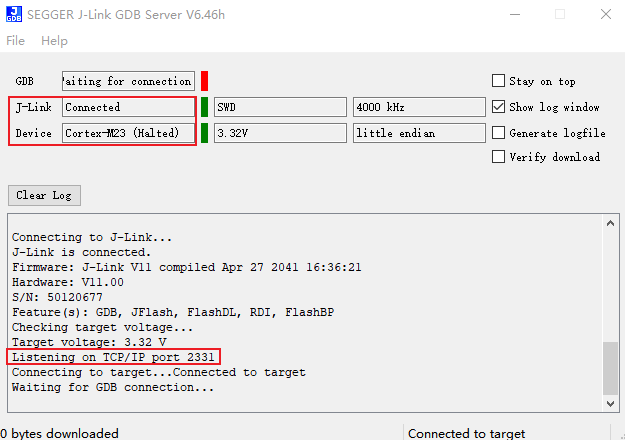
Execute ameba.py jlink -t gdb -k km4 in the root directory of the SDK. Confirm KM4 and JLinkGDBSever connection as shown:
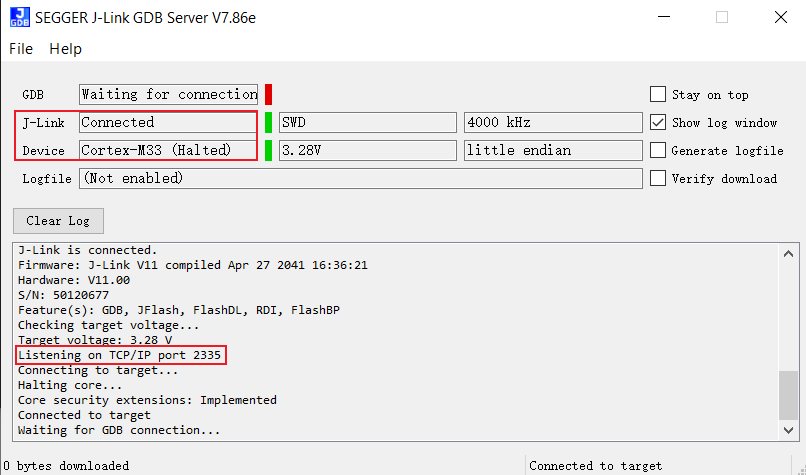
Caution
Keep this window open for KM4 subsequent operations
Execute ameba.py jlink -t gdb -k km4 in the root directory of the SDK. Confirm KM4 and JLinkGDBSever connection as shown:
Caution
Keep this window open for KM4 subsequent operations
Execute ameba.py jlink -t gdb -k km4 in the root directory of the SDK. Confirm KM4 and JLinkGDBSever connection as shown:
Caution
Keep this window open for KM4 subsequent operations
Execute ameba.py jlink -t gdb -k km4 in the root directory of the SDK. Confirm KM4 and JLinkGDBSever connection as shown:
Caution
Keep this window open for KM4 subsequent operations
Execute ameba.py jlink -t gdb -k ca32_0 in the root directory of the SDK. As shown below, confirm successful connection between ca32_Core0 and JLinkGDBSever:

Execute ameba.py jlink -t gdb -k ca32_1 in the root directory of the SDK. As shown below, confirm successful connection between ca32_Core1 and JLinkGDBSever:
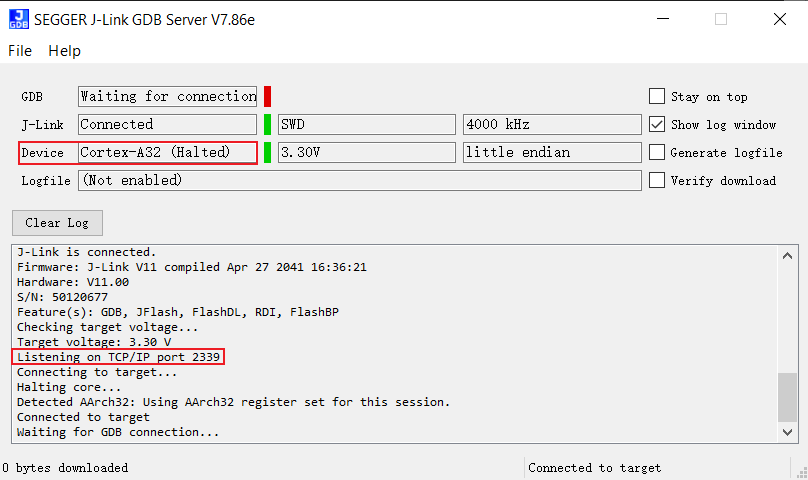
Execute ameba.py jlink -t gdb -k km4 in the root directory of the SDK. As shown below, confirm successful connection between KM4 and JLinkGDBSever:

Caution
Keep this window open for subsequent operations
Execute ameba.py jlink -t gdb -k km0 in the root directory of the SDK. As shown below, confirm successful connection between KR4 and JLinkGDBSever:

Execute ameba.py jlink -t gdb -k km4tz in the root directory of the SDK. As shown below, confirm successful connection between KM4TZ and JLinkGDBSever:
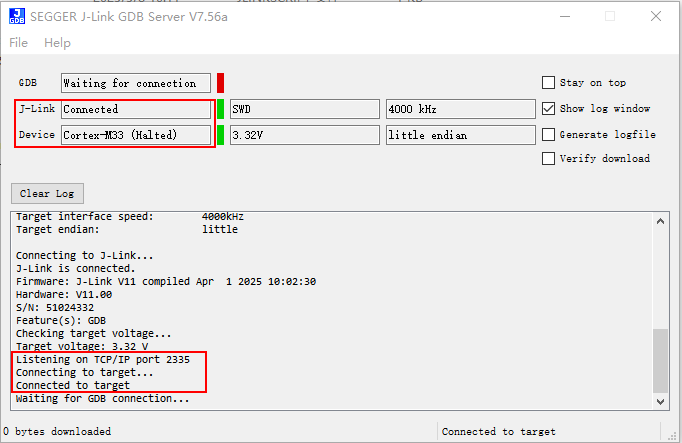
Caution
Keep this window open for subsequent operations
Execute ameba.py jlink -t gdb -k km4ns in the root directory of the SDK. As shown below, confirm successful connection between KM4NS and JLinkGDBSever:
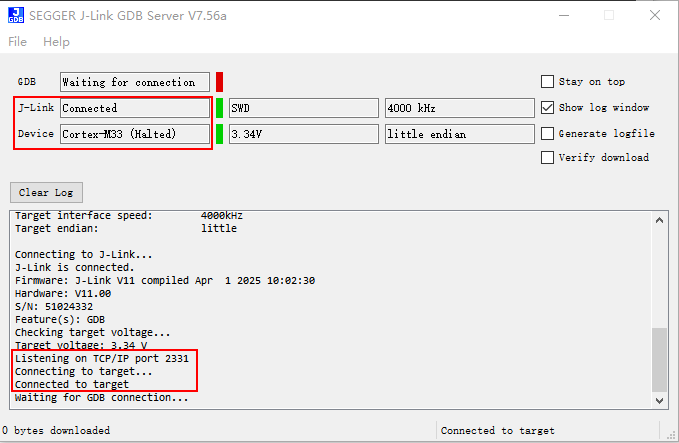
Note
JLinkGDBServer default installation path is C:\Program Files (x86)\SEGGER\JLink. To specify a custom path, use: ameba.py jlink -t gdb -k XXX -d <jlinkgdb_path>
Deploy GDB Server with these steps:
Download latest J-Link package
Execute installation command:
$ dpkg -i JLink_Linux_V840_x86_64.deb
Connect JLinkGDBSever
Execute
ameba.py jlink -t gdb -k km4in the root directory of the SDK. As shown below, confirm successful connection between KM4 and JLinkGDBSever:------J-Link related settings------ J-Link Host interface: USB J-Link script: AP2_KM4.JLinkScript J-Link settings file: none ------Target related settings------ Target device: Cortex-M33 Target interface: SWD Target interface speed: 4000kHz Target endian: little Connecting to J-Link... J-Link is connected. Firmware: J-Link V11 compiled May 23 2023 14:44:38 Hardware: V11.00 S/N: 601015439 Feature(s): RDI, FlashBP, FlashDL, JFlash, GDB Checking target voltage... Target voltage: 3.35 V Listening on TCP/IP port 2335 Connecting to target... Connected to target Connecting for GDB connection... Waiting for GDB connection...
Caution
Keep this window open for subsequent operations
Execute
ameba.py jlink -t gdb -k km0in the root directory of the SDK. As shown below, confirm successful connection between KM0 and JLinkGDBSever:------J-Link related settings------ J-Link Host interface: USB J-Link script: API_KM0.JLinkScript J-Link settings file: none ------Target related settings------ Target device: Cortex-M23 Target interface: SWD Target interface speed: 4000kHz Target endian: little Connecting to J-Link... J-Link is connected. Firmware: J-Link V11 compiled May 23 2023 14:44:38 Hardware: V11.00 S/N: 601015439 Feature(s): RDI, FlashBP, FlashDL, JFlash, GDB Checking target voltage... Target voltage: 3.35 V Listening on TCP/IP port 2331 Connecting to target... Connected to target Waiting for GDB connection...
Connect JLinkGDBSever
Execute
ameba.py jlink -t gdb -k km4in the root directory of the SDK. As shown below, confirm successful connection between KM4 and JLinkGDBSever:------J-Link related settings------ J-Link Host interface: USB J-Link script: AP0_KM4.JLinkScript J-Link settings file: none ------Target related settings------ Target device: Cortex-M33 Target interface: SWD Target interface speed: 4000kHz Target endian: little Connecting to J-Link... J-Link is connected. Firmware: J-Link V11 compiled Apr 27 2041 16:36:21 Hardware: V11.00 S/N: 50120677 Feature(s): GDB, JFlash, FlashDL, RDI, FlashBP Checking target voltage... Target voltage: 3.32 V Listening on TCP/IP port 2335 Connecting to target... Connected to target Waiting for GDB connection...
Caution
Keep this window open for KM4 subsequent operations
Connect JLinkGDBSever
Execute
ameba.py jlink -t gdb -k km4in the root directory of the SDK. As shown below, confirm successful connection between KM4 and JLinkGDBSever:------J-Link related settings------ J-Link Host interface: USB J-Link script: AP0_KM4.JLinkScript J-Link settings file: none ------Target related settings------ Target device: Cortex-M33 Target interface: SWD Target interface speed: 4000kHz Target endian: little Connecting to J-Link... J-Link is connected. Firmware: J-Link V11 compiled Apr 27 2041 16:36:21 Hardware: V11.00 S/N: 50120677 Feature(s): GDB, JFlash, FlashDL, RDI, FlashBP Checking target voltage... Target voltage: 3.32 V Listening on TCP/IP port 2335 Connecting to target... Connected to target Waiting for GDB connection...
Caution
Keep this window open for KM4 subsequent operations
Connect JLinkGDBSever
Execute
ameba.py jlink -t gdb -k km4in the root directory of the SDK. As shown below, confirm successful connection between KM4 and JLinkGDBSever:------J-Link related settings------ J-Link Host interface: USB J-Link script: AP0_KM4.JLinkScript J-Link settings file: none ------Target related settings------ Target device: Cortex-M33 Target interface: SWD Target interface speed: 4000kHz Target endian: little Connecting to J-Link... J-Link is connected. Firmware: J-Link V11 compiled Apr 27 2041 16:36:21 Hardware: V11.00 S/N: 50120677 Feature(s): GDB, JFlash, FlashDL, RDI, FlashBP Checking target voltage... Target voltage: 3.32 V Listening on TCP/IP port 2335 Connecting to target... Connected to target Waiting for GDB connection...
Caution
Keep this window open for KM4 subsequent operations
Connect JLinkGDBSever
Execute
ameba.py jlink -t gdb -k km4in the root directory of the SDK. As shown below, confirm successful connection between KM4 and JLinkGDBSever:------J-Link related settings------ J-Link Host interface: USB J-Link script: AP0_KM4.JLinkScript J-Link settings file: none ------Target related settings------ Target device: Cortex-M33 Target interface: SWD Target interface speed: 4000kHz Target endian: little Connecting to J-Link... J-Link is connected. Firmware: J-Link V11 compiled Apr 27 2041 16:36:21 Hardware: V11.00 S/N: 50120677 Feature(s): GDB, JFlash, FlashDL, RDI, FlashBP Checking target voltage... Target voltage: 3.32 V Listening on TCP/IP port 2335 Connecting to target... Connected to target Waiting for GDB connection...
Caution
Keep this window open for KM4 subsequent operations
Execute
ameba.py jlink -t gdb -k ca32_0in the root directory of the SDK. As shown below, confirm successful connection between ca32_Core0 and JLinkGDBSever:
-----GDB Server start settings-----
GDBInit file:                 none
GDB Server Listening port:    2337
SWO raw output listening port:2332
Terminal I/O port:            2333
Accept remote connection:     yes
Generate logfile:             off
Verify download:              off
Init regs on start:           off
Silent mode:                  off
Single run mode:              off
Target connection timeout:    0 ms
------J-Link related settings------
J-Link Host interface:        USB
J-Link script:                AP3_CA32_Core0.JLinkScript
J-Link settings file:         none
------Target related settings------
Target device:                cortex-a32
Target interface:             SWD
Target interface speed:       4000kHz
Target endian:                little

Connecting to J-Link...
J-Link is connected.
Firmware: J-Link V11 compiled Apr 27 2041 16:36:21
Hardware: V11.00
S/N: 50120677
Feature(s): GDB, JFlash, FlashDL, RDI, FlashBP
Checking target voltage...
Target voltage: 3.40 V
Listening on TCP/IP port 2337
Connecting to target...
Connected to target
Waiting for GDB connection...
Execute
ameba.py jlink -t gdb -k ca32_1in the root directory of the SDK. As shown below, confirm successful connection between ca32_Core1 and JLinkGDBSever:-----GDB Server start settings----- GDBInit file: none GDB Server Listening port: 2339 SWO raw output listening port:2332 Terminal I/O port: 2333 Accept remote connection: yes Generate logfile: off Verify download: off Init regs on start: off Silent mode: off Single run mode: off Target connection timeout: 0 ms ------J-Link related settings------ J-Link Host interface: USB J-Link script: AP3_CA32_Core1.JLinkScript J-Link settings file: none ------Target related settings------ Target device: cortex-a32 Target interface: SWD Target interface speed: 4000kHz Target endian: little Connecting to J-Link... J-Link is connected. Firmware: J-Link V11 compiled Apr 27 2041 16:36:21 Hardware: V11.00 S/N: 50120677 Feature(s): GDB, JFlash, FlashDL, RDI, FlashBP Checking target voltage... Target voltage: 3.40 V Listening on TCP/IP port 2339 Connecting to target... Connected to target Waiting for GDB connection...
Execute
ameba.py jlink -t gdb -k km4in the root directory of the SDK. As shown below, confirm successful connection between km4 and JLinkGDBSever:-----GDB Server start settings----- GDBInit file: none GDB Server Listening port: 2335 SWO raw output listening port:2332 Terminal I/O port: 2333 Accept remote connection: yes Generate logfile: off Verify download: off Init regs on start: off Silent mode: off Single run mode: off Target connection timeout: 0 ms ------J-Link related settings------ J-Link Host interface: USB J-Link script: AP1_KM4.JLinkScript J-Link settings file: none ------Target related settings------ Target device: cortex-m33 Target interface: SWD Target interface speed: 4000kHz Target endian: little Connecting to J-Link... J-Link is connected. Firmware: J-Link V11 compiled Apr 27 2041 16:36:21 Hardware: V11.00 S/N: 50120677 Feature(s): GDB, JFlash, FlashDL, RDI, FlashBP Checking target voltage... Target voltage: 3.40 V Listening on TCP/IP port 2335 Connecting to target... Connected to target Waiting for GDB connection...
Caution
Keep this window open for subsequent operations
Execute
ameba.py jlink -t gdb -k km0in the root directory of the SDK. As shown below, confirm successful connection between km0 and JLinkGDBSever:-----GDB Server start settings----- GDBInit file: none GDB Server listening port: 2331 SWO raw output listening port: 2332 Terminal I/O port: 2333 Accept remote connection: off Generate logfile: off Verify download: off Init regs on start: off Silent mode: off Single run mode: off Target connection timeout: 0 ms ------J-Link related settings------ J-Link Host interface: USB J-Link script: AP0_KM0.JLinkScript J-Link settings file: none ------Target related settings------ Target device: cortex-m23 Target interface: SWD Target interface speed: 4000kHz Target endian: little Connecting to J-Link... J-Link is connected. Firmware: J-Link V11 compiled Apr 27 2041 16:36:21 Hardware: V11.00 S/N: 50120677 Feature(s): GDB, JFlash, FlashDL, RDI, FlashBP Checking target voltage... Target voltage: 3.40 V Listening on TCP/IP port 2331 Connecting to target... Connected to target Waiting for GDB connection...
Execute
ameba.py jlink -t gdb -k km4tzin the root directory of the SDK. As shown below, confirm successful connection between KM4TZ and JLinkGDBSever:------J-Link related settings------ J-Link Host interface: USB J-Link script: AP2_AP.JLinkScript J-Link settings file: none ------Target related settings------ Target device: Cortex-M33 Target device parameters: none Target interface: SWD Target interface speed: 4000kHz Target endian: little Connecting to J-Link... J-Link is connected. Firmware: J-Link V11 compiled Apr 1 2025 10:02:30 Hardware: V11.00 S/N: 51024332 Feature(s): GDB Checking target voltage... Target voltage: 3.34 V Listening on TCP/IP port 2335 Connecting to target... Halting core... Core security extensions: Implemented Connected to target Waiting for GDB connection...
Caution
Keep this window open for subsequent operations
Execute
ameba.py jlink -t gdb -k km4nsin the root directory of the SDK. As shown below, confirm successful connection between KM4NS and JLinkGDBSever:------J-Link related settings------ J-Link Host interface: USB J-Link script: AP1_NP.JLinkScript J-Link settings file: none ------Target related settings------ Target device: Cortex-M33 Target device parameters: none Target interface: SWD Target interface speed: 4000kHz Target endian: little Connecting to J-Link... J-Link is connected. Firmware: J-Link V11 compiled Apr 1 2025 10:02:30 Hardware: V11.00 S/N: 51024332 Feature(s): GDB Checking target voltage... Target voltage: 3.34 V Listening on TCP/IP port 2331 Connecting to target... Halting core... Core security extensions: Not implemented Connected to target Waiting for GDB connection...
Note
JLinkGDBServer default installation path is /opt/SEGGER/JLink. To specify a custom path, use: ameba.py jlink -t gdb -k XXX -d <jlinkgdb_path>
Debug Mode Entry Process
Compile firmware and connect to JLinkGDBServer
Specify JLinkGDBServer host IP address and start GDB
Navigate to SDK root directory and run the following command:
ameba.py build -debug --remote-server <IP_ADDRESS>
Replace
<IP_ADDRESS>with the actual JLinkGDBServer host IP address, which will be passed by the--remote-serveroption.Example:
ameba.py build -debug --remote-server 192.168.1.100This will enter GDB mode, as shown below:
GDB CMD :  cd /home/user_name/code/dp1/build_RTL8721Dx/build/project_km4 && /home/user_name/rtk-toolchain/asdk-10.3.1-4523/linux/newlib/bin/arm-none-eabi-gdb -ex 'set $GDB_PORT=2335' -ex 'set $SYSTEM_CTRL_BASE=0x41008000' -ex 'set $REG_LSYS_BOOT_CFG=0x26c' -x /home/user_name/code/dp1/tools/scripts/gnu_script/rtl_gdb_debug.txt
GNU gdb (Realtek ASDK-10.3.1 Build 4580) 15.1.90.20240925-git
Copyright (C) 2024 Free Software Foundation, Inc.
License GPLv3+: GNU GPL version 3 or later <http://gnu.org/licenses/gpl.html>
This is free software: you are free to change and redistribute it.
There is NO WARRANTY, to the extent permitted by law.
Type "show copying" and "show warranty" for details.
This GDB was configured as "--host=x86_64-pc-linux --target=arm-none-eabi".
Type "show configuration" for configuration details.
For bug reporting instructions, please see:
<https://www.gnu.org/software/gdb/bugs/>.
Find the GDB manual and other documentation resources online at:
   <http://www.gnu.org/software/gdb/documentation/>.

For help, type "help".
Type "apropos word" to search for commands related to "word".
warning: No executable has been specified and target does not support
determining executable automatically.  Try using the "file" command.
0x3000a304 in ?? ()
Notification of completion for asynchronous execution commands is off.
(gdb)
Note
Enter quit (or q) to exit after debugging. If the terminal is unresponsive or displays abnormally, enter reset to restore it.
GDB Debugger Guide
GNU Debugger enables runtime state inspection and error tracing (Refer to Debug Mode Entry Process).
Complete documentation: GDB User Manual
Function Module |
Command |
Operation Guide |
|---|---|---|
Breakpoint Management |
break (b) |
Set execution pause points |
Data Watchpoints |
watch |
Monitor variable changes (watch/rwatch/awatch) |
Breakpoint List |
info |
Display active breakpoints/watchpoints |
Breakpoint Removal |
delete (d) |
Remove specified breakpoint |
Execution Resume |
continue (c) |
Continue program execution |
Step Into |
step (s) |
Enter function execution |
Step Over |
next (n) |
Execute current line and jump to next |
Debug Session Exit |
quit (q) |
Terminate debugging session |
Call Trace |
backtrace (bt) |
Display function call stack |
Source Code View |
list (l) |
Display contextual code |
Data Inspection |
print (p) |
Output variable/expression values |
Note
Recommended watch scope <20 bytes.
Ozone-Based J-Link Debugging
Generating JLinkScript
Execute the command ameba.py jlink -t ozone in the SDK root directory. By default, the generated files are saved in the {SDK}/build_RTLxxx/jlink_script directory.
To customize the output path, use the -sd parameter. For example: ameba.py jlink -t ozone -sd <jlinkscript_path>
Ozone Software Installation
Download and install the latest version of J-Link and Ozone from the official SEGGER website.
Install J-Link and Ozone by following the steps below:
Download the latest versions of the J-Link and Ozone software packages.
Execute the installation commands:
$ dpkg -i JLink_Linux_V840_x86_64.deb
$ dpkg -i Ozone_Linux_V338g_x86_64.deb
Ozone Project Configuration
Create, save, and run projects.
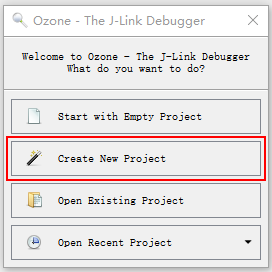
Connect J-Link and launch Ozone to create a new project by following steps:
Enter the main interface and create a new project, as shown below:
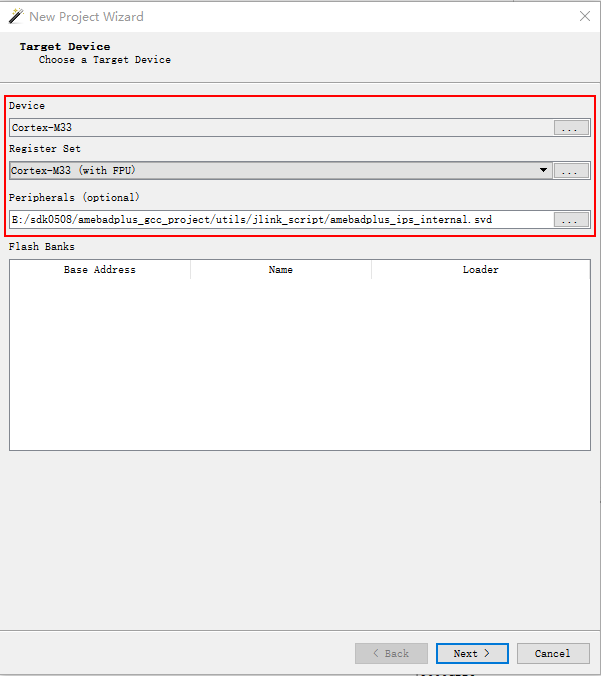
Select the target device and svd file, as shown below:
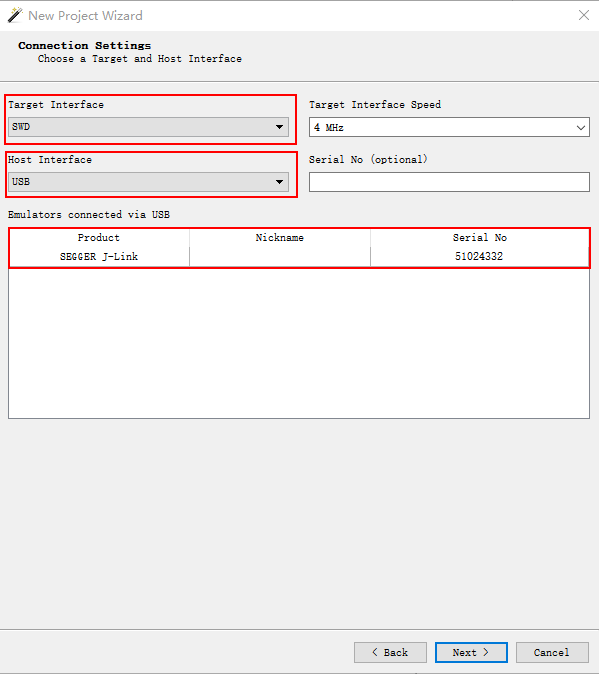
Configure connection settings: choose the interface and confirm the J-Link device, as shown below:
Select the debug file, as shown below:

Set initialization options
Initialization settings: Set Initial PC and Stack Pointer to
Do not set.Select the corresponding JLinkScript file from the
{SDK}/build_RTL8721Dx/jlink_scriptdirectory, as shown below: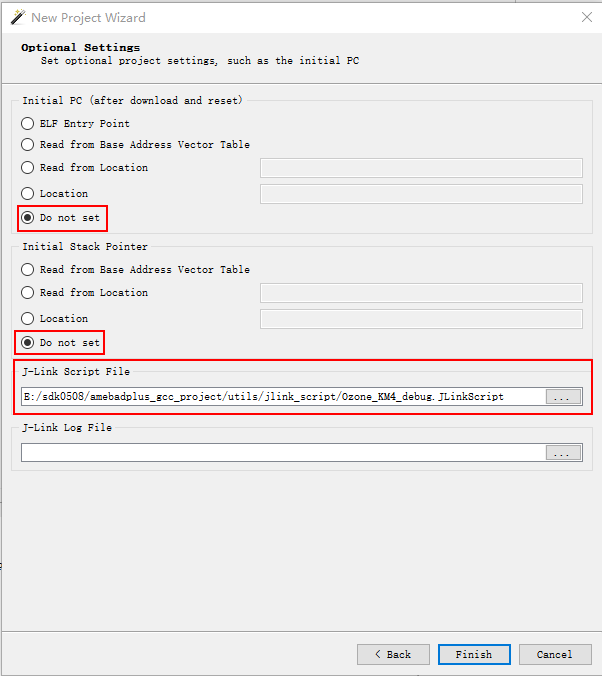
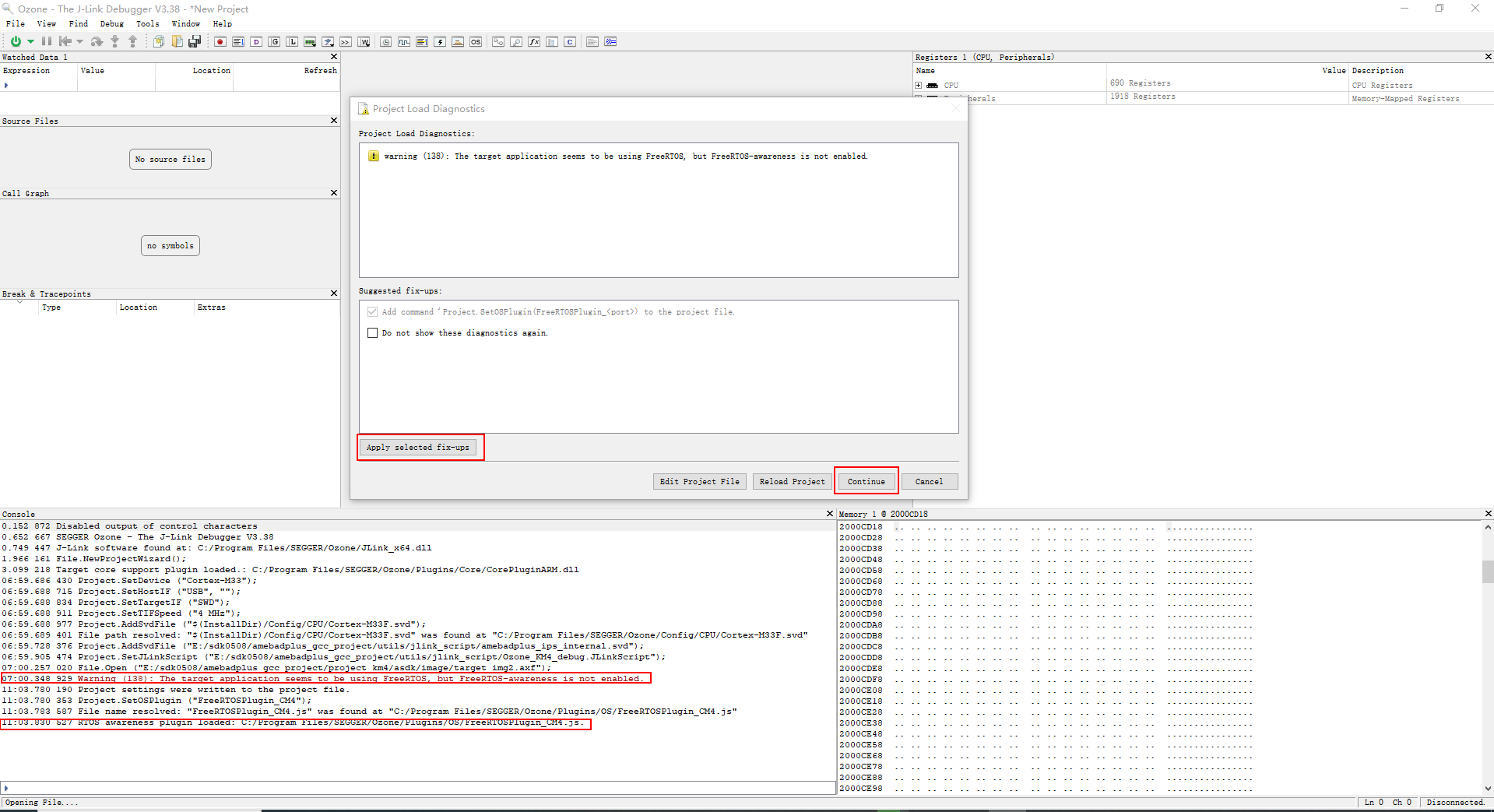
Handle Plugin installation warning
Install: Click to install automatically. The installation result will be shown in the
Consolewindow.Do not install: Click to proceed without installing.
Project created successfully
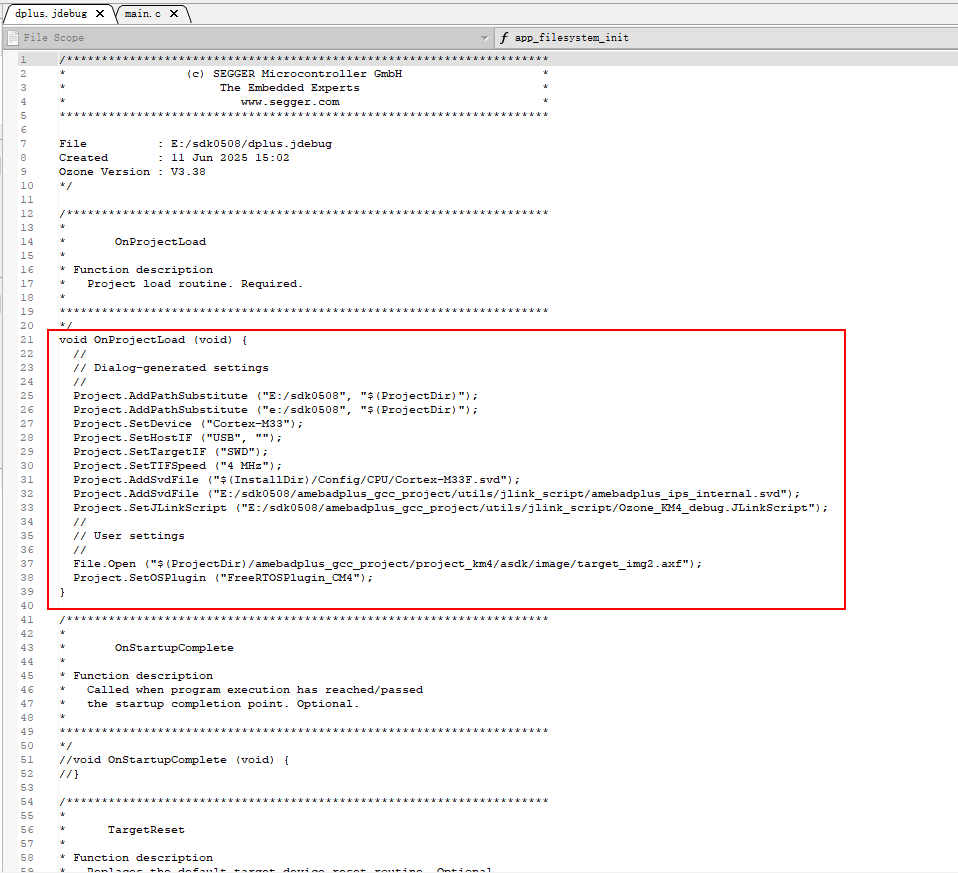
Save Project Configuration: Click , you can import and use it next time directly.
Edit Project Configuration: Click , the settings displayed below in the red frame can be modified.
After confirming that the development board has been flashed with firmware and is correctly connected to J-Link, Reset the development board to enter working mode. Ozone provides three modes for running projects:
Download & Reset Program: This mode is not supported.
Attach to Running Program: After starting the project, CPU will be in the running state. As shown below, click Stop to pause the CPU..

Attach & Halt Program: After running the project, the CPU will be in the halted state. As shown below, click start to run the CPU.

Caution
Do not reset the development board after running the project in Ozone; otherwise, J-Link will disconnect.
Ozone Debug Features
In this section, commonly used debug features are introduced. Click to see the debug functions supported by Ozone.
Adding Breakpoints
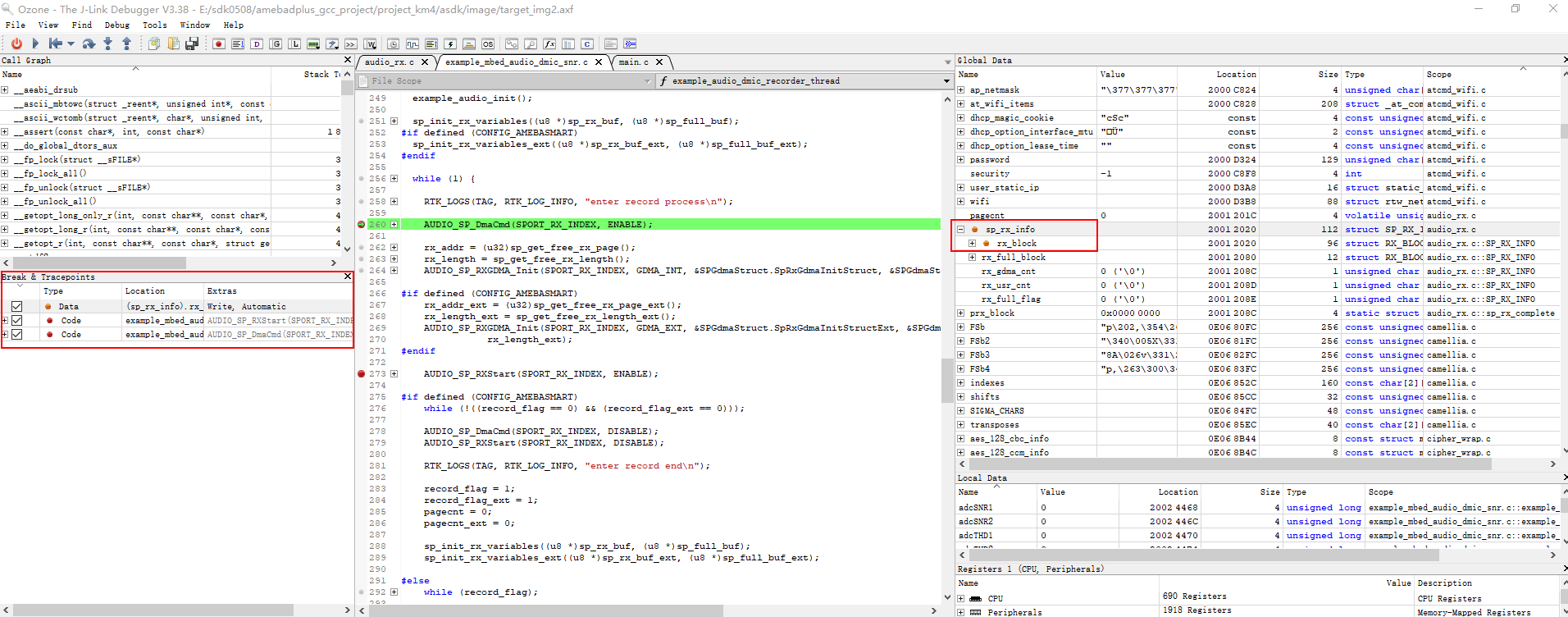
Code breakpoint: In the C file opened in the File Scope area, click the gray dot to the left of the code line to add a breakpoint.
Data breakpoint: In the
Break & TracePointswindow, right-click on a blank area and use the drop-down menu to add a breakpoint by variable name or address. Alternatively, right-click a variable name in the global or local variable window and select the option to add it as a breakpoint.
Removing Breakpoints
Code breakpoint: Click the red dot to the left of the code line. When it changes to a gray dot, the breakpoint is removed.
In the Break & TracePoints window: Right-click on a blank area and use the drop-down menu to remove a breakpoint.
Enable/disable: In the
Break & TracePointswindow, click √ to the left of the breakpoint to enable or disable it.
Viewing Breakpoints
When the program reaches a breakpoint, it will pause and the corresponding line of code will be highlighted in green, as shown below:
Caution
The number of breakpoints that can be set is limited. If exceed this limit, the following error message will appear
SetBreakpoint: JLINK API call failed.
Restart the development board from a known initial state. This facilitates troubleshooting problems related to power-on initialization and peripheral configuration. There are three reset modes:
Reset & Break at Symbol: Resets and automatically pauses at the specified symbol (the entry to the main function usually ).
Reset & Halt: Resets and stops at the address of the reset vector.
Reset & Run: Performs initialization and continues execution until a breakpoint is hit or the program ends normally.
There are three types of single-step debugging operations:
Step Into: Executes the program one statement at a time. If the current statement is a function call, it enters the function and executes from its first statement.
Step Over: Executes the program one statement at a time. When encountering a function call, it executes the entire function but does not step into it, stopping at the next statement in the current function.
Step Out: Executes until the current function returns, then stops at the next statement in the calling function.
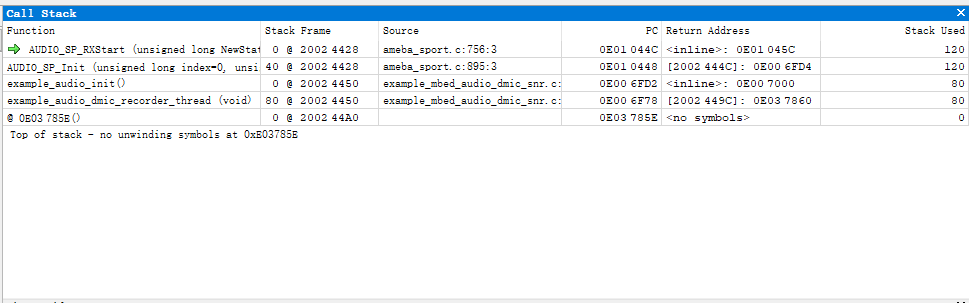
Displays the program’s current execution position and the nesting of function calls. Each stack frame corresponds to a function context. This view shows the order of all function calls from program entry to the current breakpoint and is a critical tool for analyzing program flow and tracing exceptions.
On chips with two independent CPU cores, you can set breakpoints, watch variables, single-step, and analyze call stacks for both cores simultaneously or alternately.
Debugging method: Create separate projects for the two CPU cores, and after connecting successfully, debug each core as needed.
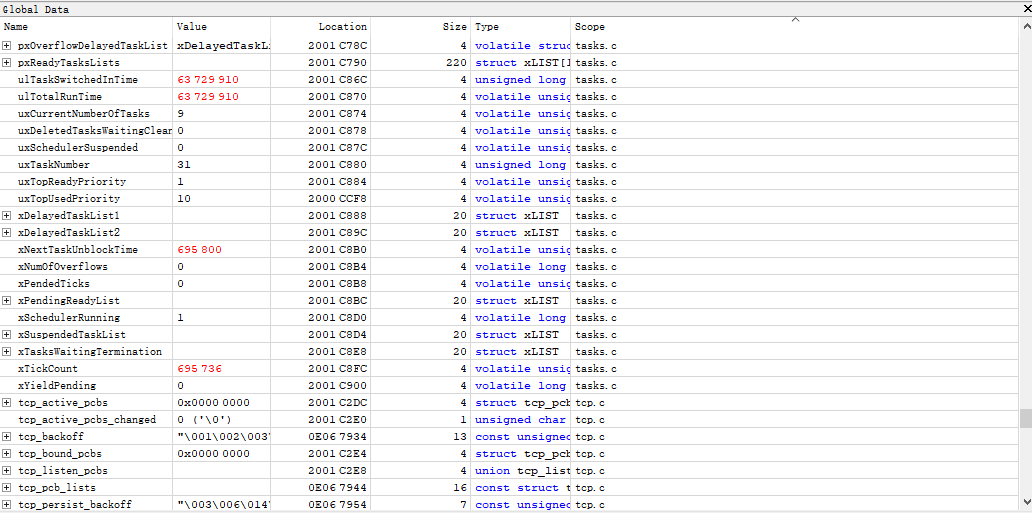
The Global Variables window is grayed out and not editable while the CPU is running. When the CPU is paused, the window displays the current values. If a value has changed during execution, it will be highlighted in red.
Double-click the value you want to edit. After modifying it, the new value will appear in red.
The Local Variables window shows parameters and variables exclusively for the current function context when the CPU is paused.
The Local Variables window is grayed out and not editable while the CPU is running. When the CPU is paused, the window displays the current values. If a value has changed during execution, it will be highlighted in red.
Double-click the value you want to edit. After modifying it, the new value will appear in red.

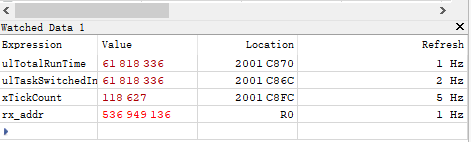
Right-click a variable in the global or local variables window and select Watch to add it to the Watched Data window. Double-click in the Refresh column to edit the refresh rate.
Open the Memory window to view data at memory addresses. To edit a value, double-click it. After you make a change, the modified value is highlighted in red.
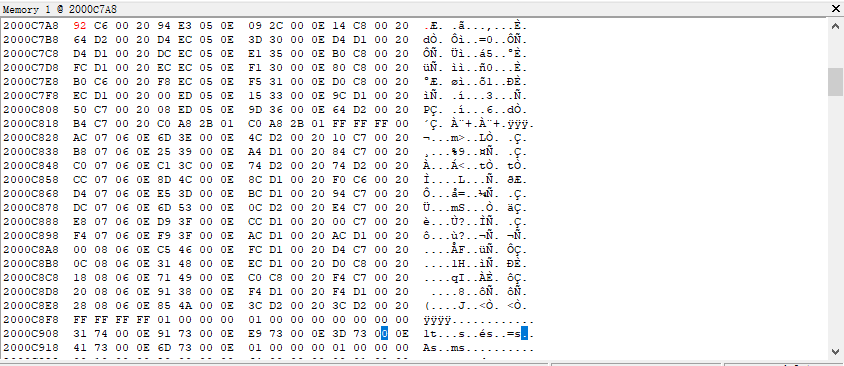
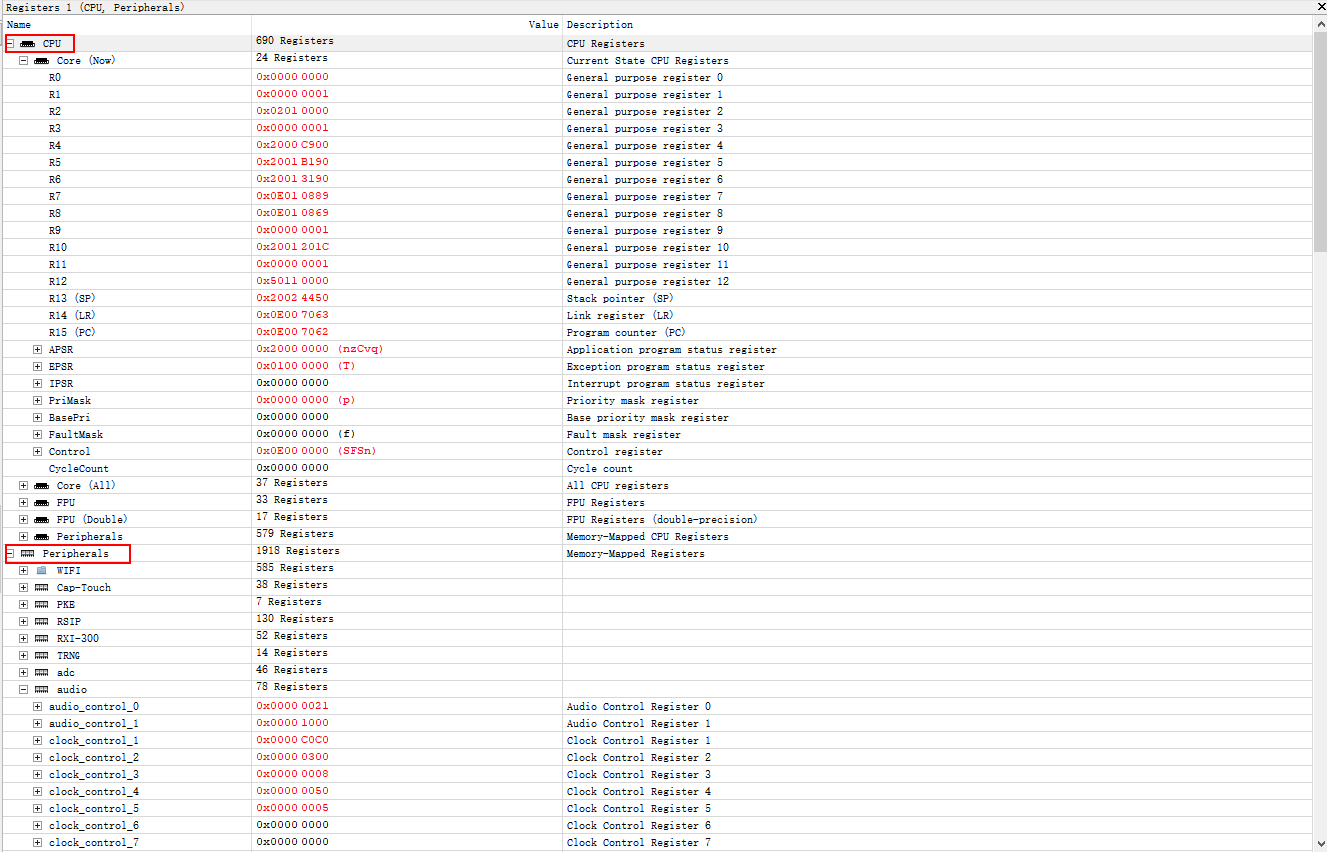
The Registers window is divided into CPU registers and peripheral registers.
The Register window is grayed out and not editable while the CPU is running. When the CPU is paused, the window displays the current values. If a value has changed during execution, it will be highlighted in red.
Double-click the value you want to edit. After modifying it, the new value will appear in red.
Ozone Command Set
The Ozone debugger supports checking program status and tracing errors during execution. To view all available commands, enter help in the Console window.
Official documentation reference: Ozone User Manual