OTA Guide
Introduction
OTA (Over-the-Air) upgrade mechanism allows devices to receive new image via Wi-Fi, SPI, UART, or file systems while the current image is running, save it to the corresponding image partition in Flash, and run the new image after reboot. This is used for scenarios such as bug fixes, new feature releases, and performance optimizations.
Before using OTA, please refer to the Flash Layout section for more details on Flash partitioning.
Image Slot
In the Flash Layout , both bootloader and application image have two slots (OTA1 and OTA2) for redundant storage and version control.
Users should configure the size of these slots based on the actual image size and reasonable reserved space.
Note
The bootloader OTA is disabled by default. To enable it, please refer to BOOT OTA.
Image Pattern and Version Number
The boot selection between OTA1/OTA2 primarily relies on the image header’s image pattern and version number. As shown in the figure below, the image header contains an 8-byte image pattern, a 2-byte major version number, and a 2-byte minor version number.

The detailed descriptions of the image pattern and version number are as follows:
Item |
Description |
OTA Selection Flow |
|---|---|---|
Image Pattern |
|
Check image pattern validity |
Version Number |
|
Compare version numbers |
On each system boot, the Bootloader checks the image pattern validity and compares version numbers to determine whether to boot from OTA1 or OTA2. The consistency check of image tags and version numbers ensures the reliability of the boot process, as detailed below:
Check the image pattern validity of OTA1 and OTA2 partitions:
If only one image pattern is valid, boot from that valid image;
If both image tags are invalid, the boot fails.
Compare the version numbers of OTA1 and OTA2 partitions:
If both image version numbers are valid and different, boot from the image with the higher version number;
If both image version numbers are valid and identical, default to booting from OTA1.
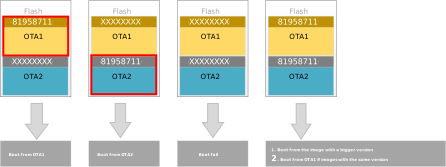
Image Switch Strategy
Based on the above boot process in Image Pattern and Version Number, OTA supports the following two image switching strategies for switching to a new image on the next boot:
Note
For switching strategy configuration, refer to Configuration (menuconfig) and navigate to to select the strategy.
Set a higher version number in the new image. After OTA upgrade completion, the device will automatically boot from the new image on the next boot. This strategy is suitable for scenarios requiring version control.
Configuration Steps:
Select the switching strategy in
menuconfig:CONFIG OTA OPTION ---> [*] OTA Image Switch Strategy Select Strategy (Version Number Based) ---> (X) Version Number Based ( ) Valid Header Based
Modify the new image version number in the configuration file
manifest.json5of your target IC:RTL8721Dx:github source code
RTL8720E:github source code
RTL8710E:github source code
RTL8726E:github source code
RTL8713E:github source code
RTL8730E:github source code
RTL8721F:github source code
RTL8720F:github source code
BOOT image version configuration (valid range: 0 ~ 32767)
"image1":
{
   "img_id": 0,
   "img_ver_major": 1,
   "img_ver_minor": 1,
   ...
},
APP image version configuration (valid range: 0 ~ 65535)
"image2":
{
   "img_id": 1,
   "img_ver_major": 1,
   "img_ver_minor": 1,
   ...
},
Tip
Increment the version number during each OTA upgrade to ensure the new image version is higher than the currently running image.
This strategy does not require modifying the new image’s version number. Instead, after OTA upgrade completion, the old image’s pattern is corrupted to invalidate it, forcing the Bootloader to use the newly upgraded image. This strategy actively invalidates the old image and is suitable for long-term testing or scenarios without version control requirements.
Configuration Steps:
Select the switching strategy in menuconfig:
   CONFIG OTA OPTION  --->
      [*] OTA Image Switch Strategy
         Select Strategy (Version Number Based)  --->
               ( ) Version Number Based
               (X) Valid Header Based
Warning
This strategy corrupts the old image’s header information, rendering it unbootable. If the new image has issues, image re-flashing is required.
Feature |
Version Number Based |
Valid Header Based |
|---|---|---|
Version Number Requirement |
Requires incrementing version number |
No version number modification needed |
Configuration Complexity |
Medium (requires version maintenance) |
Simple (no additional configuration needed) |
Old Image Status |
Preserved intact |
Pattern corrupted |
BOOT OTA Support |
All ICs supported |
Partially supported (not available on RTL8726E/RTL8713E/RTL8720E/RTL8710E) |
APP OTA Support |
All ICs supported |
All ICs supported |
Anti-rollback
The anti-rollback feature is used to prevent rollback to image versions where the major version number is lower than the version number set in OTP. When the anti-rollback feature is enabled, the major version number in the image header cannot be less than the anti-rollback version number set in OTP, otherwise, the image will be deemed invalid.
Typically, if the current OTA update addresses security issues of the previous version, the user can set the anti-rollback version number to the version number of this update after completion to prevent rollback to image versions lower than this version.
The anti-rollback process is as follows:
Compare the major version numbers obtained from the image headers of OTA1 and OTA2 respectively with the anti-rollback version number in OTP.
If the image’s major version number is less than the anti-rollback version number, the image will be considered invalid.
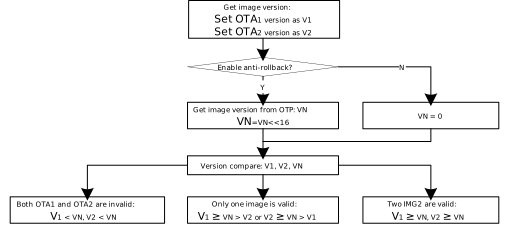
OTP Configuration:
The anti-rollback version number are stored in the OTP (One-Time Programmable) area of the chip。
The physical address range for OTP is 0x36E ~ 0x36F.
The number of bits
0in the value of OTP represents the anti-rollback version number. The default value is all F, indicating default anti-rollback version number is 0.Since the physical address of OTP can only be written from 1 to 0, and the address range is up to 16 bits, only 16 anti-rollback version numbers are supported (version number range: 1 ~ 16).
Enabling Anti-Rollback:
Users can enable the anti-rollback feature with the following steps:
Change the anti-rollback version number in OTP
Read the current anti-rollback version number with the following command:
AT+OTP=RRAW,36E,2
Set the anti-rollback version number with the following command:
AT+OTP=WRAW,36E,2,<Value_OTP>
Where
<Value_OTP>is the OTP value corresponding to the version number to be set.Version Number Calculation Examples:
Example 1: Writing
FFFCorFFCFBoth values have 2 bits set to 0
The anti-rollback major version number in OTP is 2
This means images with version number less than
(2 << 16)are prohibited from booting
Example 2: Writing
FFF0or0FFFBoth values have 4 bits set to 0
The anti-rollback major version number in OTP is 4
This means images with version number less than
(4 << 16)are prohibited from booting
Enable the anti-rollback feature
Read the current value with the following command:
AT+OTP=RRAW,368,1
Set bit 6 to 0 in the read value before writing back. For instance, if the value read is FF, then write:
AT+OTP=WRAW,368,1,BF
OTP Configuration:
The anti-rollback version number are stored in the OTP (One-Time Programmable) area of the chip。
The physical address range for OTP is 0x36E ~ 0x36F.
The number of bits
0in the value of OTP represents the anti-rollback version number. The default value is all F, indicating default anti-rollback version number is 0.Since the physical address of OTP can only be written from 1 to 0, and the address range is up to 16 bits, only 16 anti-rollback version numbers are supported (version number range: 1 ~ 16).
Enabling Anti-Rollback:
Users can enable the anti-rollback feature with the following steps:
Change the anti-rollback version number in OTP
Read the current anti-rollback version number with the following command:
AT+OTP=RRAW,36E,2
Set the anti-rollback version number with the following command:
AT+OTP=WRAW,36E,2,<Value_OTP>
Where
<Value_OTP>is the OTP value corresponding to the version number to be set.Version Number Calculation Examples:
Example 1: Writing
FFFCorFFCFBoth values have 2 bits set to 0
The anti-rollback major version number in OTP is 2
This means images with version number less than
(2 << 16)are prohibited from booting
Example 2: Writing
FFF0or0FFFBoth values have 4 bits set to 0
The anti-rollback major version number in OTP is 4
This means images with version number less than
(4 << 16)are prohibited from booting
Enable the anti-rollback feature
Read the current value with the following command:
AT+OTP=RRAW,368,1
Set bit 6 to 0 in the read value before writing back. For instance, if the value read is FF, then write:
AT+OTP=WRAW,368,1,BF
OTP Configuration:
The anti-rollback version number are stored in the OTP (One-Time Programmable) area of the chip。
The physical address range for OTP is 0x36E ~ 0x36F.
The number of bits
0in the value of OTP represents the anti-rollback version number. The default value is all F, indicating default anti-rollback version number is 0.Since the physical address of OTP can only be written from 1 to 0, and the address range is up to 16 bits, only 16 anti-rollback version numbers are supported (version number range: 1 ~ 16).
Enabling Anti-Rollback:
Users can enable the anti-rollback feature with the following steps:
Change the anti-rollback version number in OTP
Read the current anti-rollback version number with the following command:
AT+OTP=RRAW,36E,2
Set the anti-rollback version number with the following command:
AT+OTP=WRAW,36E,2,<Value_OTP>
Where
<Value_OTP>is the OTP value corresponding to the version number to be set.Version Number Calculation Examples:
Example 1: Writing
FFFCorFFCFBoth values have 2 bits set to 0
The anti-rollback major version number in OTP is 2
This means images with version number less than
(2 << 16)are prohibited from booting
Example 2: Writing
FFF0or0FFFBoth values have 4 bits set to 0
The anti-rollback major version number in OTP is 4
This means images with version number less than
(4 << 16)are prohibited from booting
Enable the anti-rollback feature
Read the current value with the following command:
AT+OTP=RRAW,368,1
Set bit 6 to 0 in the read value before writing back. For instance, if the value read is FF, then write:
AT+OTP=WRAW,368,1,BF
OTP Configuration:
The anti-rollback version number are stored in the OTP (One-Time Programmable) area of the chip。
The physical address range for OTP is 0x36E ~ 0x36F.
The number of bits
0in the value of OTP represents the anti-rollback version number. The default value is all F, indicating default anti-rollback version number is 0.Since the physical address of OTP can only be written from 1 to 0, and the address range is up to 16 bits, only 16 anti-rollback version numbers are supported (version number range: 1 ~ 16).
Enabling Anti-Rollback:
Users can enable the anti-rollback feature with the following steps:
Change the anti-rollback version number in OTP
Read the current anti-rollback version number with the following command:
AT+OTP=RRAW,36E,2
Set the anti-rollback version number with the following command:
AT+OTP=WRAW,36E,2,<Value_OTP>
Where
<Value_OTP>is the OTP value corresponding to the version number to be set.Version Number Calculation Examples:
Example 1: Writing
FFFCorFFCFBoth values have 2 bits set to 0
The anti-rollback major version number in OTP is 2
This means images with version number less than
(2 << 16)are prohibited from booting
Example 2: Writing
FFF0or0FFFBoth values have 4 bits set to 0
The anti-rollback major version number in OTP is 4
This means images with version number less than
(4 << 16)are prohibited from booting
Enable the anti-rollback feature
Read the current value with the following command:
AT+OTP=RRAW,368,1
Set bit 6 to 0 in the read value before writing back. For instance, if the value read is FF, then write:
AT+OTP=WRAW,368,1,BF
OTP Configuration:
The anti-rollback version number are stored in the OTP (One-Time Programmable) area of the chip。
The physical address range for OTP is 0x36E ~ 0x36F.
The number of bits
0in the value of OTP represents the anti-rollback version number. The default value is all F, indicating default anti-rollback version number is 0.Since the physical address of OTP can only be written from 1 to 0, and the address range is up to 16 bits, only 16 anti-rollback version numbers are supported (version number range: 1 ~ 16).
Enabling Anti-Rollback:
Users can enable the anti-rollback feature with the following steps:
Change the anti-rollback version number in OTP
Read the current anti-rollback version number with the following command:
AT+OTP=RRAW,36E,2
Set the anti-rollback version number with the following command:
AT+OTP=WRAW,36E,2,<Value_OTP>
Where
<Value_OTP>is the OTP value corresponding to the version number to be set.Version Number Calculation Examples:
Example 1: Writing
FFFCorFFCFBoth values have 2 bits set to 0
The anti-rollback major version number in OTP is 2
This means images with version number less than
(2 << 16)are prohibited from booting
Example 2: Writing
FFF0or0FFFBoth values have 4 bits set to 0
The anti-rollback major version number in OTP is 4
This means images with version number less than
(4 << 16)are prohibited from booting
Enable the anti-rollback feature
Read the current value with the following command:
AT+OTP=RRAW,368,1
Set bit 6 to 0 in the read value before writing back. For instance, if the value read is FF, then write:
AT+OTP=WRAW,368,1,BF
OTP Configuration:
The anti-rollback version number are stored in the OTP (One-Time Programmable) area of the chip。
The physical address range for OTP is 0x36E ~ 0x36F.
The number of bits
0in the value of OTP represents the anti-rollback version number. The default value is all F, indicating default anti-rollback version number is 0.Since the physical address of OTP can only be written from 1 to 0, and the address range is up to 16 bits, only 16 anti-rollback version numbers are supported (version number range: 1 ~ 16).
Enabling Anti-Rollback:
Users can enable the anti-rollback feature with the following steps:
Change the anti-rollback version number in OTP
Read the current anti-rollback version number with the following command:
AT+OTP=RRAW,36E,2
Set the anti-rollback version number with the following command:
AT+OTP=WRAW,36E,2,<Value_OTP>
Where
<Value_OTP>is the OTP value corresponding to the version number to be set.Version Number Calculation Examples:
Example 1: Writing
FFFCorFFCFBoth values have 2 bits set to 0
The anti-rollback major version number in OTP is 2
This means images with version number less than
(2 << 16)are prohibited from booting
Example 2: Writing
FFF0or0FFFBoth values have 4 bits set to 0
The anti-rollback major version number in OTP is 4
This means images with version number less than
(4 << 16)are prohibited from booting
Enable the anti-rollback feature
Read the current value with the following command:
AT+OTP=RRAW,368,1
Set bit 6 to 0 in the read value before writing back. For instance, if the value read is FF, then write:
AT+OTP=WRAW,368,1,BF
OTP Configuration:
The anti-rollback version number are stored in the OTP (One-Time Programmable) area of the chip。
The physical address range for OTP is 0x378 ~ 0x37F.
The number of bits
0in the value of OTP represents the anti-rollback version number. The default value is all F, indicating default anti-rollback version number is 0.Since the physical address of OTP can only be written from 1 to 0, and the address range is up to 64 bits, only 64 anti-rollback version numbers are supported (version number range: 1 ~ 64).
Enabling Anti-Rollback:
Users can enable the anti-rollback feature with the following steps:
Change the anti-rollback version number in OTP
Read the current anti-rollback version number with the following command:
AT+OTP=RRAW,378,8
Set the anti-rollback version number with the following command:
AT+OTP=WRAW,378,8,<Value_OTP>
Where
<Value_OTP>is the OTP value corresponding to the version number to be set.Version Number Calculation Examples:
Example 1: Writing
FFFCFFFFFFFFFFFForFFCFFFFFFFFFFFFFBoth values have 2 bits set to 0
The anti-rollback major version number in OTP is 2
This means images with version number less than
(2 << 16)are prohibited from booting
Example 2: Writing
FFF0FFFFFFFFFFFFor0FFFFFFFFFFFFFFFBoth values have 4 bits set to 0
The anti-rollback major version number in OTP is 4
This means images with version number less than
(4 << 16)are prohibited from booting
Enable the anti-rollback feature
Read the current value with the following command:
AT+OTP=RRAW,368,1
Set bit 6 to 0 in the read value before writing back. For instance, if the value read is FF, then write:
AT+OTP=WRAW,368,1,BF
OTP Configuration:
The anti-rollback version number are stored in the OTP (One-Time Programmable) area of the chip。
The physical address range for OTP is 0x378 ~ 0x37F.
The number of bits
0in the value of OTP represents the anti-rollback version number. The default value is all F, indicating default anti-rollback version number is 0.Since the physical address of OTP can only be written from 1 to 0, and the address range is up to 64 bits, only 64 anti-rollback version numbers are supported (version number range: 1 ~ 64).
Enabling Anti-Rollback:
Users can enable the anti-rollback feature with the following steps:
Change the anti-rollback version number in OTP
Read the current anti-rollback version number with the following command:
AT+OTP=RRAW,378,8
Set the anti-rollback version number with the following command:
AT+OTP=WRAW,378,8,<Value_OTP>
Where
<Value_OTP>is the OTP value corresponding to the version number to be set.Version Number Calculation Examples:
Example 1: Writing
FFFCFFFFFFFFFFFForFFCFFFFFFFFFFFFFBoth values have 2 bits set to 0
The anti-rollback major version number in OTP is 2
This means images with version number less than
(2 << 16)are prohibited from booting
Example 2: Writing
FFF0FFFFFFFFFFFFor0FFFFFFFFFFFFFFFBoth values have 4 bits set to 0
The anti-rollback major version number in OTP is 4
This means images with version number less than
(4 << 16)are prohibited from booting
Enable the anti-rollback feature
Read the current value with the following command:
AT+OTP=RRAW,368,1
Set bit 6 to 0 in the read value before writing back. For instance, if the value read is FF, then write:
AT+OTP=WRAW,368,1,BF
By default, both BOOT image and APP image use the same anti-rollback version number, which is read from OTP.
If BOOT image and APP image need to use different anti-rollback version numbers, modify the function BOOT_OTA_GetCertRollbackVer() in bootloader\boot_ota_km4.c or bootloader\boot_ota_hp.c
to customize a different methodology for obtaining the anti-rollback version number for APP image.
Important
After enabling the anti-rollback feature, the anti-rollback version number must be modified for the feature to become effective.
If the anti-rollback feature is needed, it is recommended to enable anti-rollback without setting the version number at the mp stage. Selectively write the anti-rollback version number after OTA.
To modify the anti-rollback version number in the application, refer to the interface usage in OTP API Reference and implement it in code.
Once the anti-rollback feature is enabled, it cannot be disabled.
BOOT OTA
BOOT OTA Enablement Steps
By default, the BOOT OTA feature is disabled. Users can enable BOOT OTA by following these steps:
Refer to Configuration (menuconfig) and navigate to
CONFIG OTA OPTION:This step integrates the BOOT Image into
ota_all.binduring the compilation process.CONFIG OTA OPTION ---> [*] Enable Bootloader OTA
Plan and modify the BOOT OTA2 partition range in Flash Layout , ensuring 4K address alignment.
Write the BOOT OTA2 partition’s start address to OTP :
AT+OTP=WRAW,36C,2,<Value_OTP>
The calculation formula for writing the BOOT OTA2 address to OTP is as follows:
Value_OTP = (IMG_BOOT_OTA2 >> 12 & 0xFF) << 8 | (IMG_BOOT_OTA2 >> 20 & 0xFF)
For example, when
IMG_BOOT_OTA2is0x08234000,Value_OTPis3482. The command to write to OTP is:AT+OTP=WRAW,36C,2,3482
Important
The BOOT OTA2 address must be verified before writing to OTP, as it becomes permanently effective and cannot be modified once written.
If the BOOT OTA2 address in OTP is
0xFFFF(unconfigured state), the system behavior is as follows:OTA upgrade will skip BOOT Image updates;
The device will always boot from BOOT OTA1.
It is strongly recommended to configure and enable BOOT OTA2 before mass production.
BOOT OTA Selection Flow
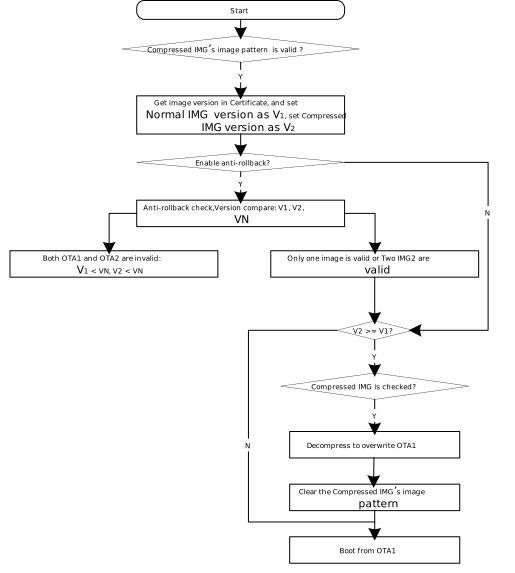
The bootloader in the chip’s ROM selects which partition to boot from based on the image pattern and version number in the BOOT image header, as shown in the flowchart below.
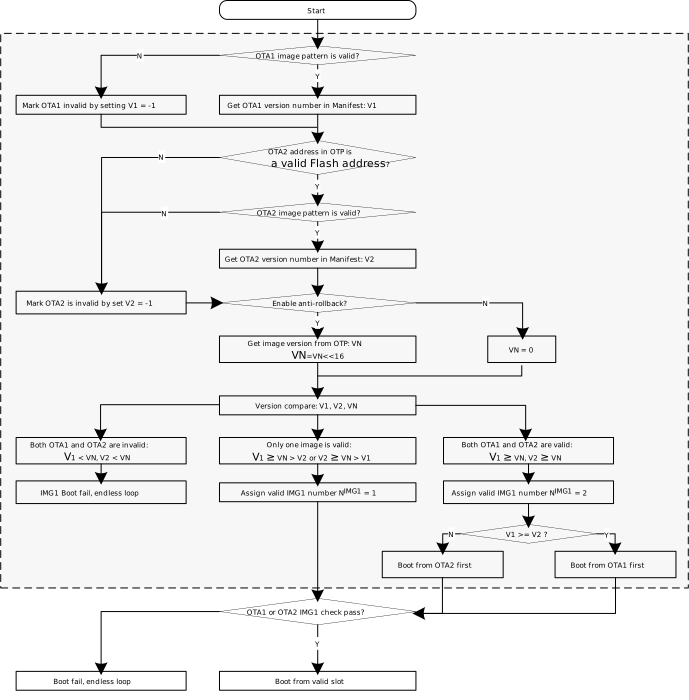
APP OTA
APP OTA Enablement Steps
Application image supports OTA updates and can boot from either OTA1 or OTA2. APP OTA is enabled by default.
APP OTA Selection Flow
The bootloader selects application image based on the image patterns and version numbers of application images, as illustrated in the following flowchart.
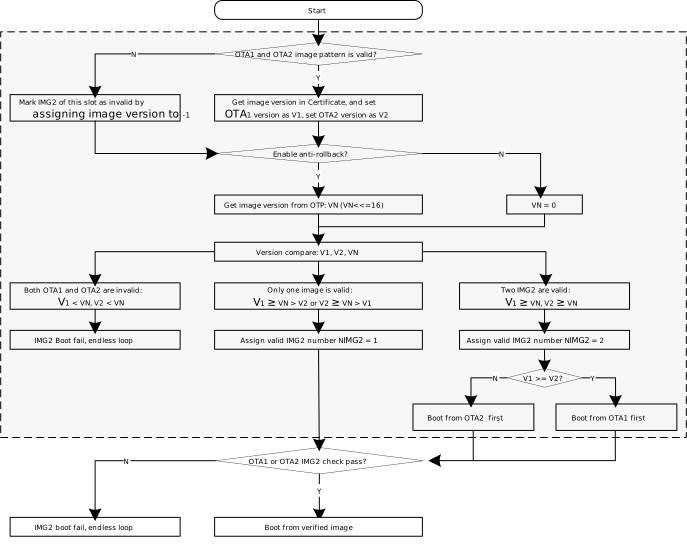
OTA Compression Scheme
When OTA image compression is enabled, the APP OTA1 partition remains unchanged, while the image in the APP OTA2 partition is compressed, reducing image size and effectively saving Flash storage space.
The compression algorithm uses LZMA (Lempel-Ziv-Markov chain algorithm), a lossless data compression algorithm known for its high compression ratio and relatively low decompression memory requirements. It is widely used in .7z format file compression and 7-Zip software.
Compression effectiveness is measured by the compression ratio. The compression ratio is calculated as follows:
Compression Ratio(%) = Compressed Image Size / Original Image Size × 100
The compression ratio is affected by image content: the more complex the original image content, the higher the compression ratio (typically 50% ~ 70%).
The boot process with OTA compression enabled has the following characteristics:
Version number and image pattern validation follow the same procedure as the standard flow.
Only APP image supports the compression scheme.
Compressed image is always downloaded to the OTA2 region during OTA.
If booting from the compressed image in OTA2 is required, the BOOT process will decompress and overwrite the OTA1 region.
Power-loss protection is supported during OTA and decompression processes.
Compressed image is decompressed only once during the first boot after download completion; subsequent boots will not require decompression.
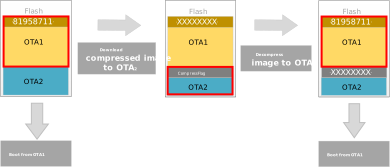
The following flowchart illustrates the working example of compressed OTA:
The device boots from OTA1 and runs the OTA application.
Compressed image is downloaded to OTA2.
On the next boot, the system selects the compressed image, decompresses it to OTA1, and then boots from OTA1.
Users can enable and verify OTA compression by following these steps:
Refer to Configuration (menuconfig) and navigate to
CONFIG OTA OPTIONto enableEnable Compress APP image:CONFIG OTA OPTION ---> [*] Enable Compress APP image
During project compilation, the APP image is compressed to generate the compressed image
{SDK}\build_<soc>\build\project_xx\image\xxx_app_compress.bin, and the compressedota_all.binis generated for OTA use.Program
{SDK}\build_<soc>\boot.binto the BOOT OTA1 region and the compressed image{SDK}\build_<soc>\build\project_xx\image\xxx_app_compress.binto the APP OTA2 region to verify the decompression process of the compressed image.
Important
The first enablement of OTA compression requires a BOOT update, necessitating re-flashing of the BOOT image.
It is recommended to enable OTA compression before mass production.
OTA Image
OTA Image Format
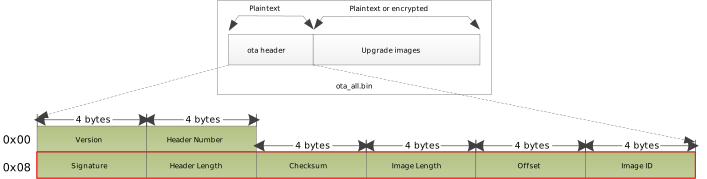
The ota_all.bin format is illustrated below. The OTA image header is divided into a main header and multiple sub-headers.
The main header includes the version number and the number of sub-headers. Each sub-header contains specific information
about an individual upgrade image. When an additional upgrade image is included, a corresponding sub-header is appended.
Items |
Address offset |
Size |
Description |
|---|---|---|---|
Version |
0x00 |
4 bytes |
Version of OTA Image Header, default is 0xFFFFFFFF. |
Header Number |
0x04 |
4 bytes |
Number of OTA image sub-headers, value is 1 or 2. |
Signature |
0x08 |
4 bytes |
Signature of OTA image sub-header, value is |
Header Length |
0x0C |
4 bytes |
Length of OTA image sub-header, value is 0x18. |
Checksum |
0x10 |
4 bytes |
Checksum of the corresponding upgrade image. |
Image Length |
0x14 |
4 bytes |
Size of the corresponding upgrade image. |
Offset |
0x18 |
4 bytes |
Offset of the corresponding upgrade image in current OTA image. |
Image ID |
0x1C |
4 bytes |
Image ID of the corresponding upgrade image:
|
Modifying Configurations
Refer to Image Pattern and Version Number to adjust the version number or switch the scheme.
Adjust the anti-rollback version number and enable anti-rollback if necessary. please refer to the enabling steps in Anti-Rollback.
If upgrading the bootloader is needed, please refer to the enabling steps in BOOT OTA.
If OTA compression is needed, please refer to the enabling steps in OTA Compression Scheme.
Generating OTA Image Automatically
During project compilation, the OTA image will be generated automatically.
The OTA image will include the following contents:
OTA image header
BOOT image (refer to BOOT OTA)
APP image or compressed APP image
VFS2 image (refer to VFS within APP image)
Build the project. The OTA image (
ota_all.bin) will be generated in the{SDK}\build_<soc>directory.
OTA Example
This section provides various image OTA upgrade examples covering different transport protocols and data sources:
Example |
Description |
|---|---|
HTTP Upgrade: Download and upgrade image from a remote server via HTTP protocol. |
|
HTTPS Secure Upgrade: Securely download and upgrade image via HTTPS protocol with SSL/TLS encryption support. |
|
User-Defined Upgrade: Support custom data sources such as SPI, UART, etc.. |
|
Virtual File System Upgrade: Read and upgrade image from virtual file systems (SD card, Flash, etc.). |