Ameba Web Flash Tool
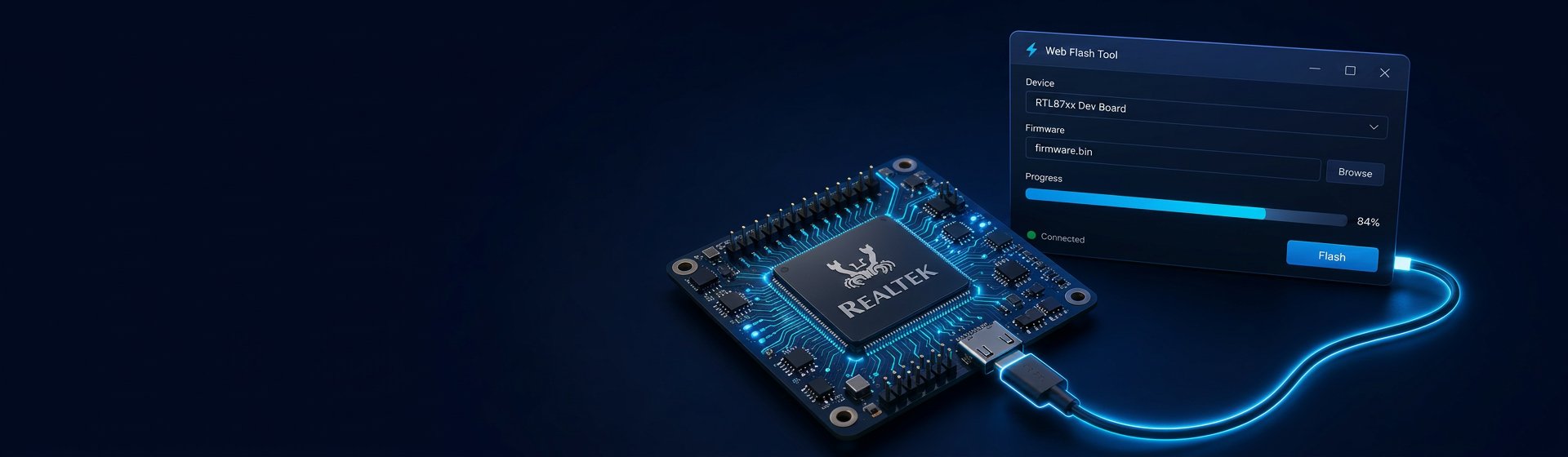
Browser-based firmware flashing and serial console for Ameba devices
Overview
The Web Flash Tool flashes Realtek Ameba devices directly from your browser over LOGUART port or USB virtual serial port, with no software to install.
This tool relies on the Web Serial API. Desktop Chrome (89+), Edge (89+), Opera (76+), and Firefox (151+) are supported; Android is supported from Chrome 148 beta; Safari and other mobile browsers are not supported.
Flash
Console
Usage
Click Use online firmware or Upload local firmware at the top of the tool to switch between the two modes:
Use online firmware
- Select firmware. Under Select firmware, choose the target platform, chip, and the application firmware you want to flash.
- Select the device. Under Select device, pick your Ameba device.
- Flash firmware. Before clicking Start flashing, you can optionally set the Download baud rate and Whole-chip erase (whole-chip erase wipes the entire flash before downloading and applies to NOR flash only; it is ignored for NAND flash). Then click Start flashing and pick your Ameba device's LOGUART serial port or USB virtual serial port. The tool connects, flashes, and disconnects automatically. Note: the USB virtual serial port only becomes visible after the device enters flash mode (hold the download / DOWNLOAD button while resetting), and the baud rate selector is ignored when flashing over USB. Flashing the Linux platform takes a while — flashing over the USB virtual serial port is recommended.
- Watch the device boot. After flashing, use the Console tab to stream the device's serial output, send commands, or reset the Ameba device (via DTR/RTS, when the adapter supports it) — or press the device's physical RESET button.
Upload local firmware
- Select the platform. Choose the target platform.
- Select the device. Pick your Ameba device.
- Select firmware. The layout table shows all firmware information
required by the selected device. Click Select firmware folder to batch-load
files, or click Browse per row to pick individual files. Check the
Select column to decide which firmware to flash (optional firmware are
unchecked by default). Table columns:
Select: checked images are flashed
Image Name: firmware filename, allowing users to select the local firmware file accordingly
Selected Image: chosen file path
Start / End Address: partition addresses
Memory Type: RAM / Flash dropdown
Full Erase: erase the whole partition before flashing. Required for NAND flash or filesystem partitions; for non-filesystem partitions on NOR flash, leaving it unchecked is recommended to shorten flashing time.
Users can customize the layout according to their design requirements, but note that the SDK must be modified accordingly. - Flash firmware. Same as online mode.
- Watch the device boot. Same as online mode.
Troubleshooting
- The Ameba device does not respond / handshake fails. Try manually putting the device into flash mode (hold the download / DOWNLOAD button while resetting), check the cable, then retry.
- Cannot open the serial port. Make sure the Ameba device is connected, the driver is installed, and no other program (VS Code extension, serial monitor, another flash tool, AmebaRemoteService, etc.) is using the port.
- Cannot select the USB virtual serial port. First check whether your Ameba device supports USB virtual serial port flashing. If it does, try manually putting the device into flash mode (hold the download / DOWNLOAD button while resetting) — the USB virtual serial port only becomes visible after the device enters flash mode.
- Verification fails. Re-seat the cable, lower the download baud rate, and flash again.
If you hit a tool or network problem rather than an Ameba device/setup issue, the tool offers a one-click report that sends your selections and the log to the developer for a quick fix.