Troubleshooting
When encountering issues while using the Ameba extension, you can follow these troubleshooting steps:
Plugin Malfunction
Issue: Plugin buttons appear grayed out, or terminal commands fail with script not found errors
Solution:
Uninstall the current plugin
Press Ctrl+Shift+P > Developer: Reload Window to reload the window
Search and install the latest version of the plugin from the extension marketplace
Extension Installation Failure
Issue: Extension cannot be installed properly or fails to start after installation
Solution: Check system environment version requirements and ensure the following minimum versions are met:
VS Code version ≥ 1.84.0
Node.js version ≥ 18.16.0
You can check version information through the following methods:
Menu bar
Help → Aboutto view version number
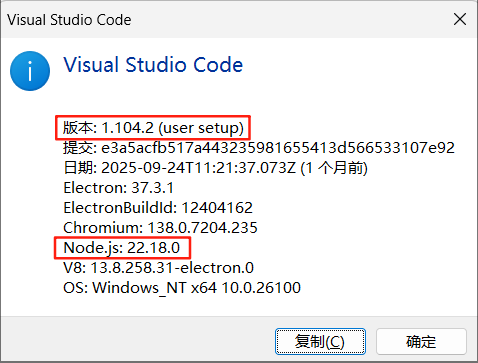
If the versions do not meet the requirements, please upgrade to the corresponding versions first and then reinstall the extension.
Terminal-Related Issues
Issue: Terminal command execution fails, or the interface is unresponsive
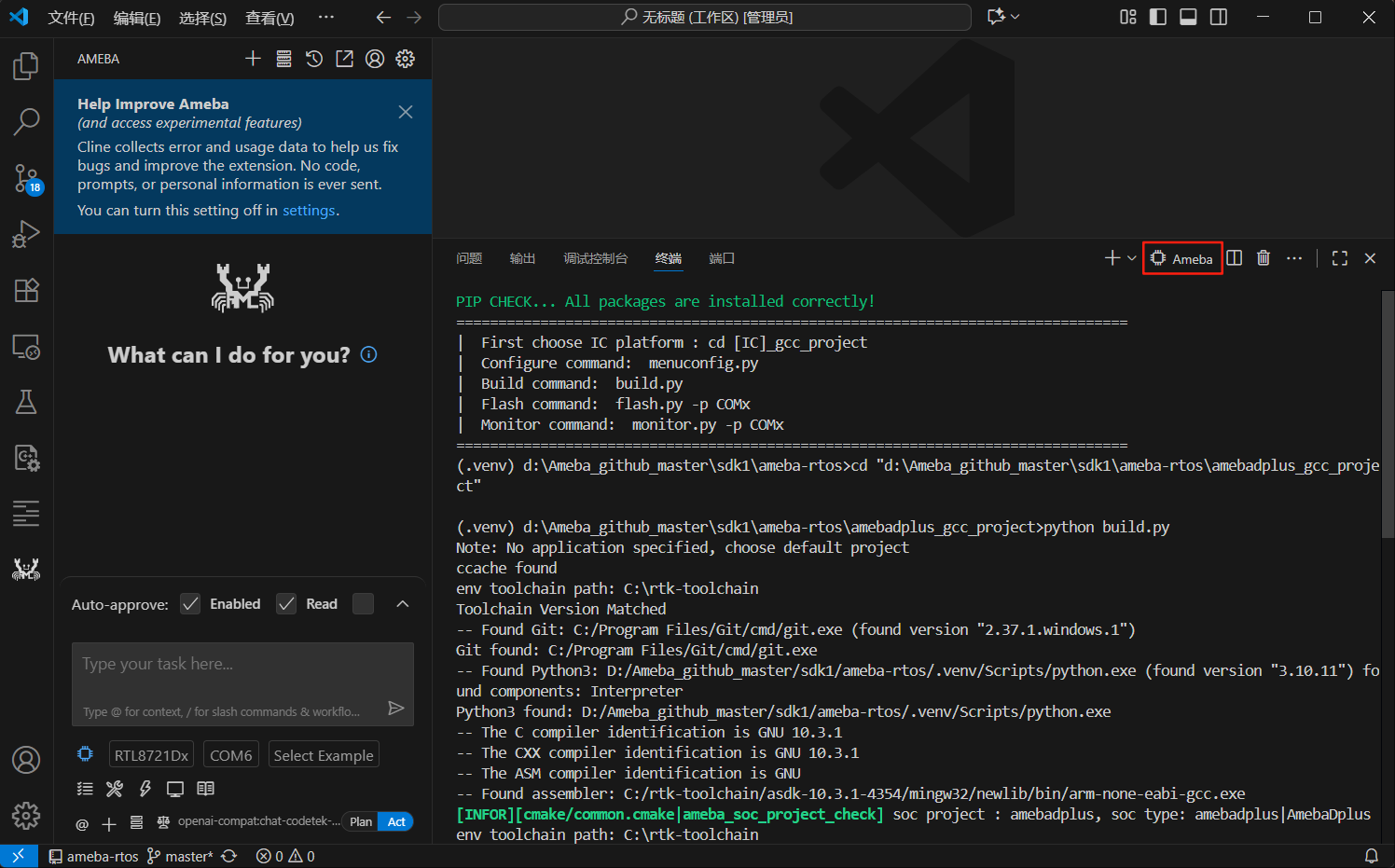
Solution: The extension’s core functions are executed through a dedicated terminal named Ameba. When abnormalities occur:
If you find that the
Amebaterminal has errors or is unresponsive, manually close itThe extension will automatically detect and recreate the
Amebaterminal when executing functions next timeAfter closing the abnormal terminal, click the corresponding function button again to use it normally
Toolchain Path Modification Issues
Issue: After modifying the toolchain installation path, the extension cannot properly recognize the development environment or functions abnormally
Solution: If you have modified the toolchain installation path (refer to Installing Toolchain ), you need to perform the following steps:
Completely close VS Code (ensure all VS Code windows are closed, simply reloading the window is not sufficient)
Restart VS Code and open the Ameba SDK project
The extension will automatically re-detect the development environment configuration and update the relevant path information
External Project SDK Not Recognized
Issue: After opening an external project, the status bar shows ⚠ Not Ready and the feature buttons are grayed out
Solution:
Confirm that
ameba.rootSDKPathin.vscode/settings.jsonpoints to a valid ameba-rtos SDK root directoryRun
Ameba: Set Root SDK Pathfrom the Command Palette to select the SDK path again and regenerate the configuration filesIf the SDK has not been downloaded yet, download and configure it through the Setup Wizard