Flash Tool (1-to-N) (Cross-platform)
Resources
Overview
AmebaFlash is a cross-platform mass-production programming tool for Realtek Ameba-series SoCs. It can program multiple Ameba devices simultaneously over the LOGUART/USB interface. The tool offers both a Command Line(CLI) Mode and a Graphical User Interface(GUI) Mode.
Feature |
Description |
|---|---|
1-to-N Firmware Programming |
Program single or multiple binary firmware images to NOR Flash, NAND Flash, or RAM. Specify N (N >= 1) serial ports to program N devices simultaneously. |
Flash Erase |
Erase a specified address range (supported in command-line mode) or the entire flash chip. |
WiFi MAC Reading |
Read the device WiFi MAC address directly without performing a full programming flow (supported in command-line mode). |
Note
The 1-to-N parallel programming feature is supported since v1.1.0.
Software Environment
The flash tool supports the following operating systems:
Windows 7 and later
Ubuntu and other Linux distributions
The tool and its supporting files are located within the SDK directory structure.
File |
Location |
Description |
|---|---|---|
|
|
Python-based cross-platform command-line tool. Requires Python 3.8+ and the dependencies listed in Run it with: |
|
|
Python-based cross-platform graphical tool, with the same dependency requirements as above. Run it with: |
|
|
Windows standalone executable, no Python installation required. Packaged with PyInstaller ( |
|
|
Graphical Windows standalone executable, no Python installation required. Packaged with PyInstaller; the first launch may be slow because the runtime is extracted to a temporary directory. |
Device profiles ( |
|
Device profiles for each chip model, defining parameters such as flash layout, image addresses, and baud rate; specified with |
Install the Python dependencies (required only for AmebaFlash.py / AmebaMPFlashGUI.py):
pip3 install -r {SDK}/tools/requirements.txt
Note
``{AmebaFlash}`` is used in this documentation as a shorthand for
{SDK}/tools/ameba/Flash/.Before programming in LOGUART mode, install the USB-to-UART adapter driver (e.g., PL2303GC) on the host PC. Obtain the driver from the adapter vendor’s official website.
Do not modify or delete the
floader_ameba*.binfiles in theDevices/Floaders/directory; they are the flashloader files required for communication between the tool and the device.For devices supporting USB download (e.g., RTL8721Dx, RTL8730E), the USB CDC-ACM driver needs to be installed on Windows 7 only. The driver is located at
{SDK}/tools/ameba/ImageTool/RtkUsbCdcAcmSetup.INF.
Hardware Environment
Hardware Setup: For the programming ports supported by each device model, refer to Download Types. For the wiring topology, refer to Hardware Setup.
Enter Download Mode: Refer to Enter Download Mode.
Auto Flash Solution: If your production line requires an automatic programming design, refer to Automatic download solution.
Command Line(CLI) Mode
Flash Download
Command-line download requires only a single download command; the tool then automatically completes device detection, flashloader upload, firmware programming, and verification, downloading the firmware image to the target device’s flash or RAM without any manual intervention. This makes it easy to integrate into the automated workflows of real-world environments (such as production-line batch programming or CI/CD automated programming).
Command Syntax
AmebaFlash.py --download --baudrate <baudrate> --profile <profile> --port <port> \
    (--image <image> --start-address <start-address> [--end-address <end-address>] | --image-dir <image-directory>) [--chip-erase]
Mandatory Parameters
The following parameters are required for all download, erase, and WiFi MAC read operations.
-b/--baudrate <value>Sets the serial communication baud rate.
--baudrate 1500000
Supported baud rates:
115200,128000,153600,230400,380400,460800,500000,921600,1000000,1382400,1444400,1500000,2000000,3000000-f/--profile <path>Path to the device profile file (
.rdevformat). The profile defines the target chip’s parameters, including flash layout, memory configuration, and handshake baud rate.Profiles are located in the
Devices/Profiles/directory under the tool directory.--profile Devices/Profiles/RTL8721Dx.rdev
-p/--port <port1> [port2 ...]Serial port(s) for the target board. Specify multiple ports to enable 1-to-N parallel programming (supported since v1.1.0).
--port COM3                    # Single device
--port COM3 COM4 COM5          # 1-to-3 parallel
Tip
On Linux, use
ls /dev/tty*to list available serial ports.
Image Source
The flash tool supports two firmware image sources, corresponding to the merged image and separate images download methods.
The two are selected via the mutually exclusive --image and --image-dir options; only one may be used per download.
Both methods produce identical download results; they differ in their parameters, use cases, and flexibility. Refer to the table below to choose the one that suits your needs:
Image Source |
Separate images |
Merged image |
|---|---|---|
Parameters |
|
|
Description |
Specify the path to a directory containing all firmware files. The tool automatically matches filenames against the image layout predefined in the profile and programs each one to its respective address, with no need to specify addresses manually. |
Program a single firmware image that merges all partitions from the build output (such as
|
Advantages |
Addresses are matched automatically by the profile, with no manual specification required; works directly with SDK build outputs without merging, and allows flexibly updating or replacing individual partitions, which is convenient for development and debugging. |
Requires only a single file and keeps the command simple; suitable for scenarios that require a fixed whole-flash image, such as mass-production programming, factory shipment, and version locking. |
Disadvantages |
Relies on filenames in the directory strictly matching the profile; if a single partition’s firmware is updated and needs to be programmed separately, you must edit the profile to program only that partition, which is relatively cumbersome to configure. |
Requires manually specifying the start address ( NAND flash additionally requires specifying the end address ( |
Note
When using --image-dir, filenames in the directory must exactly match the image names predefined in the profile.
Linux *.dtb files are an exception, but only one .dtb file may exist in the specified directory.
Tip
For mass-production and factory-shipment programming, the merged image method is recommended: the process is fixed and less error-prone.
For development and debugging, or when updating only some partitions, the separate images method is recommended: there is no need to worry about individual partition addresses.
Note
When programming with the merged image method (--image), you can enable SplitSingleImageByLayout to skip the
meaningless 0xFF padding in the merged image and save programming time; this feature must be enabled when
programming NAND flash. See Split Single Image by Profile Layout.
When this feature is enabled, be sure to select a profile whose layout matches that of the merged image (such as image_all.bin); this is not necessarily the official default profile. The tool splits the merged image according to the selected profile’s layout, so if the two layouts differ, the split boundaries will be misaligned and the wrong data will be programmed.
Download Examples
After configuring all mandatory parameters, append --download/-d to trigger the download. This flag requires no value.
Single image example:
AmebaFlash.py --download \
    --baudrate 1500000 \
    --profile Devices/Profiles/RTL8721Dx.rdev \
    --image D:/Images/image_dp/image_all.bin \
    --start-address 0x08000000 \
    --port COM3

[2026-07-07 16:28:47.929][I] [main]AmebaFlash Version: 1.1.8.1
[2026-07-07 16:28:47.929][I] [main]Settings path: E:\git_repo\meta_tools\flash1\Settings.json
[2026-07-07 16:28:47.930][I] [main]Device profile: .\Devices\Profiles\RTL8721Dx.rdev
[2026-07-07 16:28:47.966][I] [main]Device profile .\Devices\Profiles\RTL8721Dx.rdev loaded
[2026-07-07 16:28:47.966][I] [main]Memory type derived from device profile: 1
[2026-07-07 16:28:47.966][I] [main]Serial port: ['COM3']
[2026-07-07 16:28:47.967][I] [main]Baudrate: 1500000
[2026-07-07 16:28:47.967][I] [main]Image info:
[2026-07-07 16:28:47.967][I] [main]> Image: D:\Images\image_dp\image_all.bin
[2026-07-07 16:28:47.967][I] [main]> StartAddress: 134217728
[2026-07-07 16:28:47.968][I] [main]> EndAddress: 136314880
[2026-07-07 16:28:47.968][I] [main]> MemoryType: 1
[2026-07-07 16:28:47.968][I] [main]> FullErase: False
[2026-07-07 16:28:47.968][I] [main]> Mandatory: True
[2026-07-07 16:28:47.968][I] [main]> Description: image_all.bin
[2026-07-07 16:28:47.968][I] [main]Chip erase: False
[2026-07-07 16:28:47.969][I] [main]Settings path: E:\git_repo\meta_tools\flash1\Settings.json
[2026-07-07 16:28:48.134][I] [COM3]Check supported flash size...
[2026-07-07 16:28:48.697][I] [COM3]Current supported flash size >16MB
[2026-07-07 16:28:48.697][I] [COM3]Device info:
[2026-07-07 16:28:48.697][I] [COM3]* DID: 0x6845
[2026-07-07 16:28:48.698][I] [COM3]* ImageType: 0x0001
[2026-07-07 16:28:48.698][I] [COM3]* CmdSetVersion: 2.0
[2026-07-07 16:28:48.698][I] [COM3]* MemoryType: NOR
[2026-07-07 16:28:48.698][I] [COM3]* FlashMID: C8
[2026-07-07 16:28:48.698][I] [COM3]* FlashDID: 0x4019
[2026-07-07 16:28:48.699][I] [COM3]* FlashCapacity: 256Mb/32MB
[2026-07-07 16:28:48.699][I] [COM3]* FlashPageSize: 1024B
[2026-07-07 16:28:48.699][I] [COM3]* WiFiMAC: 00:E0:4C:00:0C:24
[2026-07-07 16:28:48.700][I] [COM3]Image download start...
[2026-07-07 16:28:48.794][I] [COM3]image_all.bin [0x08000000-0x08014000] download...
[2026-07-07 16:28:48.820][I] [COM3]Programming progress: 10%
[2026-07-07 16:28:48.845][I] [COM3]Programming progress: 20%
[2026-07-07 16:28:48.871][I] [COM3]Programming progress: 31%
[2026-07-07 16:28:48.896][I] [COM3]Programming progress: 41%
[2026-07-07 16:28:48.921][I] [COM3]Programming progress: 51%
[2026-07-07 16:28:48.947][I] [COM3]Programming progress: 62%
[2026-07-07 16:28:48.973][I] [COM3]Programming progress: 72%
[2026-07-07 16:28:48.999][I] [COM3]Programming progress: 82%
[2026-07-07 16:28:49.024][I] [COM3]Programming progress: 93%
[2026-07-07 16:28:49.058][I] [COM3]Programming progress: 100%
[2026-07-07 16:28:49.059][I] [COM3]image_all.bin [0x08000000-0x08014000] download done: 29KB / 263.0ms / 903.0Kbps
[2026-07-07 16:28:49.075][I] [COM3]Checksum OK: 0xd6c9e1c6
[2026-07-07 16:28:49.077][I] [COM3]image_all.bin [0x08014000-0x08200000] download...
[2026-07-07 16:28:49.758][I] [COM3]Programming progress: 10%
[2026-07-07 16:28:50.436][I] [COM3]Programming progress: 20%
[2026-07-07 16:28:51.116][I] [COM3]Programming progress: 30%
[2026-07-07 16:28:51.792][I] [COM3]Programming progress: 40%
[2026-07-07 16:28:52.464][I] [COM3]Programming progress: 50%
[2026-07-07 16:28:53.139][I] [COM3]Programming progress: 60%
[2026-07-07 16:28:53.820][I] [COM3]Programming progress: 70%
[2026-07-07 16:28:54.502][I] [COM3]Programming progress: 80%
[2026-07-07 16:28:55.176][I] [COM3]Programming progress: 90%
[2026-07-07 16:28:55.866][I] [COM3]Programming progress: 100%
[2026-07-07 16:28:55.866][I] [COM3]image_all.bin [0x08014000-0x08200000] download done: 860KB / 6789.0ms / 1037.0Kbps
[2026-07-07 16:28:56.310][I] [COM3]Checksum OK: 0x313ae2a2
[2026-07-07 16:28:56.315][I] [COM3]All images download done
[2026-07-07 16:28:56.517][I] [COM3]close COM3...
[2026-07-07 16:28:56.587][I] [COM3]COM3 closed.
[2026-07-07 16:28:56.588][I] [COM3]Finished PASS
[2026-07-07 16:28:56.588][I] [main]All flash threads have completed
Multiple images example:
AmebaFlash.py --download \
        --baudrate 1500000 \
        --profile Devices/Profiles/RTL8721Dx.rdev \
        --image-dir D:/Images/image_dp \
        --port COM3

[2026-07-07 16:25:12.688][I] [main]AmebaFlash Version: 1.1.8.1
[2026-07-07 16:25:12.689][I] [main]Settings path: E:\git_repo\meta_tools\flash1\Settings.json
[2026-07-07 16:25:12.689][I] [main]Device profile: .\Devices\Profiles\RTL8721Dx.rdev
[2026-07-07 16:25:12.721][I] [main]Device profile .\Devices\Profiles\RTL8721Dx.rdev loaded
[2026-07-07 16:25:12.721][I] [main]Memory type derived from device profile: 1
[2026-07-07 16:25:12.721][I] [main]Serial port: ['COM3']
[2026-07-07 16:25:12.721][I] [main]Baudrate: 1500000
[2026-07-07 16:25:12.721][I] [main]Image dir: D:\Images\image_dp
[2026-07-07 16:25:12.721][I] [main]Chip erase: False
[2026-07-07 16:25:12.722][I] [main]Settings path: E:\git_repo\meta_tools\flash1\Settings.json
[2026-07-07 16:25:12.882][I] [COM3]Check supported flash size...
[2026-07-07 16:25:15.729][I] [COM3]Current supported flash size <=16MB
[2026-07-07 16:25:15.730][I] [COM3]Device info:
[2026-07-07 16:25:15.730][I] [COM3]* DID: 0x6845
[2026-07-07 16:25:15.731][I] [COM3]* ImageType: 0x0001
[2026-07-07 16:25:15.731][I] [COM3]* CmdSetVersion: 2.0
[2026-07-07 16:25:15.731][I] [COM3]* MemoryType: NOR
[2026-07-07 16:25:15.731][I] [COM3]* FlashMID: C8
[2026-07-07 16:25:15.731][I] [COM3]* FlashDID: 0x6517
[2026-07-07 16:25:15.731][I] [COM3]* FlashCapacity: 64Mb/8MB
[2026-07-07 16:25:15.731][I] [COM3]* FlashPageSize: 1024B
[2026-07-07 16:25:15.732][I] [COM3]* WiFiMAC: FF:FF:FF:FF:FF:FF
[2026-07-07 16:25:15.733][I] [COM3]Image download start...
[2026-07-07 16:25:15.733][I] [COM3]boot.bin download...
[2026-07-07 16:25:15.758][I] [COM3]Programming progress: 10%
[2026-07-07 16:25:15.801][I] [COM3]Programming progress: 20%
[2026-07-07 16:25:15.857][I] [COM3]Programming progress: 31%
[2026-07-07 16:25:15.910][I] [COM3]Programming progress: 41%
[2026-07-07 16:25:15.935][I] [COM3]Programming progress: 51%
[2026-07-07 16:25:15.993][I] [COM3]Programming progress: 62%
[2026-07-07 16:25:16.051][I] [COM3]Programming progress: 72%
[2026-07-07 16:25:16.110][I] [COM3]Programming progress: 82%
[2026-07-07 16:25:16.134][I] [COM3]Programming progress: 93%
[2026-07-07 16:25:16.226][I] [COM3]Programming progress: 100%
[2026-07-07 16:25:16.227][I] [COM3]boot.bin download done: 29KB / 493.0ms / 481.0Kbps
[2026-07-07 16:25:16.233][I] [COM3]Checksum OK: 0xd6c9e1c6
[2026-07-07 16:25:16.233][I] [COM3]app.bin download...
[2026-07-07 16:25:17.036][I] [COM3]Programming progress: 10%
[2026-07-07 16:25:17.723][I] [COM3]Programming progress: 20%
[2026-07-07 16:25:18.405][I] [COM3]Programming progress: 30%
[2026-07-07 16:25:19.082][I] [COM3]Programming progress: 40%
[2026-07-07 16:25:19.814][I] [COM3]Programming progress: 50%
[2026-07-07 16:25:20.507][I] [COM3]Programming progress: 60%
[2026-07-07 16:25:21.199][I] [COM3]Programming progress: 70%
[2026-07-07 16:25:21.890][I] [COM3]Programming progress: 80%
[2026-07-07 16:25:22.622][I] [COM3]Programming progress: 90%
[2026-07-07 16:25:23.494][I] [COM3]Programming progress: 100%
[2026-07-07 16:25:23.495][I] [COM3]app.bin download done: 812KB / 7260.0ms / 916.0Kbps
[2026-07-07 16:25:23.639][I] [COM3]Checksum OK: 0x313b12a2
[2026-07-07 16:25:23.640][I] [COM3]All images download done
[2026-07-07 16:25:23.842][I] [COM3]close COM3...
[2026-07-07 16:25:23.884][I] [COM3]COM3 closed.
[2026-07-07 16:25:23.884][I] [COM3]Finished PASS
[2026-07-07 16:25:23.885][I] [main]All flash threads have completed
1-to-N parallel example (programs three devices simultaneously):
AmebaFlash.py --download \
    --baudrate 1500000 \
    --profile Devices/Profiles/RTL8721Dx.rdev \
    --image-dir D:/Images/image_dp \
    --port COM3 COM4 COM5

[2026-07-07 16:25:27.805][I] [main]AmebaFlash Version: 1.1.8.1
[2026-07-07 16:25:27.805][I] [main]Settings path: E:\git_repo\meta_tools\flash1\Settings.json
[2026-07-07 16:25:27.806][I] [main]Device profile: .\Devices\Profiles\RTL8721Dx.rdev
[2026-07-07 16:25:27.838][I] [main]Device profile .\Devices\Profiles\RTL8721Dx.rdev loaded
[2026-07-07 16:25:27.839][I] [main]Memory type derived from device profile: 1
[2026-07-07 16:25:27.839][I] [main]Serial port: ['COM3', 'COM4', 'COM5']
[2026-07-07 16:25:27.840][I] [main]Baudrate: 1500000
[2026-07-07 16:25:27.840][I] [main]Image dir: D:\Images\image_dp
[2026-07-07 16:25:27.840][I] [main]Chip erase: False
[2026-07-07 16:25:27.840][I] [main]Settings path: E:\git_repo\meta_tools\flash1\Settings.json
[2026-07-07 16:25:27.884][I] [COM4]Check supported flash size...
[2026-07-07 16:25:27.940][I] [COM5]Check supported flash size...
[2026-07-07 16:25:27.943][I] [COM3]Check supported flash size...
[2026-07-07 16:25:28.523][I] [COM3]Current supported flash size >16MB
[2026-07-07 16:25:28.524][I] [COM3]Device info:
[2026-07-07 16:25:28.524][I] [COM3]* DID: 0x6845
[2026-07-07 16:25:28.524][I] [COM3]* ImageType: 0x0001
[2026-07-07 16:25:28.525][I] [COM3]* CmdSetVersion: 2.0
[2026-07-07 16:25:28.525][I] [COM3]* MemoryType: NOR
[2026-07-07 16:25:28.525][I] [COM3]* FlashMID: C8
[2026-07-07 16:25:28.526][I] [COM3]* FlashDID: 0x4019
[2026-07-07 16:25:28.526][I] [COM3]* FlashCapacity: 256Mb/32MB
[2026-07-07 16:25:28.526][I] [COM3]* FlashPageSize: 1024B
[2026-07-07 16:25:28.527][I] [COM3]* WiFiMAC: 00:E0:4C:00:0C:24
[2026-07-07 16:25:28.528][I] [COM3]Image download start...
[2026-07-07 16:25:28.528][I] [COM3]boot.bin download...
[2026-07-07 16:25:28.553][I] [COM3]Programming progress: 10%
[2026-07-07 16:25:28.578][I] [COM3]Programming progress: 20%
[2026-07-07 16:25:28.603][I] [COM3]Programming progress: 31%
[2026-07-07 16:25:28.629][I] [COM3]Programming progress: 41%
[2026-07-07 16:25:28.653][I] [COM3]Programming progress: 51%
[2026-07-07 16:25:28.679][I] [COM3]Programming progress: 62%
[2026-07-07 16:25:28.704][I] [COM3]Programming progress: 72%
[2026-07-07 16:25:28.730][I] [COM3]Programming progress: 82%
[2026-07-07 16:25:28.754][I] [COM3]Programming progress: 93%
[2026-07-07 16:25:28.789][I] [COM3]Programming progress: 100%
[2026-07-07 16:25:28.789][I] [COM3]boot.bin download done: 29KB / 260.0ms / 913.0Kbps
[2026-07-07 16:25:28.805][I] [COM3]Checksum OK: 0xd6c9e1c6
[2026-07-07 16:25:28.805][I] [COM3]app.bin download...
[2026-07-07 16:25:29.459][I] [COM3]Programming progress: 10%
[2026-07-07 16:25:30.097][I] [COM3]Programming progress: 20%
[2026-07-07 16:25:30.707][I] [COM4]Current supported flash size <=16MB
[2026-07-07 16:25:30.707][I] [COM4]Device info:
[2026-07-07 16:25:30.707][I] [COM4]* DID: 0x6845
[2026-07-07 16:25:30.707][I] [COM4]* ImageType: 0x0001
[2026-07-07 16:25:30.707][I] [COM4]* CmdSetVersion: 2.0
[2026-07-07 16:25:30.708][I] [COM4]* MemoryType: NOR
[2026-07-07 16:25:30.708][I] [COM4]* FlashMID: C8
[2026-07-07 16:25:30.708][I] [COM4]* FlashDID: 0x6517
[2026-07-07 16:25:30.708][I] [COM4]* FlashCapacity: 64Mb/8MB
[2026-07-07 16:25:30.708][I] [COM4]* FlashPageSize: 1024B
[2026-07-07 16:25:30.708][I] [COM4]* WiFiMAC: FF:FF:FF:FF:FF:FF
[2026-07-07 16:25:30.710][I] [COM4]Image download start...
[2026-07-07 16:25:30.710][I] [COM4]boot.bin download...
[2026-07-07 16:25:30.734][I] [COM4]Programming progress: 10%
[2026-07-07 16:25:30.740][I] [COM3]Programming progress: 30%
[2026-07-07 16:25:30.778][I] [COM4]Programming progress: 20%
[2026-07-07 16:25:30.801][I] [COM5]Current supported flash size <=16MB
[2026-07-07 16:25:30.801][I] [COM5]Device info:
[2026-07-07 16:25:30.801][I] [COM5]* DID: 0x6845
[2026-07-07 16:25:30.801][I] [COM5]* ImageType: 0x0001
[2026-07-07 16:25:30.802][I] [COM5]* CmdSetVersion: 2.0
[2026-07-07 16:25:30.802][I] [COM5]* MemoryType: NOR
[2026-07-07 16:25:30.802][I] [COM5]* FlashMID: C8
[2026-07-07 16:25:30.802][I] [COM5]* FlashDID: 0x4017
[2026-07-07 16:25:30.802][I] [COM5]* FlashCapacity: 64Mb/8MB
[2026-07-07 16:25:30.802][I] [COM5]* FlashPageSize: 1024B
[2026-07-07 16:25:30.802][I] [COM5]* WiFiMAC: 00:E0:4C:00:0D:26
[2026-07-07 16:25:30.804][I] [COM5]Image download start...
[2026-07-07 16:25:30.805][I] [COM5]boot.bin download...
[2026-07-07 16:25:30.829][I] [COM5]Programming progress: 10%
[2026-07-07 16:25:30.836][I] [COM4]Programming progress: 31%
[2026-07-07 16:25:30.856][I] [COM5]Programming progress: 20%
[2026-07-07 16:25:30.890][I] [COM5]Programming progress: 31%
[2026-07-07 16:25:30.891][I] [COM4]Programming progress: 41%
[2026-07-07 16:25:30.915][I] [COM4]Programming progress: 51%
[2026-07-07 16:25:30.922][I] [COM5]Programming progress: 41%
[2026-07-07 16:25:30.946][I] [COM5]Programming progress: 51%
[2026-07-07 16:25:30.975][I] [COM4]Programming progress: 62%
[2026-07-07 16:25:30.977][I] [COM5]Programming progress: 62%
[2026-07-07 16:25:31.012][I] [COM5]Programming progress: 72%
[2026-07-07 16:25:31.031][I] [COM4]Programming progress: 72%
[2026-07-07 16:25:31.045][I] [COM5]Programming progress: 82%
[2026-07-07 16:25:31.069][I] [COM5]Programming progress: 93%
[2026-07-07 16:25:31.088][I] [COM4]Programming progress: 82%
[2026-07-07 16:25:31.112][I] [COM4]Programming progress: 93%
[2026-07-07 16:25:31.121][I] [COM5]Programming progress: 100%
[2026-07-07 16:25:31.121][I] [COM5]boot.bin download done: 29KB / 316.0ms / 751.0Kbps
[2026-07-07 16:25:31.127][I] [COM5]Checksum OK: 0xd6c9e1c6
[2026-07-07 16:25:31.127][I] [COM5]app.bin download...
[2026-07-07 16:25:31.203][I] [COM4]Programming progress: 100%
[2026-07-07 16:25:31.204][I] [COM4]boot.bin download done: 29KB / 493.0ms / 481.0Kbps
[2026-07-07 16:25:31.210][I] [COM4]Checksum OK: 0xd6c9e1c6
[2026-07-07 16:25:31.210][I] [COM4]app.bin download...
[2026-07-07 16:25:31.374][I] [COM3]Programming progress: 40%
[2026-07-07 16:25:31.799][I] [COM5]Programming progress: 10%
[2026-07-07 16:25:32.005][I] [COM4]Programming progress: 10%
[2026-07-07 16:25:32.008][I] [COM3]Programming progress: 50%
[2026-07-07 16:25:32.430][I] [COM5]Programming progress: 20%
[2026-07-07 16:25:32.647][I] [COM3]Programming progress: 60%
[2026-07-07 16:25:32.687][I] [COM4]Programming progress: 20%
[2026-07-07 16:25:33.067][I] [COM5]Programming progress: 30%
[2026-07-07 16:25:33.284][I] [COM3]Programming progress: 70%
[2026-07-07 16:25:33.362][I] [COM4]Programming progress: 30%
[2026-07-07 16:25:33.701][I] [COM5]Programming progress: 40%
[2026-07-07 16:25:33.918][I] [COM3]Programming progress: 80%
[2026-07-07 16:25:34.034][I] [COM4]Programming progress: 40%
[2026-07-07 16:25:34.336][I] [COM5]Programming progress: 50%
[2026-07-07 16:25:34.549][I] [COM3]Programming progress: 90%
[2026-07-07 16:25:34.766][I] [COM4]Programming progress: 50%
[2026-07-07 16:25:34.978][I] [COM5]Programming progress: 60%
[2026-07-07 16:25:35.193][I] [COM3]Programming progress: 100%
[2026-07-07 16:25:35.193][I] [COM3]app.bin download done: 812KB / 6387.0ms / 1041.0Kbps
[2026-07-07 16:25:35.458][I] [COM4]Programming progress: 60%
[2026-07-07 16:25:35.612][I] [COM3]Checksum OK: 0x313b12a2
[2026-07-07 16:25:35.612][I] [COM3]All images download done
[2026-07-07 16:25:35.617][I] [COM5]Programming progress: 70%
[2026-07-07 16:25:35.813][I] [COM3]close COM3...
[2026-07-07 16:25:35.854][I] [COM3]COM3 closed.
[2026-07-07 16:25:35.854][I] [COM3]Finished PASS
[2026-07-07 16:25:36.149][I] [COM4]Programming progress: 70%
[2026-07-07 16:25:36.257][I] [COM5]Programming progress: 80%
[2026-07-07 16:25:36.835][I] [COM4]Programming progress: 80%
[2026-07-07 16:25:36.896][I] [COM5]Programming progress: 90%
[2026-07-07 16:25:37.578][I] [COM4]Programming progress: 90%
[2026-07-07 16:25:37.623][I] [COM5]Programming progress: 100%
[2026-07-07 16:25:37.624][I] [COM5]app.bin download done: 812KB / 6496.0ms / 1024.0Kbps
[2026-07-07 16:25:37.770][I] [COM5]Checksum OK: 0x313b12a2
[2026-07-07 16:25:37.771][I] [COM5]All images download done
[2026-07-07 16:25:37.972][I] [COM5]close COM5...
[2026-07-07 16:25:38.013][I] [COM5]COM5 closed.
[2026-07-07 16:25:38.013][I] [COM5]Finished PASS
[2026-07-07 16:25:38.444][I] [COM4]Programming progress: 100%
[2026-07-07 16:25:38.445][I] [COM4]app.bin download done: 812KB / 7233.0ms / 919.0Kbps
[2026-07-07 16:25:38.588][I] [COM4]Checksum OK: 0x313b12a2
[2026-07-07 16:25:38.589][I] [COM4]All images download done
[2026-07-07 16:25:38.790][I] [COM4]close COM4...
[2026-07-07 16:25:38.832][I] [COM4]COM4 closed.
[2026-07-07 16:25:38.832][I] [COM4]Finished PASS
[2026-07-07 16:25:38.833][I] [main]All flash threads have completed
Tip
In 1-to-N mode, each port runs in an independent thread; a failure on one port does not affect the others.
Note
The tool first validates that all specified firmware files exist and that their addresses fall within the device’s valid range, reporting any errors and stopping before the actual programming begins.
To perform a chip erase before downloading, combine
--chip-erasewith the download command.
Download with chip-erase example:
AmebaFlash.py --download --chip-erase \
        --baudrate 1500000 \
        --profile Devices/Profiles/RTL8721Dx.rdev \
        --image D:/Images/image_dp/image_all.bin
        --start-address 0x08000000
        --port COM3

[2026-07-07 18:58:55.247][I] [main]AmebaFlash Version: 1.1.8.1
[2026-07-07 18:58:55.247][I] [main]Settings path: E:\git_repo\meta_tools\flash1\Settings.json
[2026-07-07 18:58:55.248][I] [main]Device profile: .\Devices\Profiles\RTL8721Dx.rdev
[2026-07-07 18:58:55.295][I] [main]Device profile .\Devices\Profiles\RTL8721Dx.rdev loaded
[2026-07-07 18:58:55.296][I] [main]Memory type derived from device profile: 1
[2026-07-07 18:58:55.296][I] [main]Serial port: ['COM3']
[2026-07-07 18:58:55.296][I] [main]Baudrate: 1500000
[2026-07-07 18:58:55.296][I] [main]Image info:
[2026-07-07 18:58:55.296][I] [main]> Image: D:\Images\image_dp\image_all.bin
[2026-07-07 18:58:55.297][I] [main]> StartAddress: 134217728
[2026-07-07 18:58:55.297][I] [main]> EndAddress: 136314880
[2026-07-07 18:58:55.297][I] [main]> MemoryType: 1
[2026-07-07 18:58:55.297][I] [main]> FullErase: False
[2026-07-07 18:58:55.297][I] [main]> Mandatory: True
[2026-07-07 18:58:55.297][I] [main]> Description: image_all.bin
[2026-07-07 18:58:55.297][I] [main]Chip erase: True
[2026-07-07 18:58:55.298][I] [main]Settings path: E:\git_repo\meta_tools\flash1\Settings.json
[2026-07-07 18:58:55.465][I] [COM3]Check supported flash size...
[2026-07-07 18:58:56.046][I] [COM3]Current supported flash size >16MB
[2026-07-07 18:58:56.047][I] [COM3]Device info:
[2026-07-07 18:58:56.047][I] [COM3]* DID: 0x6845
[2026-07-07 18:58:56.047][I] [COM3]* ImageType: 0x0001
[2026-07-07 18:58:56.047][I] [COM3]* CmdSetVersion: 2.0
[2026-07-07 18:58:56.048][I] [COM3]* MemoryType: NOR
[2026-07-07 18:58:58.547][I] [COM3]Programming progress: 20%
[2026-07-07 18:58:58.573][I] [COM3]Programming progress: 31%
[2026-07-07 18:58:58.599][I] [COM3]Programming progress: 41%
[2026-07-07 18:58:58.624][I] [COM3]Programming progress: 51%
[2026-07-07 18:58:58.649][I] [COM3]Programming progress: 62%
[2026-07-07 18:58:58.675][I] [COM3]Programming progress: 72%
[2026-07-07 18:58:58.700][I] [COM3]Programming progress: 82%
[2026-07-07 18:58:58.724][I] [COM3]Programming progress: 93%
[2026-07-07 18:58:58.743][I] [COM3]Programming progress: 100%
[2026-07-07 18:58:58.743][I] [COM3]image_all.bin [0x08000000-0x08014000] download done: 29KB / 245.0ms / 969.0Kbps
[2026-07-07 18:58:58.759][I] [COM3]Checksum OK: 0xd6c9e1c6
[2026-07-07 18:58:58.761][I] [COM3]image_all.bin [0x08014000-0x08200000] download...
[2026-07-07 18:58:59.444][I] [COM3]Programming progress: 10%
[2026-07-07 18:59:00.123][I] [COM3]Programming progress: 20%
[2026-07-07 18:59:00.798][I] [COM3]Programming progress: 30%
[2026-07-07 18:59:01.477][I] [COM3]Programming progress: 40%
[2026-07-07 18:59:02.154][I] [COM3]Programming progress: 50%
[2026-07-07 18:59:02.841][I] [COM3]Programming progress: 60%
[2026-07-07 18:59:03.518][I] [COM3]Programming progress: 70%
[2026-07-07 18:59:04.196][I] [COM3]Programming progress: 80%
[2026-07-07 18:59:04.870][I] [COM3]Programming progress: 90%
[2026-07-07 18:59:05.564][I] [COM3]Programming progress: 100%
[2026-07-07 18:59:05.564][I] [COM3]image_all.bin [0x08014000-0x08200000] download done: 860KB / 6802.0ms / 1035.0Kbps
[2026-07-07 18:59:06.008][I] [COM3]Checksum OK: 0x313ae2a2
[2026-07-07 18:59:06.011][I] [COM3]All images download done
[2026-07-07 18:59:06.224][I] [COM3]close COM3...
[2026-07-07 18:59:06.266][I] [COM3]COM3 closed.
[2026-07-07 18:59:06.266][I] [COM3]Finished PASS
[2026-07-07 18:59:06.268][I] [main]All flash threads have completed
Flash Erase
The erase command removes firmware data from the target device’s flash memory. Two erase modes are available: partial erase (a specific address range) and chip erase (the entire flash device).
Mandatory Parameters
The following parameters are required for all download, erase, and WiFi MAC read operations.
-b/--baudrate <value>Sets the serial communication baud rate.
--baudrate 1500000
Supported baud rates:
115200,128000,153600,230400,380400,460800,500000,921600,1000000,1382400,1444400,1500000,2000000,3000000-f/--profile <path>Path to the device profile file (
.rdevformat). The profile defines the target chip’s parameters, including flash layout, memory configuration, and handshake baud rate.Profiles are located in the
Devices/Profiles/directory under the tool directory.--profile Devices/Profiles/RTL8721Dx.rdev
-p/--port <port1> [port2 ...]Serial port(s) for the target board. Specify multiple ports to enable 1-to-N parallel programming (supported since v1.1.0).
--port COM3                    # Single device
--port COM3 COM4 COM5          # 1-to-3 parallel
Tip
On Linux, use
ls /dev/tty*to list available serial ports.
Erase Mode Selection
Use --erase together with an address range to erase a specific region of the flash.
The required size parameter format depends on the memory type.
Parameter |
Description |
|---|---|
|
Triggers a partial erase. No value required. |
|
Start address of the erase region, in hexadecimal. |
|
Erase size in KB, decimal. Required for NOR flash. |
|
End address of the erase region, in hexadecimal. Required for NAND flash. |
Use --chip-erase to erase the entire flash chip.
Parameter |
Description |
|---|---|
|
Erases the entire flash chip. No value required. |
Note
--chip-erase can also be combined with a download command (see Flash Download); the tool performs a chip erase first, then the download.
Erase Examples
After configuring all parameters, run the appropriate command below.
NOR partial erase:
AmebaFlash.py --erase \
    --baudrate 1500000 \
    --profile Devices/Profiles/RTL8721Dx.rdev \
    --start-address 0x08000000 \
    --size 1024 \
    --port COM3

[2026-07-07 16:33:08.456][I] [main]AmebaFlash Version: 1.1.8.1
[2026-07-07 16:33:08.457][I] [main]Settings path: E:\git_repo\meta_tools\flash1\Settings.json
[2026-07-07 16:33:08.479][I] [main]Device profile: .\Devices\Profiles\RTL8721Dx.rdev
[2026-07-07 16:33:08.548][I] [main]Device profile .\Devices\Profiles\RTL8721Dx.rdev loaded
[2026-07-07 16:33:08.548][I] [main]Memory type derived from device profile: 1
[2026-07-07 16:33:08.548][I] [main]Serial port: ['COM3']
[2026-07-07 16:33:08.549][I] [main]Baudrate: 1500000
[2026-07-07 16:33:08.550][I] [main]Chip erase: False
[2026-07-07 16:33:08.551][I] [main]Settings path: E:\git_repo\meta_tools\flash1\Settings.json
[2026-07-07 16:33:09.284][I] [COM3]Device info:
[2026-07-07 16:33:09.284][I] [COM3]* DID: 0x6845
[2026-07-07 16:33:09.285][I] [COM3]* ImageType: 0x0001
[2026-07-07 16:33:09.285][I] [COM3]* CmdSetVersion: 2.0
[2026-07-07 16:33:09.285][I] [COM3]* MemoryType: NOR
[2026-07-07 16:33:09.286][I] [COM3]* FlashMID: C8
[2026-07-07 16:33:09.286][I] [COM3]* FlashDID: 0x4019
[2026-07-07 16:33:09.286][I] [COM3]* FlashCapacity: 256Mb/32MB
[2026-07-07 16:33:09.286][I] [COM3]* FlashPageSize: 1024B
[2026-07-07 16:33:09.287][I] [COM3]* WiFiMAC: 00:E0:4C:00:0C:24
[2026-07-07 16:33:09.287][I] [COM3]NOR flash erase: start address=0x8000000, size=1024KB.
[2026-07-07 16:33:10.659][I] [COM3]Erase nor done
[2026-07-07 16:33:10.659][I] [COM3]close COM3...
[2026-07-07 16:33:10.701][I] [COM3]COM3 closed.
[2026-07-07 16:33:10.701][I] [COM3]Finished PASS
[2026-07-07 16:33:10.703][I] [main]All flash threads have completed
NAND partial erase:
AmebaFlash.py --erase \
   --baudrate 1500000 \
   --profile Devices/Profiles/RTL8730E_NAND.rdev \
   --start-address 0x00000000 \
   --end-address 0x00100000 \
   --port COM3

[2026-07-06 20:06:53.527][I] [main]AmebaFlash Version: 1.1.8.1
[2026-07-06 20:06:53.528][I] [main]Settings path: E:\git_repo\meta_tools\flash1\Settings.json
[2026-07-06 20:06:53.542][I] [main]Device profile: .\Devices\Profiles\RTL8730E_NAND.rdev
[2026-07-06 20:06:53.600][I] [main]Device profile .\Devices\Profiles\RTL8730E_NAND.rdev loaded
[2026-07-06 20:06:53.600][I] [main]Memory type derived from device profile: 2
[2026-07-06 20:06:53.601][I] [main]Serial port: ['COM3']
[2026-07-06 20:06:53.601][I] [main]Baudrate: 1500000
[2026-07-06 20:06:53.602][I] [main]Chip erase: False
[2026-07-06 20:06:53.603][I] [main]Settings path: E:\git_repo\meta_tools\flash1\Settings.json
[2026-07-06 20:06:54.322][I] [COM3]Device info:
[2026-07-06 20:06:54.322][I] [COM3]* DID: 0x6678
[2026-07-06 20:06:54.323][I] [COM3]* ImageType: 0x0001
[2026-07-06 20:06:54.323][I] [COM3]* CmdSetVersion: 2.0
[2026-07-06 20:06:54.323][I] [COM3]* MemoryType: NAND
[2026-07-06 20:06:54.323][I] [COM3]* FlashMID: 0xC8
[2026-07-06 20:06:54.323][I] [COM3]* FlashDID: 0x92
[2026-07-06 20:06:54.323][I] [COM3]* FlashMFG: GIGADEVICE
[2026-07-06 20:06:54.324][I] [COM3]* FlashModel: GD5F2GM7U
[2026-07-06 20:06:54.324][I] [COM3]* FlashCapacity: 2Gb/256MB
[2026-07-06 20:06:54.324][I] [COM3]* FlashBlockSize: 128KB
[2026-07-06 20:06:54.324][I] [COM3]* FlashPageSize: 2048B
[2026-07-06 20:06:54.324][I] [COM3]* FlashOobSize: 128B
[2026-07-06 20:06:54.324][I] [COM3]* FlashPagesPerBlock: 64
[2026-07-06 20:06:54.324][I] [COM3]* FlashBlocksPerLun: 2048
[2026-07-06 20:06:54.325][I] [COM3]* FlashLunsPerTarget: 1
[2026-07-06 20:06:54.325][I] [COM3]* FlashTargets: 1
[2026-07-06 20:06:54.325][I] [COM3]* FlashMaxBadBlocksPerLun: 40
[2026-07-06 20:06:54.325][I] [COM3]* FlashReqHostEccLevel: 0
[2026-07-06 20:06:54.325][I] [COM3]* WiFiMAC: 00:E0:4C:00:06:FD
[2026-07-06 20:06:54.326][I] [COM3]NAND flash erase: start address=0x0, end address=0x100000
[2026-07-06 20:06:54.357][I] [COM3]Erase nand done
[2026-07-06 20:06:54.357][I] [COM3]close COM3...
[2026-07-06 20:06:54.398][I] [COM3]COM3 closed.
[2026-07-06 20:06:54.399][I] [COM3]Finished PASS
[2026-07-06 20:06:54.400][I] [main]All flash threads have completed
NOR chip erase:
AmebaFlash.py --chip-erase \
        --baudrate 1500000 \
        --profile Devices/Profiles/RTL8721Dx.rdev \
        --port COM3

[2026-07-06 20:17:06.517][I] [main]AmebaFlash Version: 1.1.8.1
[2026-07-06 20:17:06.517][I] [main]Settings path: E:\git_repo\meta_tools\flash1\Settings.json
[2026-07-06 20:17:06.518][I] [main]Device profile: .\Devices\Profiles\RTL8721Dx.rdev
[2026-07-06 20:17:06.572][I] [main]Device profile .\Devices\Profiles\RTL8721Dx.rdev loaded
[2026-07-06 20:17:06.572][I] [main]Memory type derived from device profile: 1
[2026-07-06 20:17:06.572][I] [main]Serial port: ['COM3']
[2026-07-06 20:17:06.573][I] [main]Baudrate: 1500000
[2026-07-06 20:17:06.573][I] [main]Chip erase: True
[2026-07-06 20:17:06.574][I] [main]Settings path: E:\git_repo\meta_tools\flash1\Settings.json
[2026-07-06 20:17:07.171][I] [COM3]Device info:
[2026-07-06 20:17:07.172][I] [COM3]* DID: 0x6845
[2026-07-06 20:17:07.172][I] [COM3]* ImageType: 0x0001
[2026-07-06 20:17:07.172][I] [COM3]* CmdSetVersion: 2.0
[2026-07-06 20:17:07.172][I] [COM3]* MemoryType: NOR
[2026-07-06 20:17:07.172][I] [COM3]* FlashMID: C8
[2026-07-06 20:17:07.173][I] [COM3]* FlashDID: 0x4019
[2026-07-06 20:17:07.173][I] [COM3]* FlashCapacity: 256Mb/32MB
[2026-07-06 20:17:07.173][I] [COM3]* FlashPageSize: 1024B
[2026-07-06 20:17:07.173][I] [COM3]* WiFiMAC: 00:E0:4C:00:0C:24
[2026-07-06 20:17:07.174][I] [COM3]Chip erase start
[2026-07-06 20:17:09.023][I] [COM3]Chip erase end
[2026-07-06 20:17:09.023][I] [COM3]Finished PASS
[2026-07-06 20:17:09.023][I] [main]All flash threads have completed
[2026-07-06 20:17:09.026][I] [COM3]close COM3...
[2026-07-06 20:17:09.068][I] [COM3]COM3 close done
WiFi MAC Reading
--read-wifimac reads the WiFi MAC address stored in the target device over the serial port.
This is a standalone operation, on par with download (--download) and erase (--erase), and requires no image or address parameters.
Mandatory Parameters
The following parameters are required for all download, erase, and WiFi MAC read operations.
-b/--baudrate <value>Sets the serial communication baud rate.
--baudrate 1500000
Supported baud rates:
115200,128000,153600,230400,380400,460800,500000,921600,1000000,1382400,1444400,1500000,2000000,3000000-f/--profile <path>Path to the device profile file (
.rdevformat). The profile defines the target chip’s parameters, including flash layout, memory configuration, and handshake baud rate.Profiles are located in the
Devices/Profiles/directory under the tool directory.--profile Devices/Profiles/RTL8721Dx.rdev
-p/--port <port1> [port2 ...]Serial port(s) for the target board. Specify multiple ports to enable 1-to-N parallel programming (supported since v1.1.0).
--port COM3                    # Single device
--port COM3 COM4 COM5          # 1-to-3 parallel
Tip
On Linux, use
ls /dev/tty*to list available serial ports.
Read Command
After configuring the mandatory parameters, append --read-wifimac to trigger the read. This parameter takes no value.
AmebaFlash.py --read-wifimac \
   --baudrate 1500000 \
   --profile Devices/Profiles/RTL8721Dx.rdev \
   --port COM3

[2026-07-07 13:42:33.563][I] [main]AmebaFlash Version: 1.1.8.1
[2026-07-07 13:42:33.564][I] [main]Settings path: E:\git_repo\meta_tools\flash1\Settings.json
[2026-07-07 13:42:33.565][I] [main]Device profile: .\Devices\Profiles\RTL8721Dx.rdev
[2026-07-07 13:42:33.595][I] [main]Device profile .\Devices\Profiles\RTL8721Dx.rdev loaded
[2026-07-07 13:42:33.595][I] [main]Memory type derived from device profile: 1
[2026-07-07 13:42:33.595][I] [main]Serial port: ['COM3']
[2026-07-07 13:42:33.596][I] [main]Baudrate: 1500000
[2026-07-07 13:42:33.596][I] [main]Settings path: E:\git_repo\meta_tools\flash1\Settings.json
[2026-07-07 13:42:34.347][I] [COM3]WiFiMAC: 00:E0:4C:00:0C:24
[2026-07-07 13:42:34.347][I] [COM3]close COM3...
[2026-07-07 13:42:34.388][I] [COM3]COM3 closed.
[2026-07-07 13:42:34.389][I] [COM3]Finished PASS
[2026-07-07 13:42:34.390][I] [main]All flash threads have completed
Important
--read-wifimac is mutually exclusive with --download and --erase and cannot be used together with them. It is intended for cases where only the WiFi MAC needs to be read.
The --download and --erase operations automatically fetch and display the WiFi MAC information.
Optional Parameters
This section describes the optional command-line parameters of AmebaFlash. For the
Settings.json configuration keys related to programming behavior (communication
timing, DTR/RTS, write-protection handling, post-download operations, GPIO/PWM
indication, etc.), refer to the Settings.json Parameters section.
Custom Partition Table
The --partition-table <base64> parameter allows you to fully customize the firmware
partition layout, overriding the layout predefined in the profile.
The value of this parameter is not a direct partition description, but a string produced by the following three steps:
Assemble the JSON — organize the information for each partition into a JSON array according to the field definitions below;
Base64-encode — Base64-encode the entire JSON string, converting it into a single-line ASCII string;
Pass as a string — pass the encoded result as the value of
--partition-table.
Base64 encoding is used before transmission in order to compress the multi-line JSON containing paths, addresses, quotes, and other special characters into a single safe string, avoiding problems such as shell escaping or line-break truncation when passing arguments on the command line or between processes.
Caution
This parameter is mainly intended for integration with other tools / upstream programs: the upstream program dynamically generates the partition table, performs Base64 encoding, and then calls AmebaFlash to pass it in.
Manual standalone use is not recommended. To specify the firmware source manually,
prefer --image / --image-dir (see Image Source),
which avoids assembling the JSON and encoding it yourself and is less error-prone.
Each object in the JSON array contains the following fields:
Field |
Type |
Description |
|---|---|---|
|
string |
Full path to the firmware binary file. |
|
integer |
Flash start address, in decimal. |
|
integer |
Flash end address, in decimal. |
|
boolean |
|
|
integer |
|
|
boolean |
|
|
string |
Human-readable description label (optional). |
Example:
[
  {
    "ImageName": "D:/Images/image_dp/boot.bin",
    "StartAddress": 134217728,
    "EndAddress": 134348800,
    "FullErase": false,
    "MemoryType": 1,
    "Mandatory": true,
    "Description": "Bootloader"
  },
  {
    "ImageName": "D:/Images/image_dp/app.bin",
    "StartAddress": 136445952,
    "EndAddress": 137363456,
    "FullErase": false,
    "MemoryType": 1,
    "Mandatory": true,
    "Description": "Application"
  }
]
Base64-encode the JSON array. The following Python snippet reads the JSON, performs the
encoding, and prints the string that can be passed to --partition-table:
import base64

json_str = """
[
  {
    "ImageName": "D:/Images/image_dp/boot.bin",
    "StartAddress": 134217728,
    "EndAddress": 134348800,
    "FullErase": false,
    "MemoryType": 1,
    "Mandatory": true,
    "Description": "Bootloader"
  },
  {
    "ImageName": "D:/Images/image_dp/app.bin",
    "StartAddress": 136445952,
    "EndAddress": 137363456,
    "FullErase": false,
    "MemoryType": 1,
    "Mandatory": true,
    "Description": "Application"
  }
]
"""

print(base64.b64encode(json_str.encode("utf-8")).decode("utf-8"))
This code prints a single continuous line of Base64 string:
WwogICAgIHsKICAgICAgICJJbWFnZU5hbWUiOiAiRDovSW1hZ2VzL2ltYWdlX2RwL2Jvb3QuYmluIiwKICAgICAgICJTdGFydEFkZHJlc3MiOiAxMzQyMTc3MjgsCiAgICAgICAiRW5kQWRkcmVzcyI6IDEzNDM0ODgwMCwKICAgICAgICJGdWxsRXJhc2UiOiBmYWxzZSwKICAgICAgICJNZW1vcnlUeXBlIjogMSwKICAgICAgICJNYW5kYXRvcnkiOiB0cnVlLAogICAgICAgIkRlc2NyaXB0aW9uIjogIkJvb3Rsb2FkZXIiCiAgICAgfSwKICAgICB7CiAgICAgICAiSW1hZ2VOYW1lIjogIkQ6L0ltYWdlcy9pbWFnZV9kcC9hcHAuYmluIiwKICAgICAgICJTdGFydEFkZHJlc3MiOiAxMzY0NDU5NTIsCiAgICAgICAiRW5kQWRkcmVzcyI6IDEzNzM2MzQ1NiwKICAgICAgICJGdWxsRXJhc2UiOiBmYWxzZSwKICAgICAgICJNZW1vcnlUeXBlIjogMSwKICAgICAgICJNYW5kYXRvcnkiOiB0cnVlLAogICAgICAgIkRlc2NyaXB0aW9uIjogIkFwcGxpY2F0aW9uIgogICAgIH0KICAgXQ==
Pass the entire string as a single argument (no line breaks allowed) to --partition-table:
AmebaFlash.py --download \
    --baudrate 1500000 \
    --profile Devices/Profiles/RTL8721Dx.rdev \
    --port COM3 \
    --partition-table "WwogICAgIHsKICAgICAgICJJbWFnZU5hbWUiOiAiRDovSW1hZ2VzL2ltYWdlX2RwL2Jvb3QuYmluIiwKICAgICAgICJTdGFydEFkZHJlc3MiOiAxMzQyMTc3MjgsCiAgICAgICAiRW5kQWRkcmVzcyI6IDEzNDM0ODgwMCwKICAgICAgICJGdWxsRXJhc2UiOiBmYWxzZSwKICAgICAgICJNZW1vcnlUeXBlIjogMSwKICAgICAgICJNYW5kYXRvcnkiOiB0cnVlLAogICAgICAgIkRlc2NyaXB0aW9uIjogIkJvb3Rsb2FkZXIiCiAgICAgfSwKICAgICB7CiAgICAgICAiSW1hZ2VOYW1lIjogIkQ6L0ltYWdlcy9pbWFnZV9kcC9hcHAuYmluIiwKICAgICAgICJTdGFydEFkZHJlc3MiOiAxMzY0NDU5NTIsCiAgICAgICAiRW5kQWRkcmVzcyI6IDEzNzM2MzQ1NiwKICAgICAgICJGdWxsRXJhc2UiOiBmYWxzZSwKICAgICAgICJNZW1vcnlUeXBlIjogMSwKICAgICAgICJNYW5kYXRvcnkiOiB0cnVlLAogICAgICAgIkRlc2NyaXB0aW9uIjogIkFwcGxpY2F0aW9uIgogICAgIH0KICAgXQ=="

[2026-07-07 09:19:33.395][I] [main]AmebaFlash Version: 1.1.8.1
[2026-07-07 09:19:33.396][I] [main]Settings path: E:\git_repo\meta_tools\flash1\Settings.json
[2026-07-07 09:19:33.397][I] [main]Device profile: .\Devices\Profiles\RTL8721Dx.rdev
[2026-07-07 09:19:33.429][I] [main]Device profile .\Devices\Profiles\RTL8721Dx.rdev loaded
[2026-07-07 09:19:33.429][I] [main]Memory type derived from device profile: 1
[2026-07-07 09:19:33.429][I] [main]Serial port: ['COM13']
[2026-07-07 09:19:33.430][I] [main]Baudrate: 1500000
[2026-07-07 09:19:33.430][I] [main]Image info:
[2026-07-07 09:19:33.430][I] [main]> Image: D:\Images\image_dp\boot.bin
[2026-07-07 09:19:33.430][I] [main]> StartAddress: 134217728
[2026-07-07 09:19:33.430][I] [main]> EndAddress: 134348800
[2026-07-07 09:19:33.430][I] [main]> MemoryType: 1
[2026-07-07 09:19:33.431][I] [main]> FullErase: False
[2026-07-07 09:19:33.431][I] [main]> Mandatory: True
[2026-07-07 09:19:33.431][I] [main]> Description: boot.bin
[2026-07-07 09:19:33.431][I] [main]> Image: D:\Images\image_dp\app.bin
[2026-07-07 09:19:33.431][I] [main]> StartAddress: 136445952
[2026-07-07 09:19:33.431][I] [main]> EndAddress: 137363456
[2026-07-07 09:19:33.431][I] [main]> MemoryType: 1
[2026-07-07 09:19:33.432][I] [main]> FullErase: False
[2026-07-07 09:19:33.432][I] [main]> Mandatory: True
[2026-07-07 09:19:33.432][I] [main]> Description: app.bin
[2026-07-07 09:19:33.432][I] [main]Chip erase: False
[2026-07-07 09:19:33.433][I] [main]Settings path: E:\git_repo\meta_tools\flash1\Settings.json
[2026-07-07 09:19:33.587][I] [COM13]Check supported flash size...
[2026-07-07 09:19:34.145][I] [COM13]Current supported flash size >16MB
[2026-07-07 09:19:34.145][I] [COM13]Device info:
[2026-07-07 09:19:34.145][I] [COM13]* DID: 0x6845
[2026-07-07 09:19:34.146][I] [COM13]* ImageType: 0x0001
[2026-07-07 09:19:34.146][I] [COM13]* CmdSetVersion: 2.0
[2026-07-07 09:19:34.146][I] [COM13]* MemoryType: NOR
[2026-07-07 09:19:34.146][I] [COM13]* FlashMID: C8
[2026-07-07 09:19:34.146][I] [COM13]* FlashDID: 0x4019
[2026-07-07 09:19:34.146][I] [COM13]* FlashCapacity: 256Mb/32MB
[2026-07-07 09:19:34.147][I] [COM13]* FlashPageSize: 1024B
[2026-07-07 09:19:34.147][I] [COM13]* WiFiMAC: 00:E0:4C:00:0C:24
[2026-07-07 09:19:34.148][I] [COM13]Image download start...
[2026-07-07 09:19:34.148][I] [COM13]boot.bin download...
[2026-07-07 09:19:34.173][I] [COM13]Programming progress: 10%
[2026-07-07 09:19:34.198][I] [COM13]Programming progress: 20%
[2026-07-07 09:19:34.224][I] [COM13]Programming progress: 31%
[2026-07-07 09:19:34.249][I] [COM13]Programming progress: 41%
[2026-07-07 09:19:34.273][I] [COM13]Programming progress: 51%
[2026-07-07 09:19:34.298][I] [COM13]Programming progress: 62%
[2026-07-07 09:19:34.324][I] [COM13]Programming progress: 72%
[2026-07-07 09:19:34.350][I] [COM13]Programming progress: 82%
[2026-07-07 09:19:34.373][I] [COM13]Programming progress: 93%
[2026-07-07 09:19:34.403][I] [COM13]Programming progress: 100%
[2026-07-07 09:19:34.403][I] [COM13]boot.bin download done: 29KB / 255.0ms / 931.0Kbps
[2026-07-07 09:19:34.420][I] [COM13]Checksum OK: 0xd6c9e1c6
[2026-07-07 09:19:34.421][I] [COM13]app.bin download...
[2026-07-07 09:19:35.064][I] [COM13]Programming progress: 10%
[2026-07-07 09:19:35.701][I] [COM13]Programming progress: 20%
[2026-07-07 09:19:36.340][I] [COM13]Programming progress: 30%
[2026-07-07 09:19:36.984][I] [COM13]Programming progress: 40%
[2026-07-07 09:19:37.620][I] [COM13]Programming progress: 50%
[2026-07-07 09:19:38.264][I] [COM13]Programming progress: 60%
[2026-07-07 09:19:38.901][I] [COM13]Programming progress: 70%
[2026-07-07 09:19:39.541][I] [COM13]Programming progress: 80%
[2026-07-07 09:19:40.176][I] [COM13]Programming progress: 90%
[2026-07-07 09:19:40.816][I] [COM13]Programming progress: 100%
[2026-07-07 09:19:40.816][I] [COM13]app.bin download done: 812KB / 6395.0ms / 1040.0Kbps
[2026-07-07 09:19:41.235][I] [COM13]Checksum OK: 0x313b12a2
[2026-07-07 09:19:41.237][I] [COM13]All images download done
[2026-07-07 09:19:41.439][I] [COM13]close COM13...
[2026-07-07 09:19:41.481][I] [COM13]COM13 closed.
[2026-07-07 09:19:41.481][I] [COM13]Finished PASS
[2026-07-07 09:19:41.483][I] [main]All flash threads have completed
Caution
Do NOT copy the JSON from the Python interactive prompt (>>> / ...): the
continuation prompts would be written into the string and included in the Base64
encoding, resulting in invalid JSON when decoded
(json.decoder.JSONDecodeError: Expecting value).
As shown above, read and encode the JSON from a file or a plain string literal.
Caution
On Windows, use forward slashes (/) or escaped backslashes (\\) in ImageName.
A single backslash is not a valid JSON escape, and in Python strings \b, \t, etc.
are interpreted as control characters (for example, \boot.bin becomes a backspace
character followed by oot.bin), which corrupts the path.
Note
When using --partition-table, --image or --image-dir no longer need to be
specified, because the partition table already contains all firmware paths.
Remote Serial Programming
When the AmebaFlash tool runs on a remote server (such as a Linux build server), while the development board and its programming serial port are connected to a local PC, the remote serial programming feature forwards the local serial port to the remote tool over the network, allowing you to program the local device directly without copying the firmware back and forth.
This feature relies on the Ameba Remote Service running on the local PC: after the
local PC starts the service and listens on the port, the remote AmebaFlash points to the
local PC’s IP via --remote-server and provides the authentication password via
--remote-password to access the local serial port.
Caution
Remote serial programming is mainly intended for the development and debugging scenario where the SDK resides on a Linux server while the development board’s serial port is connected to the local PC, typically used together with VS Code remote development.
Standalone use of AmebaFlash does not support the remote programming feature. Run AmebaFlash directly on the machine connected to the development board to perform programming.
Note
The download, installation, startup, and password configuration of the Ameba Remote Service are exactly the same as the service used by VS Code remote development. For the detailed steps, refer to the VS Code Remote section.
Use the following parameters to specify the remote serial service:
Parameter |
Description |
|---|---|
|
IP address of the remote serial server. |
|
Authentication password for the remote server. |
--remote-server 192.168.0.1 --remote-password 123456
Important
The local PC connected to the serial port (that is, the host pointed to by
--remote-server) must have already started the Ameba Remote Service and be listening
on TCP port 58916.
Skip Reset After Programming
The --no-reset parameter prevents the tool from resetting the device after programming
completes. It takes precedence over the PostProcess configuration in Settings.json.
--no-reset
Note
This applies to scenarios where the reset signal is controlled by an upstream program, or where the device must remain in its current state after programming completes.
Save Log
The -o / --log-file <path> parameter saves the full tool output to a file. If the
directory does not exist, the tool creates it automatically.
--log-file /tmp/AmebaFlash.log
This parameter can be combined with any operation (download, erase, or WiFi MAC reading).
Log Level
The --log-level parameter sets the verbosity of the tool’s console output. Default: info.
Level |
Description |
|---|---|
|
Outputs detailed internal protocol information, useful for diagnosing communication failures. |
|
Standard operational messages, showing progress and results. (Default) |
|
Outputs warning and higher severity messages only. |
|
Outputs error messages only. |
|
Outputs fatal error messages only. |
--log-level debug
Query Tool Version
The -v / --version parameter prints the current tool version and then exits.
--version
CLI Help
Use --help to obtain the complete list of parameters supported by the tool:
$AmebaFlash.py --help / $AmebaFlash.exe --help
options:
   -h, --help                                         show this help message and exit
   -d, --download                                     download images
   -f PROFILE, --profile PROFILE                      device profile
   -p PORT [PORT ...], --port PORT [PORT ...]         serial port
   -b BAUDRATE, --baudrate BAUDRATE                   serial port baud rate
   -i IMAGE, --image IMAGE                            single image
   -r IMAGE_DIR, --image-dir IMAGE_DIR                image directory
   -a START_ADDRESS, --start-address START_ADDRESS    start address, hex
   -n END_ADDRESS, --end-address END_ADDRESS          end address, hex
   -z SIZE, --size SIZE                               size in KB
   -m {nor,nand,ram}, --memory-type {nor,nand,ram}    specified memory type (optional, derived from device profile when omitted)
   -e, --erase                                        erase flash
   -o LOG_FILE, --log-file LOG_FILE                   output log file with path
   -v, --version                                      show program's version number and exit
   --chip-erase                                       chip erase
   --log-level LOG_LEVEL                              log level
   --partition-table PARTITION_TABLE                  layout info, list
   --read-wifimac                                     read wifi mac
   --remote-server REMOTE_SERVER                      remote serial server IP address
   --remote-password REMOTE_PASSWORD                  remote serial server validation password
   --no-reset                                         do not reset after flashing finished
Graphical User Interface(GUI) Mode
In addition to the command-line interface, AmebaFlash also provides a graphical version, the
Ameba MP Flash Tool (AmebaMPFlashGUI.exe), designed for production-line 1-to-N batch
programming. The interface is implemented in Python and looks and behaves identically on
Windows and Linux.
Launching the Tool
Double-click AmebaMPFlashGUI.exe or run AmebaMPFlashGUI.py to launch the tool. The
window title shows Ameba MP Flash Tool v<version>. Use the 中文 checkbox on the
Configuration tab to switch the interface between English and Chinese.
Interface Overview
The main window consists of three tabs: Layout, Download, and Configuration. The tool opens on the Download tab by default, but its content stays disabled until a device profile is loaded on the Layout tab. Load a profile first.
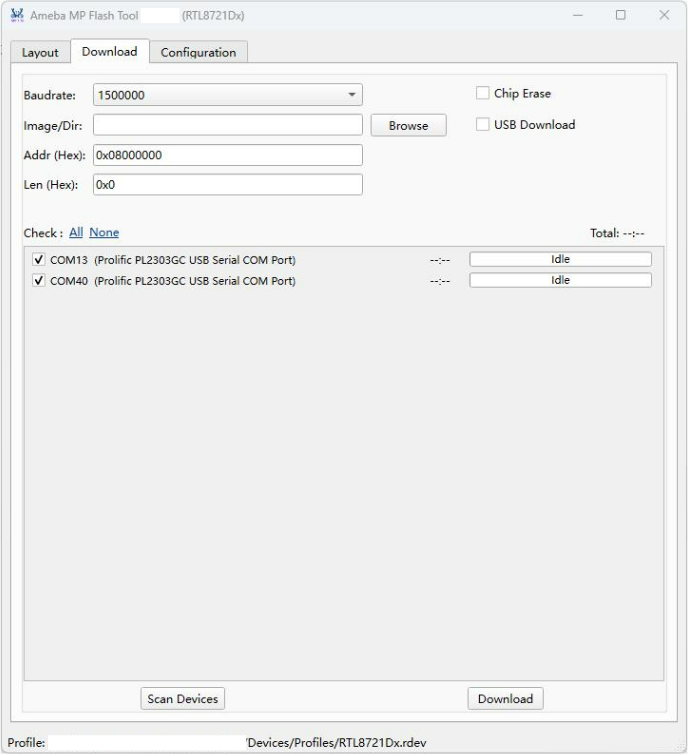
Tab Reference
Layout
Use Browse to select a device profile (.rdev). After loading, the layout table shows,
in read-only mode, the image partitions defined in the profile:
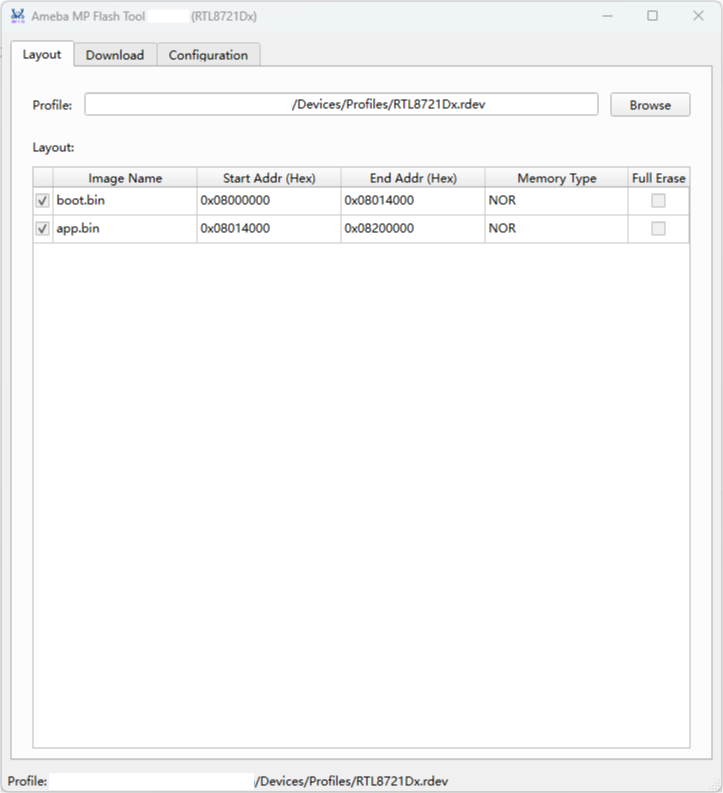
Column |
Meaning |
|---|---|
(checkbox) |
Whether the partition is mandatory (read-only, reflects the profile definition). |
Image Name |
Name of the image for this partition. |
Start Addr (Hex) |
Partition start address. |
End Addr (Hex) |
Partition end address. |
Memory Type |
|
Full Erase |
Whether the whole layout area is erased before programming (read-only, reflects the profile definition). |
After a profile is loaded, the tool automatically enables or disables the USB Download
option on the Download tab according to the profile’s support_usb_download field. It
also clears any previously selected image to avoid a mismatch with the new device.
Download
Setting the baud rate, image, address and other programming parameters, scanning and selecting target devices, and starting programming are all done on this tab.
Control |
Default |
Description |
|---|---|---|
Baudrate |
|
Serial communication baud rate, selectable from the drop-down list (115200 ~ 4000000). Ignored for USB download. |
Image/Dir |
— |
Click Browse to select a single image file ( Selecting a file auto-fills Len with the file size; selecting a directory programs by the layout in the directory. |
Addr (Hex) |
|
Programming start address (used only when programming a single image file). When port location mapping detection is enabled, this field also specifies the address from which the golden-board ID is read. |
Len (Hex) |
|
Data length to program; auto-filled when an image file is selected. |
Chip Erase |
Off |
Erase the entire flash chip before programming. |
USB Download |
Off |
Program over USB instead of LOGUART. Selectable only when the chosen profile supports it. This option also determines which port type Scan Devices lists. |
At the bottom of the tab, Scan Devices refreshes the list of available serial ports, and Download starts programming. When port location mapping detection is enabled, a Reorder Port Mapping button also appears between them. See Port Location Mapping Detection.
Device List and Progress
The lower half of the Download tab is the device list. Each detected serial port occupies one row. From left to right:
Checkbox: whether to program this device; the label shows the port name and description (e.g.,
COM12 (USB-Enhanced-SERIAL)).Elapsed time: the time spent on this device in the current run (
mm:ss).Progress bar: real-time programming progress and status.
The progress bar states are:
State |
Color |
Meaning |
|---|---|---|
|
— |
Idle, not started yet. |
|
Blue |
Programming in progress. |
|
Green |
Programming succeeded. |
|
Red |
Programming failed; hover over the progress bar to see the specific error message. |
Above the list are All / None quick links and the Total elapsed time across all devices. Each device is programmed independently and in parallel, so a failure on one device does not affect the others.
The status bar in the lower-right corner displays cumulative programming statistics for the current tool session:
Session Total: total number of devices whose programming has completed. In a batch, each device
is counted separately.
Passed: number of devices with a
PASSresult.Pass Rate:
Passed / Session Total × 100%, shown to two decimal places. It displays--before any programming result is available.
The statistics are updated when each device returns a result and are appended to the batch log file
after all devices in that batch finish. Closing and restarting the tool resets the counters to 0;
they are not accumulated across tool sessions.
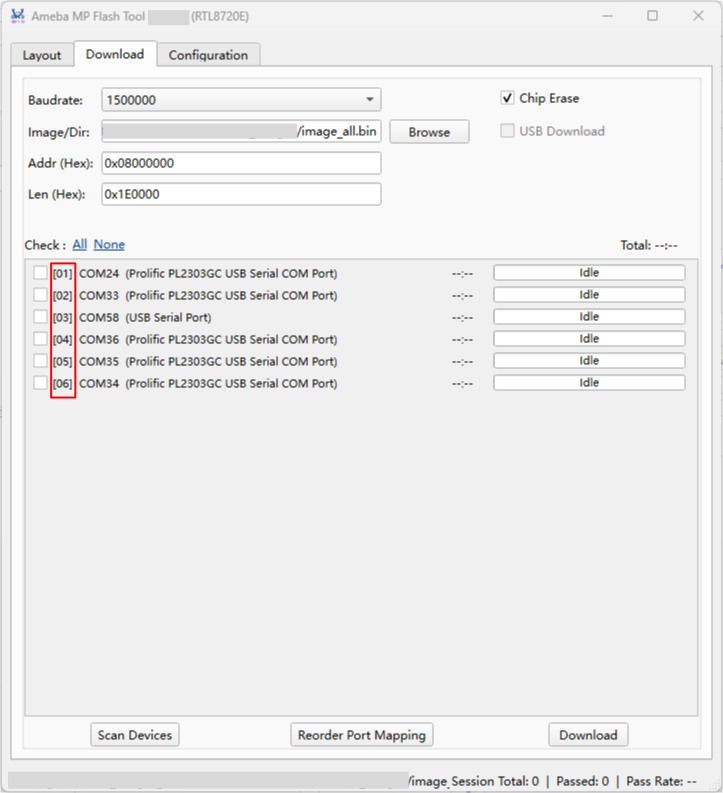
After port location mapping detection is enabled and a mapping is saved, devices are sorted by station
number and each checkbox label is prefixed with a two-digit station number, for example,
[03] COM12 (USB-Enhanced-SERIAL).
Note
Each programming run executes the following stages in the background: protocol handshake → flash size check → flash write-protection handling → programming → image verification → restore write protection → post-processing.
The progress percentage reflects programming progress only.
Port Location Mapping Detection
Port location mapping detection maps production station numbers to operating-system serial ports.
After a successful detection, the tool orders devices by station number (1 through 20)
instead of port number, allowing operators to identify devices by their physical stations.
Preparing the Golden Boards
In
{AmebaFlash}/id_image/, select the ID image that matches each station number (1.binthrough20.bin). Use a unique number for every station.Program the corresponding ID image into the same flash address on every golden board. The address must not be lower than the flash start address defined by the current profile. Enter the same address in Addr (Hex) during detection.
Place the golden boards at their corresponding stations, connect them to the host through USB/LOGUART, and put all golden boards into programming mode.
Note
Port location mapping detection supports NOR flash only. The ID images are used only to establish the port location mapping; they are not application images for production units.
Enabling and Detecting the Layout
The feature is hidden by default. To enable it, close the tool, set ReorderMode under
GUIRunTime in {AmebaFlash}/Settings.json to 1, and then restart the tool:
{
  "GUIRunTime": {
    "ReorderMode": 1
  }
}
Reorder the port mapping as follows:
On the Layout tab, load the device profile that matches the golden boards.
On the Download tab, set USB Download to match the connection method, set the communication Baudrate, and enter the address at which the ID images were programmed in Addr (Hex).
Click Scan Devices and verify that every serial port to be detected appears in the device list.
Click Reorder Port Mapping. The tool reads the golden-board IDs on all listed ports in parallel.
Verify the
DEV<station number> = <port>mappings in the dialog. After successful detection, the device list is sorted by station number and displays[01]through[20]before the port names. The mapping is saved automatically toSettings.json.
If any port cannot be read, returns an ID outside 1 through 20, or returns an ID duplicated
on another port, the mapping is not saved. Check the profile, ID address, golden-board image, serial
connection, and programming mode, and then run detection again. Programming and closing the tool
are disabled during detection, and port mapping reordering is unavailable in Factory Mode.
Note
After the mapping is saved, layout detection is not required for every production run. Run it again after replacing a golden board, changing a station, or changing the host serial-port wiring.
Configuration
This tab centralizes options such as post-processing, flash write-protection handling, DTR/RTS, logging, and UI language.
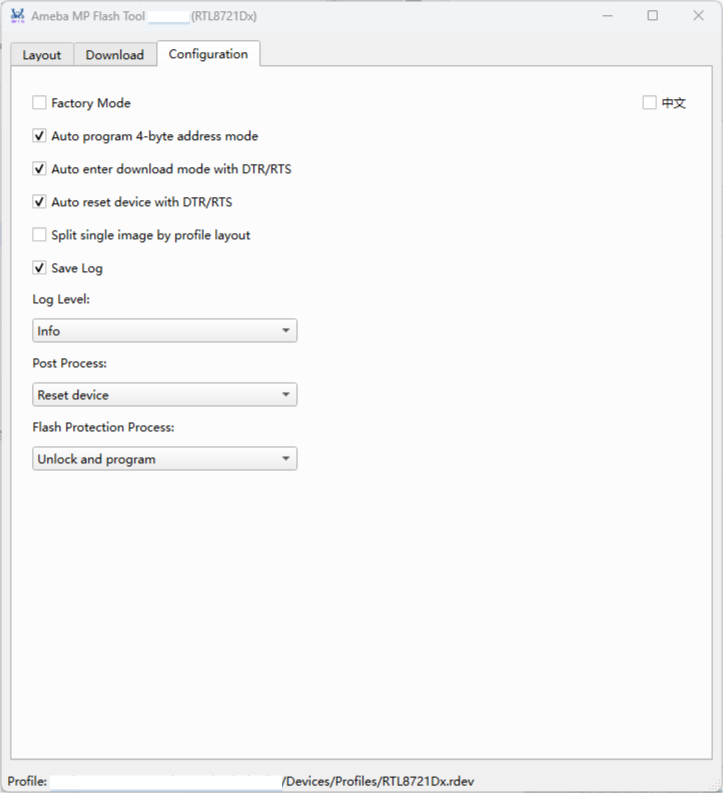
Option |
Default |
Description |
|---|---|---|
Factory Mode |
Off |
Locks all configuration items, leaving only device selection and programming; suited to production-line operators. See Factory Mode. |
Auto program 4-byte address mode |
On |
Automatically enable 4-byte address mode for flash chips ≥ 16 MB. |
Auto enter download mode with DTR/RTS |
On |
Automatically drive the DTR/RTS signal lines to make the device enter download mode, with no manual button press. |
Auto reset device with DTR/RTS |
On |
Automatically reset the device via the DTR/RTS signal lines during the programming flow. |
Split single image by profile layout |
Off |
When programming a single merged image, split it by the profile layout and trim the trailing Once enabled, you must strictly use the correct profile file whose layout matches that of the merged image, which is not necessarily the official default profile; if the profile layout differs from the merged layout, the split boundaries will be misaligned and the wrong data will be programmed. |
Save Log |
On |
Save the log of each run to |
Log Level |
|
Log verbosity: |
Post Process |
|
Action after programming: |
Flash Protection Process |
|
Strategy when flash write protection is encountered: |
中文 |
Off |
Toggle the interface between Chinese and English. |
Programming Workflow
On the Layout tab, click Browse and select the target device profile (
.rdev). Once loaded, the table below lists the device’s image partition layout, and the Download tab becomes enabled.Switch to the Download tab, click Browse to select the image file (
.bin) or image directory to program, and adjust the Baudrate and Addr as needed.Connect all target devices with a USB/LOGUART cable, then click Scan Devices to list the detected serial ports. To create or update a production-line port location mapping, first complete Port Location Mapping Detection.
Check the devices to program (use All / None for quick selection).
Click Download. The tool programs all checked devices in parallel, showing each device’s progress and elapsed time in real time.
Factory Mode
When Factory Mode is checked on the Configuration tab, all configuration items (profile, baud rate, address, options, etc.) are locked, and the interface keeps only the Scan Devices, device selection, and Download operations.
Note
This mode is intended for the production line: an engineer pre-configures everything, and operators only need to connect devices and program, avoiding accidental parameter changes.
The Factory Mode state is saved in {AmebaFlash}/Settings.json and remains
enabled after the tool restarts. Because all interface configuration items are locked in this
mode, the checkbox cannot be cleared directly from the UI. Use either of the following methods
to exit Factory Mode:
Close the tool, delete the
Settings.jsonfile in the tool’s root directory, then restart the tool.Close the tool, change the
FactoryModeparameter inSettings.jsontofalse, then restart the tool.
Secure Boot Flashing
If Secure Boot is enabled on the target device, the flashloader must also be configured with Secure Boot support. Refer to Secure Boot for configuration details.
After configuration, copy the generated flashloader binary to
{AmebaFlash}/Devices/Floaders/, overwriting the original file.
Configuration Parameters
All GUI settings are automatically saved to {AmebaFlash}/Settings.json when the tool is closed. On the next launch, the Profile, ports, baud rate, firmware paths, individual options, and interface language are automatically restored.
The configuration file provides fine-grained control over communication timing, programming behavior, and post-processing, and also preserves the programming target parameters last used by both the graphical interface and the command line. All keys are optional; the values shown in the tables below are the defaults applied when a key is missing.
This chapter is divided into two parts by scope of applicability:
General Configuration Parameters: low-level protocol, timing, and programming behavior parameters shared by both the CLI and the GUI;
GUI Parameters: parameters read only by the graphical interface, including the programming target configuration for each control on the Download page (auto-restored on every launch), along with interface appearance and production-line mode settings.
General Configuration Parameters
The following parameters control the low-level communication timing and programming behavior, and are read by both the CLI and the GUI.
Parameter |
Default |
Description |
|---|---|---|
|
|
Wait time after ROM boot (ms). Minimum enforced value: 50 ms. |
|
|
Wait time after USB ROM boot (ms). Minimum enforced value: 200 ms. |
|
|
Wait time after USB Flashloader boot (ms). Minimum enforced value: 200 ms. |
|
|
Wait time after the Flashloader binary starts executing (ms). |
|
|
Stabilization wait time after switching to a higher baud rate (ms). |
|
|
Timeout for the first read after the serial port is opened (ms). |
|
|
Timeout for ROM alive detection (handshake probing) (ms). |
|
|
Number of data packets sent consecutively between two SENSE (status confirmation) operations during the programming phase. |
|
|
Maximum number of retries when a request fails. |
|
|
Wait time between each retry (ms). |
|
|
Timeout for waiting for an asynchronous response from the device (ms). |
|
|
Timeout for waiting for a synchronous response from the device (ms). |
|
|
Timeout for waiting for the device to acknowledge a write command (ms). |
|
|
When set to |
|
|
When set to |
|
|
Path to the DTR/RTS timing configuration file for entering download mode. See DTR/RTS Configuration. |
|
|
When set to |
|
|
When set to |
|
|
Path to the DTR/RTS timing configuration file for resetting the device. See DTR/RTS Configuration. |
|
|
Flash write protection handling mode. See Flash Write Protection Handling. |
|
|
When set to |
|
|
When set to |
|
|
GPIO/PWM indication configuration register 1. See GPIO/PWM Indication. |
|
|
GPIO/PWM indication configuration register 2. See GPIO/PWM Indication. |
|
|
When set to |
|
|
Padding byte value used during RAM download. |
|
|
Operation performed after programming completes. See Post-Download Operation. |
|
|
When set to segments according to the profile layout, trim the trailing |
DTR/RTS Configuration
If the hardware supports automatically entering download mode and resetting after programming via the DTR/RTS signals, this can be enabled through the AutoSwitchToDownloadModeWithDtrRts / AutoResetDeviceWithDtrRts keys in the table above, with the timing configuration file specified through the corresponding ...TimingFile keys.
The timing files define the DTR/RTS pulse sequence and delay values. The default files shipped with the tool are adapted to Realtek public reference boards. To support custom hardware, copy and modify a timing file, then update the corresponding path in Settings.json.
# Reburn.cfg (default timing for entering download mode)
# Format:
# <signal line>=<state>
# delay=<delay in milliseconds>
dtr=0
rts=1
delay=200
dtr=1
rts=0
delay=100
dtr=0

# Reset.cfg (default timing for resetting the device)
dtr=0
rts=1
delay=200
rts=0
dtr=0
Flash Write Protection Handling
If Flash write protection is encountered during programming, it will cause the programming to fail. The FlashProtectionProcess key controls how the tool responds:
Value |
Behavior |
|---|---|
|
Pause and wait for user input at the console (CLI mode only). |
|
Continue trying to program, but may fail. |
|
Automatically remove write protection, proceed with erase/download, then restore protection after completion. (Default) |
|
Abort immediately, with no interactive prompt and no automatic handling. |
"FlashProtectionProcess": 2
Post-Download Operation
The PostProcess key specifies the operation performed on the device after programming succeeds. Default: "RESET".
Value |
Behavior |
|---|---|
|
Perform no operation. |
|
Indicate programming success or failure via GPIO/PWM. |
|
Automatically reset the device. (Default) |
|
Jump to RAM and start execution. |
|
Reset the device and re-enter download mode. |
"PostProcess": "RESET"
Note
The command-line parameter --no-reset takes precedence over PostProcess: when specified, it forces the post-processing to "NONE", thereby skipping all post-processing operations (RESET / BOOT / REBURN / INDICATION), not just preventing the reset.
This override applies only to the current run and is not written back to Settings.json.
GPIO/PWM Indication
On a production line, the GPIO/PWM indication feature allows the host to automatically identify which devices have been programmed successfully, without reconnecting or manually checking.
The ProgramConfig1 and ProgramConfig2 keys configure the GPIO/PWM output parameters. See the table below for the complete bit-field description.
Bit |
Description |
|---|---|
[63:32] |
Download indication configuration:
|
[31:30] |
Download indication strategy:
|
[29:16] |
Download indication PIN name, refer to the SoC-specific definition of PinName for MBED API
|
[15:2] |
Reserved |
[1:0] |
NAND Flash bit flip fail level:
|
Auto 4-byte Addressing Mode
Flash modules larger than 16 MB require 4-byte addressing. If the 4-byte mode is not enabled, addresses beyond 16 MB cannot be accessed, causing programming to fail.
The AutoProgramSpicAddrMode4Byte key controls this behavior:
0: Do not enable the 4-byte mode; error out directly.1: Automatically write OTP to enable 4-byte addressing and continue programming. (Default)
"AutoProgramSpicAddrMode4Byte": 1
Tip
When the 4-byte mode is enabled automatically, the tool edits the corresponding OTP bits and reboots the device, making the setting permanent for the device.
Therefore, when a Flash with a capacity larger than 16 MB is detected, the programming time increases by approximately 3 to 5 seconds.
Split Single Image by Profile Layout
When programming a single firmware file using the merged image method (the CLI --image, or a single .bin file selected on the GUI Download page), the image typically concatenates multiple partitions and pads the unused tail of each partition with 0xFF (mainly the gaps between two image segments). The SplitSingleImageByLayout key controls whether programming this meaningless padding is skipped:
false: Write the entire merged image to flash as-is. (Default)true: Split the merged image into per-partition segments according to the profile’s layout, trim the trailing run of0xFFpadding from each segment (aligned to 4 bytes), skip regions that are entirely0xFF, and then program, saving programming time.
"SplitSingleImageByLayout": false
Warning
When programming NAND flash with a merged image, you must enable this feature (set it to true in the CLI, or check Split single image by profile layout on the GUI Configuration page).
NAND flash may contain bad blocks. During programming, the tool automatically skips them and shifts the data onward into the next available blocks. If the whole merged image is written as one continuous stream, a bad block encountered partway shifts all subsequent partition data forward, so the partitions no longer land on the block addresses defined by the layout, causing programming to fail or the device to fail to boot.
Once split by profile layout, the tool programs each partition into its own block range, so bad-block skipping stays confined within a single partition and each partition’s start address remains correct; it also skips the 0xFF padding between partitions, avoiding occupying extra blocks.
Note
The split is based on the layout of the selected profile. Therefore, when programming a merged image (such as image_all.bin) with this feature enabled, be sure to select a profile whose layout matches that of the merged image, which is not necessarily the official default profile; if the profile layout differs from the layout used when merging, the split boundaries will be misaligned and the wrong data will be programmed.
If the start address of the merged image is not aligned to any layout partition (for example, when using a custom address), the image is no longer split by partition, but the trailing 0xFF padding of the whole image is still removed.
This parameter is shared by the CLI and the GUI; in the GUI it corresponds to the Split single image by profile layout checkbox on the Configuration page.
GUI Parameters
The following parameters are read only by the graphical interface (GUI) and are not used by the command line. Each time a value is changed in the interface, the tool automatically saves the current value to Settings.json; on the next GUI launch, it is automatically read and restored into the interface, so no reconfiguration is needed.
Parameter |
Default |
Description |
|---|---|---|
|
|
Path to the device Profile ( On startup, if this path is valid, the tool automatically loads the Profile and enables the Download page. |
|
|
List of serial ports selected during the last programming, such as Automatically restored on startup, for quickly locating the device ports used last time. |
|
|
Port location mapping detection switch. Set it to Download tab, or |
|
|
Detected and saved mapping from serial ports to station numbers, for example,
The tool updates this value automatically after successful detection. The device list is sorted by station number and displays a station-number prefix. |
|
|
Serial communication baud rate (bps) selected in the Baudrate drop-down on the Download page. |
|
|
Path to the single firmware file ( |
|
|
Path to the firmware directory selected in Firmware/Directory on the Download page; firmware in this directory is programmed in batch according to the layout in the Profile. |
|
|
Programming start address (hexadecimal) entered in Address (Hex) on the Download page, used only when programming a single firmware file. |
|
|
Programming data length (bytes) in Length (Hex) on the Download page;
|
|
|
Factory (production) mode; when set to |
|
|
Corresponds to the Chip Erase checkbox on the Download page; when enabled, the entire Flash is erased before programming. |
|
|
Corresponds to the USB Download checkbox on the Download page; when enabled, programming is performed over the USB channel. It can be checked in the interface only when the selected Profile supports USB download. |
|
|
Corresponds to the Save Log checkbox on the Configuration page; when enabled, the programming log is saved to the |
|
|
Corresponds to the Log Level drop-down on the Configuration page; available values: |
|
|
Graphical interface language; |
|
|
Number of serial port rows displayed without scrolling when the graphical interface starts. This value is limited by the actual window height: if the display is small or the window height is insufficient, the configured number of rows may not fully fit, and the portion beyond the window still needs to be viewed by scrolling. In this case, decrease this value appropriately, or enlarge the window / use a larger display. |
Troubleshooting
Cannot Connect to Device
Symptom: The tool fails to enter download mode, or prints a timeout error at startup
(e.g., SYS_TIMEOUT, Finished FAIL).
Possible causes and solutions:
Incorrect serial port: Confirm the correct port number in Device Manager (Windows) or
via
ls /dev/tty*(Linux).Ensure no other program (e.g., a serial terminal) is occupying the port at the same time.
Device not in download mode: If DTR/RTS auto-entry is disabled or the hardware does not
support it,
confirm that the device has entered download mode before running the tool. Refer to Enter Download Mode for details.
Missing or incorrect driver: Install the driver matching the board’s USB-to-UART bridge
chip (e.g., CH340, CP2102, FTDI),
and confirm the device appears in Device Manager without error flags.
USB enumeration delay too short: After the device is reset, its ROM bootloader must be
re-enumerated by the host USB bus and have its driver loaded before the tool can establish communication with it. On some hosts, USB enumeration and driver loading take longer and host-side response latency is higher; if the tool starts the handshake before enumeration completes, the connection fails because the ROM bootloader is not yet ready. In this case, increase
UsbRomBootDelayInMillisecondinSettings.json(default 1000 ms, minimum 200 ms) to allow enough time for USB enumeration; for devices connected via LOGUART, the corresponding setting isRomBootDelayInMillisecond(default 100 ms, minimum 50 ms).
Download Timeout or Failure
Symptom: The tool connects successfully but stalls during programming, or the log ends
with Finished FAIL.
Possible causes and solutions:
Baud rate too high: Reduce the baud rate (e.g., to 921600 or 460800). Some USB-to-UART
adapters are not stable enough at 3 Mbps.
Unstable USB/LOGUART adapter: Use a reliable adapter connected directly to a host USB
port. Avoid unpowered USB hubs during high-speed transfers.
Flash write protection active: The log will show a write-protection warning. Confirm that
FlashProtectionProcessinSettings.jsonkeeps its default value2(automatically removes write protection and restores it after programming completes). See Flash Write Protection Handling.Image file path contains spaces: On Windows and MinGW environments, enclose the path in
double quotes:
--image "E:\path with spaces\image_all.bin"
Antivirus interference (AmebaFlash.exe only): The EXE extracts a temporary Python runtime at each launch, and antivirus software may delay or block this process. Add the Windows
%TEMP%directory to the antivirus exclusion list, or useAmebaFlash.pydirectly.
Slow Programming with an FTDI USB-to-UART Bridge
Symptom: Programming is stable with an FTDI USB-to-UART bridge, but the same image is programmed significantly more slowly than with other USB-to-UART bridges.
Cause: The Windows FTDI driver’s Latency Timer (msec) typically defaults to 16 ms. This
setting controls how long the driver waits before delivering a partially filled receive buffer.
Because AmebaFlash programming involves multiple command-response exchanges, a high latency value
can add a delay to each exchange and reduce the overall programming speed. In this case, the Flash
or serial baud rate is not necessarily the bottleneck.
Solution:
Open Windows Device Manager and expand Ports (COM & LPT).
Right-click the corresponding USB Serial Port (COMx) and select Properties > Port Settings > Advanced.
Change Latency Timer (msec) from its default value of
16to1or2. Save the setting, reconnect the device, and test the programming speed again.
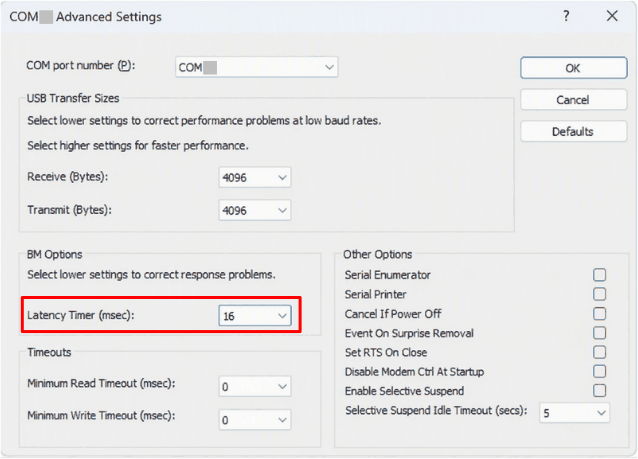
Note
Latency Timer (msec) is an FTDI driver setting, not an AmebaFlash Settings.json setting.
It applies only to devices using an FTDI USB-to-UART bridge. If communication becomes unstable
after the change, increase the value as appropriate.
Exceptions, Hangs, and Log Collection
AmebaFlash continuously writes the default log for each run to {AmebaFlash}/log/. It attempts
to record full tracebacks for unhandled exceptions in the main thread, programming threads, and
other Python threads. It also attempts to record thread state for some Python fatal errors,
Native/C extension crashes, and unraisable exceptions. If programming fails on any port, the main
process eventually returns a nonzero exit code and records the failed port.
A file specified by --log-file is not the live primary log. The tool appends the default log to
that file only during normal process exit. If the process is forcibly terminated, inspect the
default log under {AmebaFlash}/log/ first instead of relying only on --log-file.
Watchdog hang diagnosis
By default, the watchdog monitors log activity for each port. If a port produces no new log for 1200 consecutive seconds, the tool writes a message similar to the following to the default log and dumps the call stacks of all Python threads:
[COM34] no log activity for 1200.0s; dumping all thread tracebacks
Configure the timeout with General.WatchdogTimeoutInSeconds in Settings.json, or use
--watchdog-timeout <seconds> to override it for the current run only. Set the value to 0 to
disable the watchdog. A negative value is rejected as an invalid argument.
Important
The watchdog only captures diagnostic state. It does not stop programming, close the serial port, mark the port as failed, or change the exit code. A normal operation such as chip erase can also trigger the watchdog if it produces no log for a long time. Therefore, interpret a watchdog message together with the thread dump and the final programming result; the message alone does not mean programming failed.
Ctrl+C cancellation
When Ctrl+C is pressed during programming, the tool requests cancellation of each port operation,
interrupts serial I/O, and exits with code 130. If a worker thread still has not exited after
5 seconds, the tool records the ports that did not stop, flushes the log, and then terminates the
process. After cancellation, Finished FAIL: ErrType.SYS_CANCEL means the operation was stopped
as requested and must not be treated as a successful programming result by the host application.
Notes for host applications
When an automation program or another host application invokes AmebaFlash, it must retain its own diagnostics for cases where the tool cannot create a log or is terminated before it can finish writing one:
Continuously drain and save the child process’s stdout and stderr so that full pipes do not block the tool. Also record the start/end time, duration, port, tool version, exit code, and actual command line. Redact sensitive arguments such as
--remote-passwordbefore saving the command line.Set the host timeout longer than the AmebaFlash watchdog timeout and allow time for the thread dump and log flush. When the host timeout expires, do not immediately kill the process. First request a graceful interruption equivalent to Ctrl+C and wait at least 5 seconds. Force termination only if the threads still do not exit, and record the reason and time.
Determine the result from the process exit code:
0means success,1means failure, and130means user cancellation. Treat any other nonzero code or an operating-system-reported crash exit as a failure. A watchdog timeout does not exit the process, so the host must still enforce its own timeout policy.Archive stdout, stderr, and the default log after the process exits. Because
--log-fileappends the default log only during normal exit, do not use it as the only source of failure evidence.If the default log is missing, ends at the failure point, or contains no thread dump, also collect host-side evidence: Application, System, and USB/serial driver events from Windows Event Viewer;
dmesg/journalctlon Linux; USB enumeration and serial-port state; driver versions; antivirus intervention records; and target LOGUART output when available.
Warning
AmebaFlash cannot guarantee complete logs after Task Manager End task, TerminateProcess,
SIGKILL, power loss, a full or failed disk, severe Python runtime corruption, or a native
call that permanently holds the GIL. An exception before logger creation may also appear only
on stderr. In these cases, use the host application’s captured process output, exit status,
timeout and forced-termination records, and operating-system logs as supplementary evidence.
AmebaFlash.exe Slow Startup on Windows
Symptom: After running AmebaFlash.exe, several seconds elapse before any log output
appears.
Explanation: AmebaFlash.exe is packaged with PyInstaller in --onefile mode.
At each launch, it extracts the embedded Python runtime to a temporary directory before
execution. This process takes longer on mechanical hard drives or when antivirus software
monitors the temporary directory.
Solutions:
Use
AmebaFlash.pywith a locally installed Python 3.8+ environment for faster repeated launches.Add the Windows
%TEMP%directory to the antivirus exclusion list to reduce extraction latency.
NAND Flash Bad Block or Bit-Flip Warnings
Symptom: The log shows DEV_NAND_BAD_BLOCK, DEV_NAND_WORN_BLOCK,
DEV_NAND_BIT_FLIP_WARNING, or similar messages.
Explanation: These are normal characteristics of NAND flash. The tool automatically skips factory-marked bad blocks and relocates data to spare blocks.
DEV_NAND_BIT_FLIP_WARNING: The ECC engine corrected bit errors. The block is still usable but is aging.DEV_NAND_BIT_FLIP_ERROR/DEV_NAND_BIT_FLIP_FATAL: The ECC engine could not fully correct the errors, and the block is no longer reliable.
Recommended handling: If a bad block or bit-flip warning appears, we recommend marking the bad block. For the specific procedure, refer to NAND Bad Block Management.
1-to-N Programming: Some Ports Fail
Symptom: When multiple ports are specified, some devices report Finished PASS while
others report Finished FAIL.
Explanation: Each port runs in an independent thread, and a failure on one port does not
affect the others. The port name at the start of each log line (e.g., [COM3]) helps quickly
locate the problem device.
Diagnostic steps:
Run the tool against the failing port individually to determine whether the issue is device-specific or host-specific.
Confirm that all devices have entered download mode simultaneously before running the 1-to-N command.
If multiple devices share the same USB hub, check whether hub bandwidth is a bottleneck. Use a powered USB hub
or a dedicated USB expansion card.
Profile Not Found
Symptom: The tool prints Device profile '...' does not exist and exits immediately.
Solution: Provide the correct absolute or relative path to the .rdev profile file.
Profile files are located in the Devices/Profiles/ folder under the AmebaFlash installation
directory.
--profile Devices/Profiles/RTL8721Dx.rdev
Remote Serial Connection Issues
Symptom: The tool prints a connection error when --remote-server is specified.
Possible causes and solutions:
The remote serial service must be running on the target server and listening on TCP port 58916. Confirm that the service is started.
Check network connectivity from the local machine to the remote server IP address.
Confirm that
--remote-passwordexactly matches the password configured on the server.
Settings.json Not Taking Effect
Symptom: After modifying Settings.json, the changes appear to have no effect.
Solution: Settings.json must be located in the same directory as AmebaFlash.py /
AmebaFlash.exe. The tool prints the actual loaded path in the log at startup:
[main]Settings path: E:\AmebaFlash\Settings.json
Compare the path in the log against the file you edited. If multiple copies of the tool exist on the system, ensure you are editing the configuration file that the tool actually loads.