WHC Wi-Fi Fat Host Driver Porting
Linux cfg80211 Porting
Driver Porting
FullMAC is currently tested and validated on Linux kernels 5.4 and 5.10. If you encounter compilation issues on other kernel versions, please contact us.
Note
SPI initiates data transfer immediately after CS pin is pulled low and CLK is detected. Corner cases may occur during bus busy states.
Testing shows adding a 7μs delay between CS low and host CLK push ensures safe data transmission.
However, older SPI drivers without spi_delay support may require direct code modification.
Prerequisites
Install dependencies on Linux:
sudo apt-get install build-essential
sudo apt install dhcpcd hostapd dhcpd
Interface Activation
Linux PC: Skip this step
Raspberry Pi:
Configure SDIO via
dtoverlay.For Raspberry Pi 4:
sudo dtoverlay sdio poll_once=off
For Raspberry Pi 5:
sudo dtoverlay sdio
Enable SPI interface
sudo raspi-configSelect
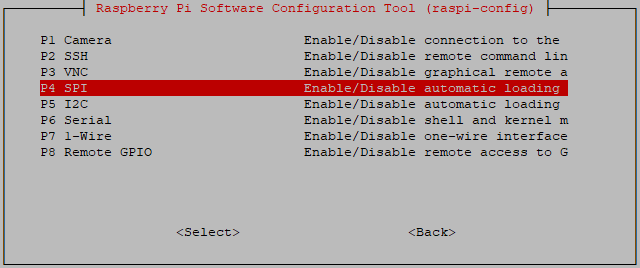
Generate device tree overlay
sudo su
cd {driver_path}/whc_host_linux/rtl8730e/spi
dtc -@ -Hepapr -I dts -O dtb -o inic_spidev.dtbo spidev-overlay.dts
cp inic_spidev.dtbo /boot/overlays/
dtoverlay inic_spidev
In directory
/component/whc/whc_host_linux, run the following cmd.nanandp2pis an optional parameter and should be added only when Wi-Fi NAN and Wi-Fi P2P needs to be enabled.SDIO
./fullmac_setup.sh sdio [nan] [p2p]
SPI
./fullmac_setup.sh spi [nan] [p2p]
USB
./fullmac_setup.sh usb [nan] [p2p]
Select 1 or 2 based on the host operation mode
choose target host mode:
1) Fat host with cfg80211
2) Slim host without cfg80211
choose target host mode:
Copy
whc_host_linuxto Linux kernel source treeOpen new terminal and compile
cd {driver_path}/whc_host_linux
make
Driver Loading
SDIO
Module Path:
/whc_host_linux/sdio/fullmac_sdio.kosudo su cp sdio/fullmac_sdio.ko /lib/modules/$(uname -r)/ depmod -a modprobe fullmac_sdio
SPI
Module Path:
/whc_host_linux/spi/fullmac_spi.kosudo su cp spi/fullmac_spi.ko /lib/modules/$(uname -r)/ depmod -a modprobe fullmac_spi
USB
Module Path:
/whc_host_linux/usb/fullmac_usb.kosudo su cp usb/fullmac_usb.ko /lib/modules/$(uname -r)/ depmod -a modprobe fullmac_usb
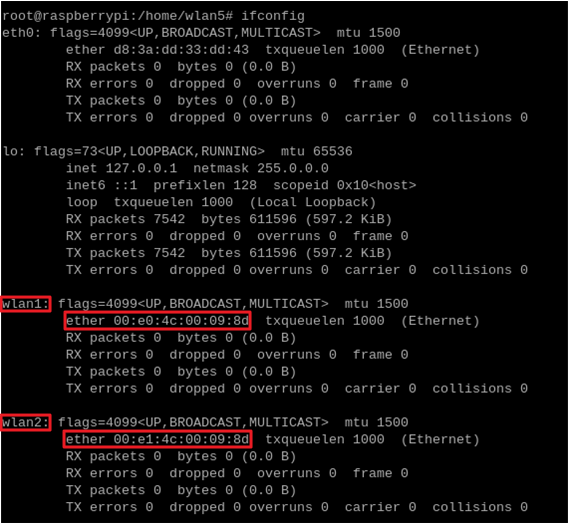
After successful loading, run
ifconfigto verify Wi-Fi devices.Sample Output:
Station mode MAC prefix:
00:e0:4cSoftAP mode MAC prefix:
00:e1:4c
Normal Mode Verification
Driver Loading Verification
After successful modprobe loading, execute
ifconfigto view Wi-Fi device information.Example Output:
Station mode: Device MAC address prefix is
00:e0:4cSoftAP mode: Device MAC address prefix is
00:e1:4c
Stop NetworkManager and DHCP services to avoid conflicts
Ubuntu System Note: When connecting via command line, you stop NetworkManager and DHCP services to avoid conflicts
sudo systemctl stop NetworkManager dhcpcd.service
sudo systemctl disable NetworkManager
Create configuration file ``/etc/wpa_supplicant/wpa_supplicant.conf``
ctrl_interface=/var/run/wpa_supplicant
network={
    ssid="HUAWEI-JX2UX5_HiLink_5G"
    psk="12345678"
}
Start WPA connection
wpa_supplicant -D nl80211 -i wlanX -c /etc/wpa_supplicant/wpa_supplicant.conf -dd > /var/wifi_log
Note
wlanXis the name of the wireless interface device, execute ifconfig -a` in the terminal to retrieve its information
Obtain IP address
dhcpcd wlanXConfiguring SoftAP
Create configuration file
/etc/hostapd/hostapd.conf
driver=nl80211
logger_syslog=-1
logger_syslog_level=2
hw_mode=g
channel=6
ssid=aaa_test
wpa=2
wpa_passphrase=12345678
wpa_key_mgmt=WPA-PSK
wpa_pairwise=CCMP
Create DHCP configuration file
/etc/udhcpd_wlanX.conf
start 192.168.43.20
end 192.168.43.254
interface wlanX
opt dns 192.168.43.1
option subnet 255.255.255.0
opt router 192.168.43.1
Start SoftAP
hostapd /etc/hostapd/hostapd.conf -i wlanX
Set AP IP address
ifconfig wlanX 192.168.43.1 netmask 255.255.255.0
Start DHCP service
udhcpd -f /etc/udhcpd_wlanX.conf
Note
wlanX is the name of the wireless interface device, execute ifconfig -a in the terminal to retrieve its information
Dual TCPIP Mode Verification
Driver Loading Verification
After successful modprobe loading, execute
ifconfigto view Wi-Fi device information.Example Output:
Station mode: Device MAC address prefix is
00:e0:4cSoftAP mode: Device MAC address prefix is
00:e1:4c
Stop NetworkManager and DHCP services to avoid conflicts
Ubuntu System Note: When connecting via command line, you stop NetworkManager and DHCP services to avoid conflicts
sudo systemctl stop NetworkManager dhcpcd.service
sudo systemctl disable NetworkManager
Create configuration file ``/etc/wpa_supplicant/wpa_supplicant.conf``
ctrl_interface=/var/run/wpa_supplicant
network={
    ssid="HUAWEI-JX2UX5_HiLink_5G"
    psk="12345678"
}
Start WPA connection
wpa_supplicant -D nl80211 -i wlanX -c /etc/wpa_supplicant/wpa_supplicant.conf -dd > /var/wifi_log
Note
wlanXis the name of the wireless interface device, execute ifconfig -a` in the terminal to retrieve its information
Obtaining IP Address
Launch slim host demo
cd ${SDK}/component/whc/whc_host_linux/app
sudo ./whc_slim_host_demo
Execute initialization
> initTrigger IP address acquisition
> dhcpConfigure host network settings
sudo ip addr add 192.168.x.x/24 dev wlanX
sudo ip link set wlanX up
sudo ip route add default via 192.168.x.x dev wlanX
Network Testing
ping 192.168.x.x
Note
wlanX is the name of the wireless interface device, execute ifconfig -a in the terminal to retrieve its information
RTOS Driver Porting
Driver Porting
Programming Guide for Ameba as FullMAC Host
Environment Setup
Execute the configuration tool in the directory
{SDK}/amebadplus_gcc_project(Top) -> CONFIG WHC INTF -> WHC_MODE ----Configuration---- ( ) WHC_IPC ( ) FULLMAC_DEV (X) FULLMAC_HOST (Top) -> CONFIG WHC INTF -> FULLMAC HOST config ----Configuration---- (X) Support WHC CMD PATH (X) Support WHC WIFI API PATH
Firmware Compilation
Generate target files:
./build.py
Output files:
km4_boot_all.binkm0_km4_app.bin
Firmware Burning
Use the dedicated burning tool to write the firmware to the development board
Third-party Platform Porting
When using other Host chips, the component/os/freertos directory must be ported to the target system.
Functional Verification
Perform WiFi scan
> AT+WLSCANEstablish wireless connection in
> AT+WLCONN=ssid,ap_test,pw,12345678
Note
ap_testrepresents the target AP’s SSID,12345678is the target AP’s password. Omit password parameter for open networks.Network Testing
AT+WLPING=192.168.x.x
CUST_PATH Guide
In Fat Host mode,if custom communication between Host and Device is required beyond standard Wi-Fi/BT/Socket programming, the CUST_PATH can be utilized.