Development Environment Setup
Download and Install Arduino IDE
Download the installer for your operating system from the official Arduino website: Arduino IDE.
Note
For Chinese developers, if the download is slow or fails, visit the Arduino Chinese Community and use the provided cloud download links.
Run the installer. It is recommended to use the default settings and install to a path with no non-ASCII characters.
Note
Installation paths containing non-ASCII characters (e.g. Chinese) may cause issues.
Arduino IDE Interface Overview
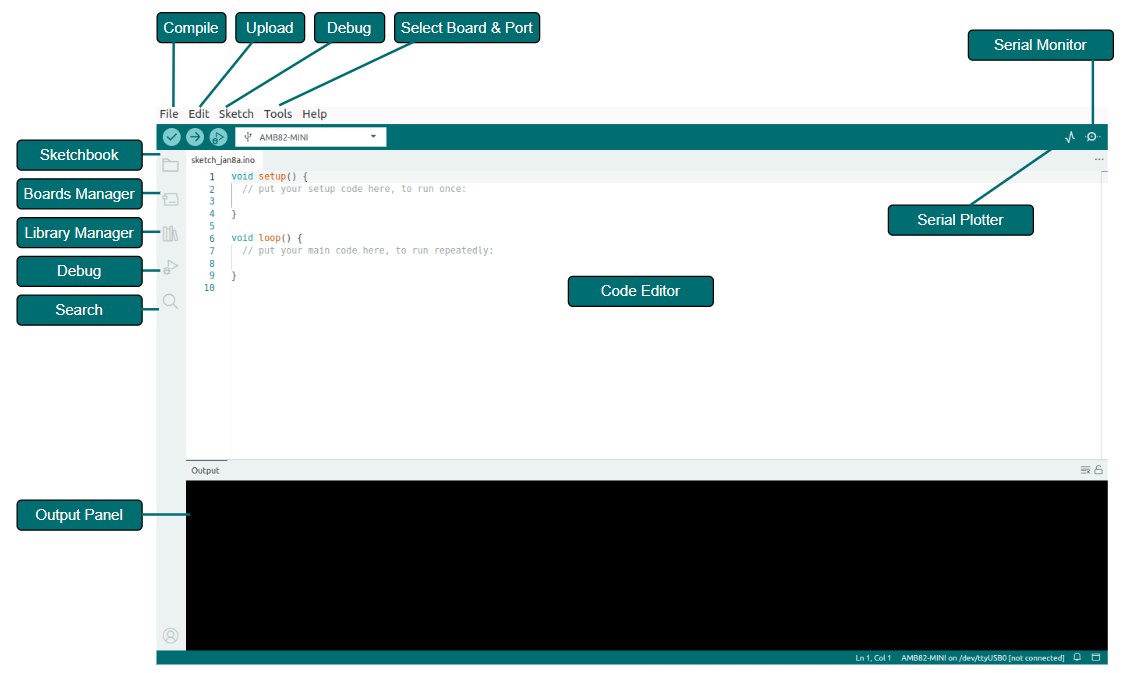
The Arduino IDE interface is shown below:
Configure Arduino IDE (Optional)
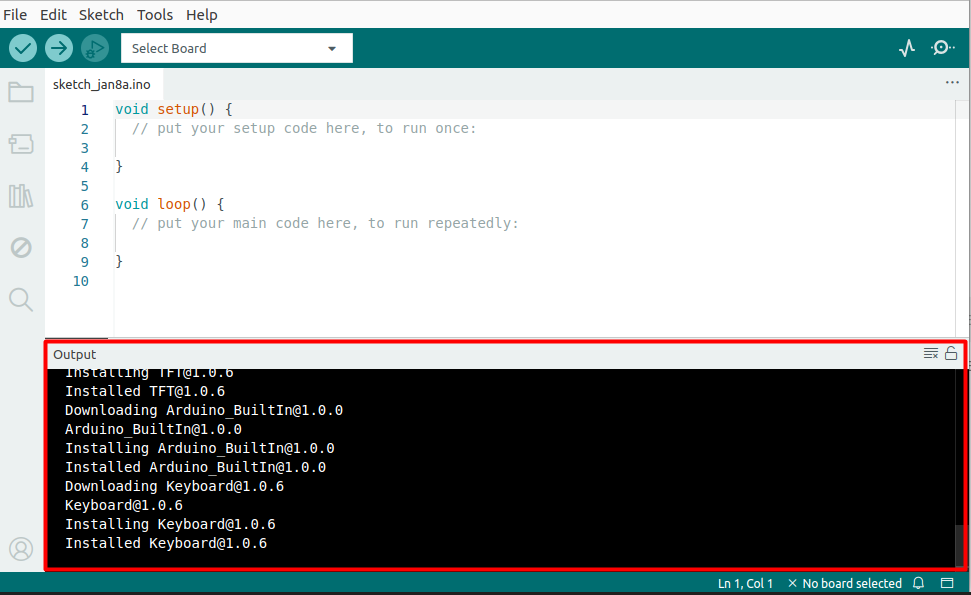
When launched for the first time, the IDE may automatically download and install Arduino built-in core files and drivers. If the operating system prompts for driver installation or network security confirmation, it is recommended to allow them. The output window will display download and installation messages during this process — this is normal, no action is required.
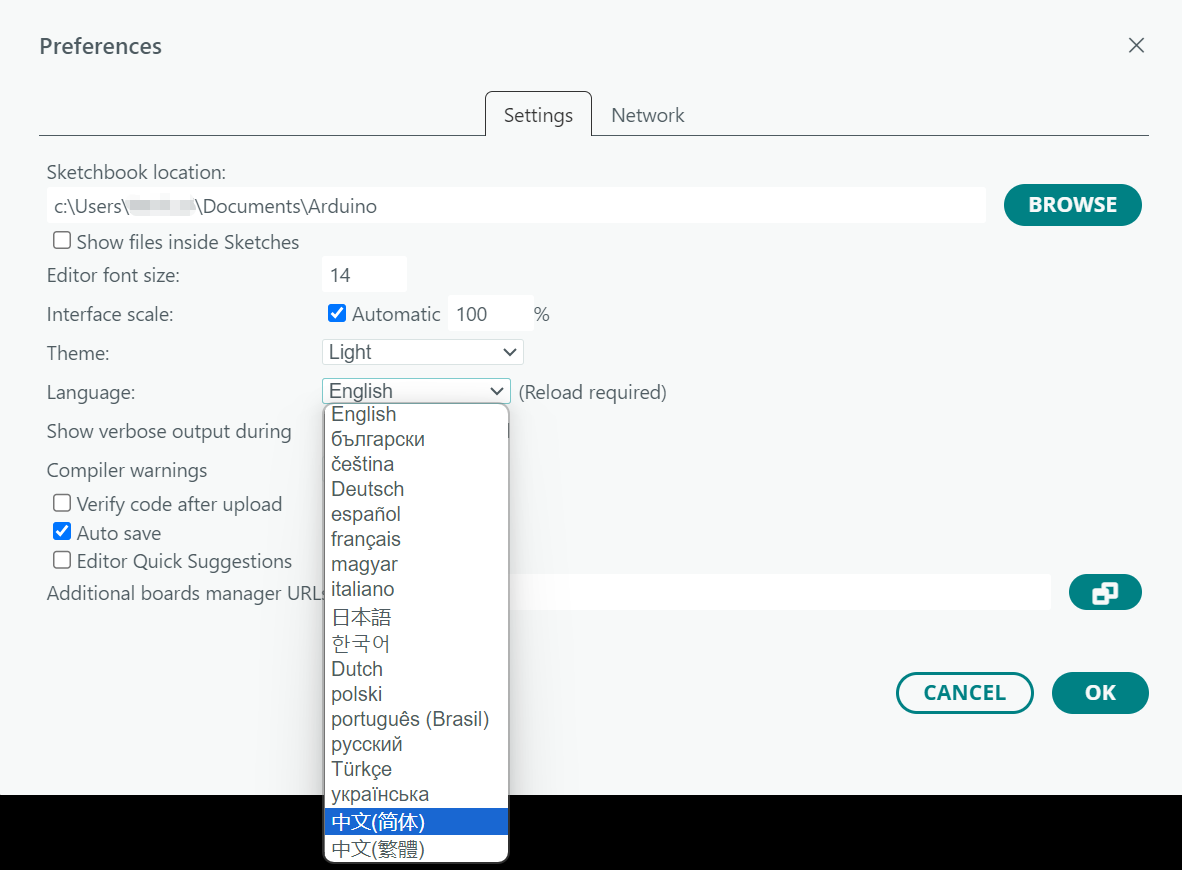
Arduino IDE displays in English by default, but can be switched to other languages. Click to open , set to the desired language, and click . Arduino IDE will restart automatically with the new language.
To change the Sketchbook location, go to and modify the field, as shown below.
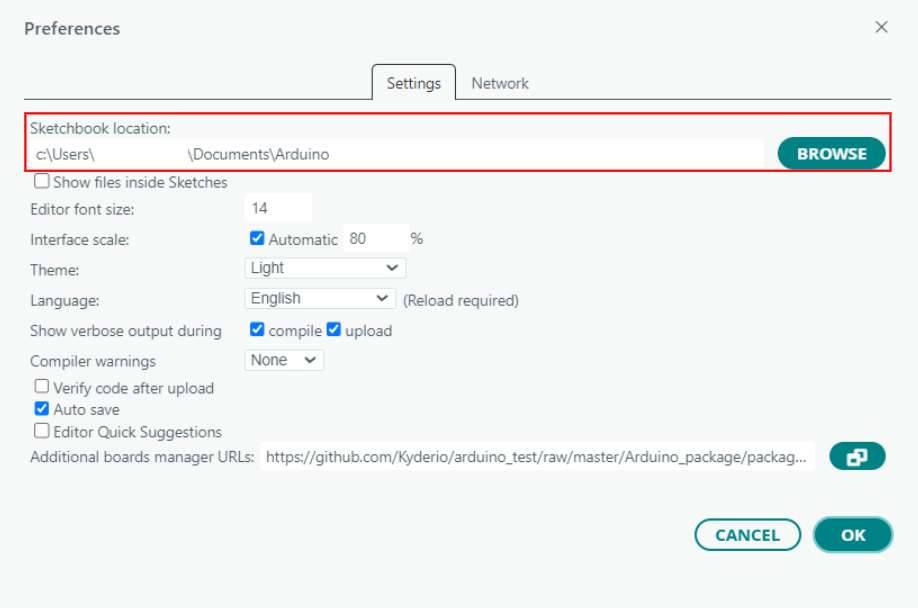
Additional options such as font size, interface scaling, theme, and verbose output can also be configured here.
Install Arduino Libraries (Optional)
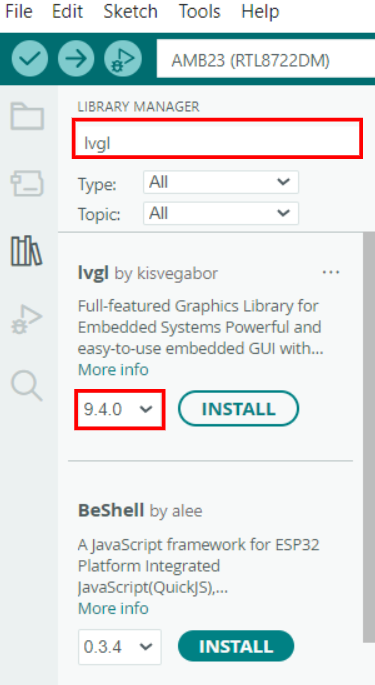
Click in the menu bar, or click the in the sidebar.
Enter the library name in the search box. Matching libraries will appear in the search results. Review the description and author information to find the desired library. Select the desired version from the dropdown menu and click Install, as shown below:
Arduino IDE will automatically create a libraries folder under the Sketchbook location to store downloaded libraries. To change the storage location, refer to Changing the Sketchbook Location.
Click in the menu bar, as shown below:
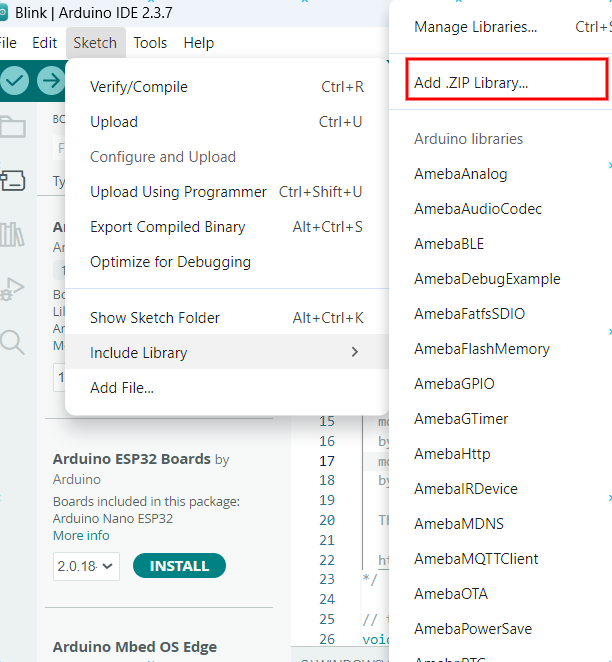
In the file selection dialog, locate and select the downloaded .zip library file, then click Open.
Arduino IDE will automatically create a libraries folder under the Sketchbook location and extract the .zip library file into it. To change the storage location, refer to Changing the Sketchbook Location.
Download and unzip all files for the required library, and place them in the libraries folder under the Sketchbook location.
Note
If there is no libraries folder under the Sketchbook location, create one manually.
Restart Arduino IDE and confirm the library is installed.