Hand Gesture Detection
Materials
AMB82-mini x 1
Example
In this example, we will be using development board to detect palm gestures.
Open hand gesture detection examples in File -> Examples -> AmebaNN -> HandGestureDetection
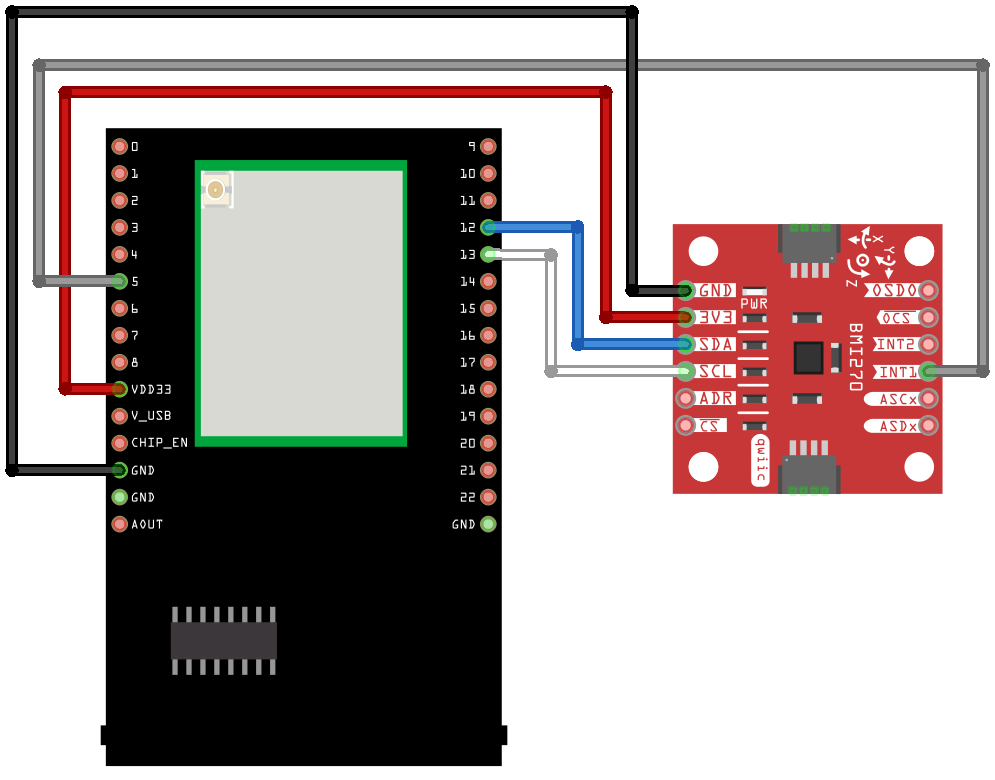
In the highlighted code snippet, fill in the “ssid” with your WiFi network SSID and “pass” with the network password.
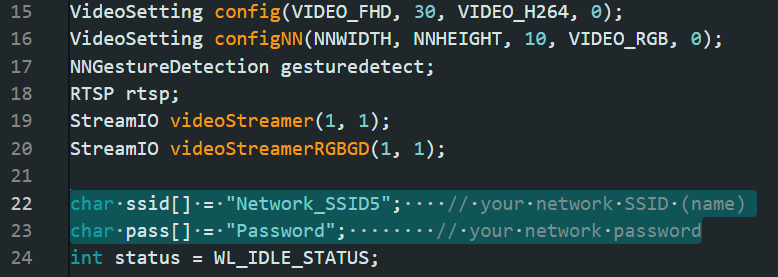
Select Neural Network (NN) task and models using modelSelect() function highlighted in yellow. This function takes 8 arguments: Neural Network task, Object Detection model, Face Detection model, Face Recognition model, Audio Classification model, Image Classification model, Palm Detection model and HandLandmark model. Replace with “NA_MODEL” if they are not necessary for your selected Neural Network task. Note that it is mandatory to call modelSelect() function before calling the begin() function.
Valid Neural Network task:
OBJECT_DETECTION,FACE_DETECTION,FACE_RECOGNITION,AUDIO_CLASSIFICATION,IMAGE_CLASSIFICATION,GESTURE_DETECTIONValid Object Detection model:
YOLOv3-tiny model:
DEFAULT_YOLOV3TINY,CUSTOMIZED_YOLOV3TINYYOLOv4-tiny model:
DEFAULT_YOLOV4TINY,CUSTOMIZED_YOLOV4TINYYOLOv7-tiny model:
DEFAULT_YOLOV7TINY,CUSTOMIZED_YOLOV7TINY
Valid Face Detection model:
DEFAULT_SCRFD,CUSTOMIZED_SCRFDValid Face Recognition model:
DEFAULT_MOBILEFACENET,CUSTOMIZED_MOBILEFACENETValid Audio Classification model:
DEFAULT_YAMNET,CUSTOMIZED_YAMNETValid Image Classification model:
DEFAULT_IMGCLASS,CUSTOMIZED_IMGCLASSValid Hand Gesture Detection model:
DEFAULT_HANDLANDMARK,CUSTOMIZED_HANDLANDMARK
Choose the customized option (e.g., CUSTOMIZED_YOLOV4TINY/ CUSTOMIZED_SCRFD/ CUSTOMIZED_MOBILEFACENET) if you would like to use your own NN model. To learn about the process of converting an AI model, refer to
AI Model Conversion Toolkit
. Additionally, refer to
AI Model Deployment Guide
to understand how to install and use the converted model.
Compile the code and upload it to Ameba. After pressing the Reset button, wait for the board to connect to the WiFi network. The board’s IP address and network port number for RTSP will be shown in the Serial Monitor.
The result of detected objects can be validated using VLC. You may download VLC media player from the link here
Upon the completion of the software installation, open VLC media player, and go to Media -> Open Network Stream
Make sure your PC is connected to the same network as the board for streaming. Since RTSP is used as the streaming protocol, key in rtsp://{IPaddress}:{port} as the Network URL in VLC media player, replacing {IPaddress} with the IP address of the board, and {port} with the RTSP port shown in Serial Monitor e.g., rtsp://192.168.1.154:554 The default RTSP port number is 554.
Next, click “Play” to start RTSP streaming to see the result. The video stream from the camera will be shown in VLC media player.
Code Reference
You may adjust the video bitrate based on your WiFi network quality, by uncommenting the highlighted code below.