Zephyr Quick Guide
DTS Quick Guide
For detailed DTS introduction, please refer to Zephyr Configuration System
DTS Syntax and Usage Overview
For a quick start, please refer to DTS Basic Syntax and A Real Hardware Example
Modifying DTS Configuration
In Zephyr, DTS is distributed across multiple files. For details, see unit-address. Which file to modify depends on the situation.
Go to the corresponding test/sample source directory (tests are usually in
zephyr/tests/*/boards, samples are usually inzephyr/samples/*/boards) and add (if not present) the overlay file for the corresponding board and modify it.The following overlay example adds an LED node, sets the relevant GPIO port, and creates an alias
led0for the node:
/ {
  aliases {
    led0 = &led_0;
  };

  gpio-led {
    compatible = "gpio-leds";
    led_0: led_0 {
      gpios = <&gpioa 25 0>;
    };
  };
};
The following example modifies existing DTS configuration (changing
statustookay)
&gpioa {
  status = "okay";
};
Add an overlay file in the corresponding board-level dts directory. File naming rule:
<origin_board_dts_basename>_<revision>.overlay, whererevisionsupports multiple formats.Modify
revision.cmakein the same directory (create if not present) and specify the corresponding overlay file through theDEFAULT_REVISIONparameter.
board_check_revision(
    FORMAT_LETTER
    DEFAULT_REVISION D  # <revision> is D
)

board_check_revision(
    FORMAT_MAJOR.MINOR.PATH
    DEFAULT_REVISION 2.0.0  # <revision> is 2.0.0
)

board_check_revision(
    FORMAT_NUMBER
    DEFAULT_REVISION 2  # <revision> is 2
)
How to Verify Final DTS Configuration
Since Zephyr DTS involves multiple files, the same configuration item may be set or reset in multiple places, so looking at a single file cannot reflect the final result, such as:
Check if modifications (overlay) have taken effect
Check if a device’s status (
okayordisable) or property settings meet expectations
In this case, you can check the build/zephyr/zephyr.dts file, which is the final generated DTS file.
How to Find a Device’s Binding File
For binding file introduction, please refer to DTS Binding
Find the compatible field of the device in the dts where it is defined, e.g.:
compatible = "realtek,ameba-rcc";Find a file named
realtek,ameba-rcc.yamland confirm that thecompatiblevalue in it is"realtek,ameba-rcc", then this file is the corresponding binding file.
Attention
This method only works if the binding file naming follows the same convention as the compatible field. However, this rule is not mandatory in Zephyr. If inconsistent, use Method 2.
Locate the
devicetree_generated.hfile and find the complete node name of the desired device at the beginning of the file, e.g.,/soc/gpio@41010000
* Node dependency ordering (ordinal and path):
*   0   /
*   1   /aliases
*   2   /chosen
*   3   /soc
*   4   /soc/interrupt-controller@e000e100
*   5   /soc/gpio@41010000
*   6   /buttons
*   7   /buttons/button_0
*   8   /clocks
*   9   /clocks/clk_sys
*   10  /cpus
Continue searching in the file for
Devicetree node: /soc/gpio@41010000to find the following location:
/*
* Devicetree node: /soc/gpio@41010000
*
* Node identifier: DT_N_S_soc_S_gpio_41010000
*
* Binding (compatible = realtek,ameba-gpio):
*   $ZEPHYR_BASE/dts/bindings/gpio/realtek,ameba-gpio.yaml
*
* (Descriptions have moved to the Devicetree Bindings Index
* in the documentation.)
*/
Line 7 contains the full path to the binding file used by the device
How to Access DTS in Code
Accessing DTS is usually done to get properties or drivers of a node. Follow these steps:
Suppose you have the following DTS content:
/ {
    soc {
        serial0: serial@40002000 {
            reg = <0x4000200 0x100>
            status = "okay";
            current-speed = <115200>;
            /* ... */
        };
    };

    aliases {
        my-serial = &serial0;
    };

    chosen {
        zephyr,console = &serial0;
    };
};
First, get a node identifier. There are multiple ways to identify a node in DTS, so there are corresponding methods to get nodes:
/* Option 1: by node label */
#define MY_SERIAL DT_NODELABEL(serial0)

/* Option 2: by alias */
#define MY_SERIAL DT_ALIAS(my_serial)

/* Option 3: by chosen node */
#define MY_SERIAL DT_CHOSEN(zephyr_console)

/* Option 4: by path */
#define MY_SERIAL DT_PATH(soc, serial_40002000)
In the above code, the macro
MY_SERIALrepresents the node identifier. You can use it to further get node properties or drivers.
/* Demo 1: conditional compilation based on node status */
#if DT_NODE_HAS_STATUS(MY_SERIAL, okay)
//Desired code when node is okay(enabled)
#endif

/* Demo 2: get normal property */
u32 speed = DT_REG_ADDR(MY_SERIAL);  //=0x4000200

/* NOTE: some property have exclusive macro */
/* Demo 3: get reg info */
u32 addr = DT_REG_ADDR(MY_SERIAL);  //=0x4000200
u32 size = DT_REG_SIZE(MY_SERIAL);  //=0x100
const struct device *const dev = DEVICE_DT_GET(MY_SERIAL);

if (!device_is_ready(dev)) {
    /* Not ready, do not use */
    return -ENODEV;
}
uart_poll_out(dev, 'a');
For more advanced usage, refer to Extended Reading
How to Access DTS in Kconfig
Refer to: Kconfig Quick Guide
How to Access DTS in CMake
Refer to: CMake Quick Guide
How to Locate undefined reference DTS Symbol Issues
Nodes defined in DTS are defined as symbols in driver code with identifiers generated according to certain encoding rules, such as
__device_dts_ord_22In practice, you may encounter compilation errors like the following:
/opt/rtk-toolchain/asdk-12.3.1-4431/linux/newlib/bin/../lib/gcc/arm-none-eabi/12.3.1/../../../../arm-none-eabi/bin/ld.bfd: app/libapp.a(test_counter.c.obj):(.rodata.devices+0x0): undefined reference to `__device_dts_ord_22'
The cause of this problem is usually that code above the driver layer references a symbol (driver instance), but the symbol definition (code implementation) of the driver instance is not found during linking
You cannot directly locate the relevant code area through the name
__device_dts_ord_22. Here is a troubleshooting process for the above error
First, locate the problematic DTS node: Through
test_counter.c.obj, you can determine that the source file referencing this symbol istest_counter.c. At this point, you can choose to directly view the file. There are two situations:If only one driver instance is referenced, you can determine the corresponding DTS node information (node name, label, etc.) through the code. For example, there might be code like:
#define I2C_DEV_NODE DT_ALIAS(i2c_0)
const struct device *const i2c_dev = DEVICE_DT_GET(I2C_DEV_NODE);
At this point, you can easily determine that there is a problem with the driver definition for the device corresponding to the
i2c_0DTS nodeIf the code is complex, with multiple driver instance references or complex preprocessing logic, you can directly pinpoint the DTS node by generating a preprocessed file. Steps are as follows:
Find
test_counter.c.objin the filebuild/compile_commands.jsonto locate a position like this (some xxx content omitted):{ "directory": "/xxx/build", "command": "/xxx/arm-none-eabi-gcc xxx -o CMakeFiles/app.dir/src/test_counter.c.obj -c /xxx/zephyr/tests/drivers/counter/counter_basic_api/src/test_counter.c", "file": "/xxx/zephyr/tests/drivers/counter/counter_basic_api/src/test_counter.c", "output": "CMakeFiles/app.dir/src/test_counter.c.obj" },
The
commandfield is the complete command for compilingtest_counter.c. You need to slightly modify the complete command: change-ooutput path,-cto-E, then execute in terminal:/xxx/arm-none-eabi-gcc xxx -o test_counter.i -E /xxx/zephyr/tests/drivers/counter/counter_basic_api/src/test_counter.c",
A file
test_counter.iwill be generated in the execution directory. Open the file and search for the undefined symbol__device_dts_ord_22to find the following content:static const struct device *const devices[] = { # 63 "/xxx/zephyr/tests/drivers/counter/counter_basic_api/src/test_counter.c" # 124 "/xxx/zephyr/tests/drivers/counter/counter_basic_api/src/test_counter.c" (&__device_dts_ord_22), (&__device_dts_ord_23), (&__device_dts_ord_24), (&__device_dts_ord_25), # 144 "/xxx/zephyr/tests/drivers/counter/counter_basic_api/src/test_counter.c" };
From lines 4 and 5 above, we can see that
__device_dts_ord_22is referenced in line 124 of the source file. Locate that line of code:#ifdef CONFIG_COUNTER_TMR_AMEBA DEVS_FOR_DT_COMPAT(realtek_ameba_counter) #endif
From this, we know that there is a problem with the driver definition for the device corresponding to the DTS node with
compatiableasrealtek,ameba-counter
Troubleshoot the driver definition issue for the DTS node. You can refer to the following ideas:
DTS node does not exist or is not enabled (
statusnot set tookay), refer to How to Verify Final DTS ConfigurationDTS node’s corresponding driver code is not included in compilation. Check the relevant driver’s
CMakeLists.txtor Kconfig configurationCoding issues in the DTS node driver code, such as whether the
DT_DRV_COMPATmacro definition is correct, etc.
Kconfig Quick Guide
Getting DTS Information in Kconfig
Zephyr provides a series of interfaces to support accessing DTS information in Kconfig: Devicetree-related Functions.
Here are some usage examples:
config AMEBA_PSRAM
  def_bool y if $(dt_nodelabel_enabled,psram)  # init bool value by node state

config AMEBA_PSRAM_SIZE
  hex
  depends on AMEBA_PSRAM
  default $(dt_nodelabel_reg_size_hex,psram)  # init hex value by node reg's size cell
Corresponding DTS:
psram: memory@60000000 {
  compatible = "zephyr,memory-region";
  device_type = "memory";
  reg = <0x60000000 DT_SIZE_M(4)>;
  zephyr,memory-region = "PSRAM";
  status = "disabled";
};
CMake Quick Guide
Getting DTS Information in CMake
Zephyr provides a series of interfaces to access DTS information in CMake. The function implementation can be found in: zephyr/cmake/modules/extensions.cmake
Here are some API descriptions:
API |
Description |
|---|---|
|
Function for retrieving the node path for the node having nodelabel |
|
Get a node path for an /aliases node property |
|
Tests whether a node with path <path> exists in the devicetree |
|
Tests whether <path> refers to a node which exists in the devicetree, and has a status property matching the <status> argument |
|
Get a devicetree property value. The value will be returned in the <var> parameter |
|
Get a list of paths for the nodes with the given compatible. The value will be returned in the <var> parameter |
|
Get the number of register blocks in the node’s reg property |
|
Get the base address of the register block at index <idx>, or with name <name> |
|
Get the size of the register block at index <idx>, or with name <name> |
|
Test if the devicetree’s /chosen node has a given property <prop> which contains the path to a node |
|
Get a node path for a /chosen node property |
NVIC Quick Guide
For detailed NVIC introduction, please refer to NVIC Introduction
Zephyr Interrupt Usage Guide
Developing drivers in Zephyr that use interrupts requires completing several key steps to properly respond to interrupts.
Below is a usage example with key steps listed.
Code Example
DTS configuration:
Interrupt device tree configuration example1nvic: interrupt-controller@e000e100 { 2 #address-cells = < 0x1 >; 3 compatible = "arm,v8.1m-nvic"; 4 reg = < 0xe000e100 0xc00 >; 5 interrupt-controller; 6 #interrupt-cells = < 0x2 >; 7 arm,num-irq-priority-bits = < 0x3 >; 8 phandle = < 0x1 >; 9}; 10timer0: counter@40819000 { 11 compatible = "realtek,ameba-counter"; 12 reg = <0x40819000 0x30>; 13 clocks = <&rcc AMEBA_LTIM0_CLK>; 14 interrupts = <7 0>; 15 clock-frequency = <32768>; 16 status = "disabled"; 17};
C code implementation:
Interrupt driver code implementation example1#define DT_DRV_COMPAT realtek_ameba_counter 2... 3 4void counter_ameba_isr(const struct device *dev) 5{ 6} 7 8#define TIMER_IRQ_CONFIG(n) \ 9 static void irq_config_##n(const struct device *dev) \ 10 { \ 11 IRQ_CONNECT(DT_INST_IRQN(n), DT_INST_IRQ(n, priority), counter_ameba_isr, \ 12 DEVICE_DT_INST_GET(n), 0); \ 13 irq_enable(DT_INST_IRQN(n)); \ 14 } 15 16#define AMEBA_COUNTER_INIT(n) \ 17 TIMER_IRQ_CONFIG(n) \ 18 ... 19 20DT_INST_FOREACH_STATUS_OKAY(AMEBA_COUNTER_INIT);
Key Steps
Confirm hardware support and configure interrupt information in DTS.
As shown in the highlighted line 14 of Interrupt device tree configuration example above, set the interrupt property of the driver. The
interruptsproperty has two parameters: the first is the interrupt number, and the second is the interrupt priority.Implement the interrupt service function in driver code, which is needed when registering interrupts, as shown in lines 4-6 of Interrupt driver code implementation example above.
In driver code, get interrupt priority and other properties from DTS, which are needed when registering interrupts, as shown in line 11 of Interrupt driver code implementation example above. For detailed introduction, please refer to Getting Interrupt Properties.
/* Get interrupt number */
DT_INST_IRQN(n);
/* Get interrupt priority */
DT_INST_IRQ(n, priority);
Register interrupt in driver code, as shown in line 11 of Interrupt driver code implementation example above. For detailed introduction, please refer to Interrupt Registration.
Enable interrupt in driver code, as shown in line 13 of Interrupt driver code implementation example above. For detailed introduction, please refer to Enable/Disable Interrupt.
File System Quick Guide
For detailed file system introduction, please refer to File System Introduction
LittleFS on FLASH
Sample path: zephyr/samples/subsys/fs/littlefs/
Use the following command to build the LittleFS on FLASH sample:
./nuwa.py build -a zephyr/samples/subsys/fs/littlefs/ -d rtl8721f_evb
When custom DTS is needed, refer to LittleFS on FLASH Example for configuration.
You can verify the correctness of the DTS configuration through the final generated DTS file build/zephyr/zephyr.dts:
spic’s status = “okay”
The starting address and size of the partition used by LittleFS meet expectations
If you encounter link errors, some features may not be enabled.
You can check the final conf configuration through build/zephyr/include/generated/zephyr/autoconf.h.
LittleFS on FLASH requires the following configurations to be enabled:
CONFIG_FILE_SYSTEM=y
CONFIG_FILE_SYSTEM_LITTLEFS=y
CONFIG_FLASH=y
CONFIG_FLASH_MAP=y
FatFS on SD
Sample path: zephyr/samples/subsys/fs/fs_sample/
Use the following command to build the FatFS on SD sample:
./nuwa.py build -a zephyr/samples/subsys/fs/fs_sample/ -d rtl8721f_evb
If you encounter link errors, some features may not be enabled.
You can check the final conf configuration through build/zephyr/include/generated/zephyr/autoconf.h.
FatFS on SD requires the following configurations to be enabled:
CONFIG_FILE_SYSTEM=y
CONFIG_FAT_FILESYSTEM_ELM=y
CONFIG_DISK_ACCESS=y
CONFIG_DISK_DRIVERS=y
Settings Quick Guide
For detailed Settings introduction, please refer to Settings Introduction
Sample path: zephyr/samples/subsys/settings/
Use the following command to build the Settings sample:
./nuwa.py build -a zephyr/samples/subsys/settings/ -d rtl8721f_evb
For DTS configuration, please refer to Settings Configuration.
DEBUG Quick Guide
For detailed DEBUG introduction, please refer to DEBUG Introduction
Debug Overview
DEBUG consists of two parts:
Offline debugging: Not directly connected to a running target. Analyze issues locally or in analysis tools by collecting offline data such as logs, coredump, trace data, and performance sampling files.
Online debugging: Debugging tools directly connect to a running target system (e.g., via JTAG/SWD, GDB remote, network/serial port) to perform operations such as breakpoints, single-stepping, variable viewing and modification, and register/memory access in a real environment.
Offline Debugging
The following introduces an offline debugging method for analyzing coredump logs.
Configuration
For detailed configuration instructions, please refer to coredump Configuration
Configuration example:
CONFIG_DEBUG_COREDUMP=y                 # Enable coredump module
CONFIG_DEBUG_COREDUMP_BACKEND_LOGGING=y # Use logging module to get coredump output
CONFIG_DEBUG_COREDUMP_MEMORY_DUMP_MIN=y # Only dump the stack of the exception thread, its thread structure, and some other minimal essential data
Getting coredump
For detailed dump content, please refer to Dump Format
Get coredump information from the device based on the enabled backend. For example, if the logging backend is enabled, you can save the printed logs using a logging tool to obtain the log file coredump.log.
Parsing
For detailed parsing instructions, please refer to Parsing Steps
Steps to parse coredump using the logging backend:
Run the coredump serial log converter to extract the coredump portion from coredump.log and generate coredump.bin:
./zephyr/scripts/coredump/coredump_serial_log_parser.py coredump.log coredump.bin
Start a custom GDB server to parse zephyr.elf and coredump.bin to obtain symbol tables and exception stack information for the gdb debugger to query:
./zephyr/scripts/coredump/coredump_gdbserver.py build/zephyr/zephyr.elf coredump.bin
Start the GDB debugger:
arm-none-eabi-gdb build/zephyr/zephyr.elf
Inside GDB, connect to the GDB server via port 1234:
(gdb) target remote localhost:1234
You can also start the GDB server from within GDB:
Start GDB:
arm-none-eabi-gdb build/zephyr/zephyr.elf
Inside GDB, start the GDB server with the
--pipeoption:(gdb) target remote | ./scripts/coredump/coredump_gdbserver.py --pipe build/zephyr/zephyr.elf coredump.bin
Then you can use gdb commands to view exception information, such as:
Check CPU registers:
info registersView backtrace:
bt
Online Debugging
For detailed online debugging instructions, please refer to Online Debugging
The following introduces a method for online debugging using gdb, which requires connecting the development board and computer via Jlink. Three typical scenarios are described.
Using gdb command line debugging:
Note
PA18 and PA19 cannot be occupied.
Code is on a Windows computer, development board is connected to the Windows computer via jlink, use
west debugfor debugging. Simply use thewest debugcommand on Windows:west debug
The output is as follows:
PS D:\code\nuwa> west debug
-- west debug: rebuilding
ninja: no work to do.
-- west debug: using runner jlink
-- runners.jlink: reset after flashing requested
-- runners.jlink: JLink version: 8.40
-- runners.jlink: J-Link GDB server running on port 2335; no thread info available
GNU gdb (Realtek ASDK-12.3.1 Build 4431) 12.1.90.20221114-git
Copyright (C) 2022 Free Software Foundation, Inc.
License GPLv3+: GNU GPL version 3 or later <http://gnu.org/licenses/gpl.html>
This is free software: you are free to change and redistribute it.
There is NO WARRANTY, to the extent permitted by law.
Type "show copying" and "show warranty" for details.
This GDB was configured as "--host=x86_64-w64-mingw32 --target=arm-none-eabi".
Type "show configuration" for configuration details.
For bug reporting instructions, please see:
<https://www.gnu.org/software/gdb/bugs/>.
Find the GDB manual and other documentation resources online at:
    <http://www.gnu.org/software/gdb/documentation/>.

For help, type "help".
Type "apropos word" to search for commands related to "word"...
Reading symbols from D:\code\nuwa\build\zephyr\zephyr.elf...
Remote debugging using :2335
__enable_irq () at D:/code/nuwa/modules/hal/cmsis_6/CMSIS/Core/Include/cmsis_gcc.h:800
800       __ASM volatile ("cpsie i" : : : "memory");
Resetting target
(gdb)
Code is on a Linux server, development board is connected to a Windows computer via jlink, use gdb command line tool for debugging.
Manually start JLinkGDBServer on Windows to connect to the development board;
You can use
sdk/amebagreen2_gcc_project/utils/jlink_script/ap_JLinkGDBServer.batto start JLinkGDBServer. The script already has some configurations and can directly connect to the AP core. Double-click the script to start it.Start the gdb debugger on the Linux server to connect to JLinkGDBServer.
~/code/nuwa$ arm-none-eabi-gdb
Code is on a Linux server, development board is connected to a Windows computer via jlink, use
west debugcommand line for debugging.First start JLinkRemoteServer on Windows;
Double-click the JLinkRemoteServer software to start it. You need to select a port for listening to connections from JLinkGDBServer on the Linux server.
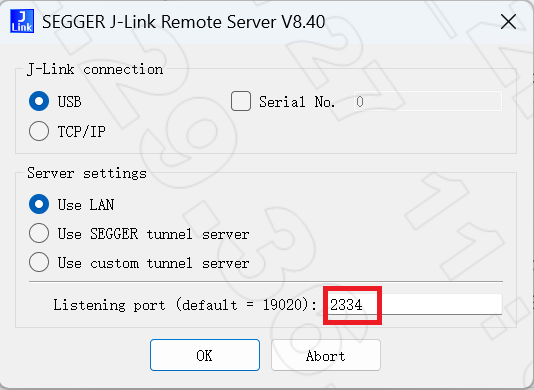
Use the
west debugcommand on the Linux server. You need to add an-i ip:portparameter to connect to JLinkRemoteServer on Windows. The port must be the same as set in step A.west debug -i ip:port
MCUboot Quick Guide
For detailed MCUboot introduction, please refer to MCUboot Introduction
Building MCUboot Examples
Based on zephyr/samples/sysbuild/with_mcuboot, which is a minimal example containing the minimum necessary configurations.
Build, execute the command:
./nuwa.py build -d rtl8721f_evb//mcuboot -a zephyr/samples/sysbuild/with_mcuboot --sysbuild -- -Dmcuboot_CONFIG_MCUBOOT_ACTION_HOOKS=y -DSB_CONFIG_MCUBOOT_MODE_SWAP_USING_OFFSET=y
Firmware download
Firmware is located in the images directory under the sdk root directory
Refer to the figure below for configuration when using Ameba Image Tool to download

Power on again, and you can see from the following log that both
km4nsandkm4tzCPUs are running successfully19:16:56.145 [BOOT-I] ROM:[V1.0] 19:16:56.146 [BOOT-I] FLASH RATE:1, Pinmux:0 19:16:56.146 [BOOT-I] BOOT FROM NOR 19:16:56.146 [BOOT-I] Boot from Flash 19:16:56.146 [BOOT-I] IMG1(OTA1) Version: 1.1 19:16:56.147 [BOOT-I] IMG1 ENTRY [104032dd:0] 19:16:56.157 *** Booting MCUboot 116ced556cca *** 19:16:56.157 *** Using Zephyr OS build f998faa02fe0 *** 19:16:56.415 [BOOT-I] AP BOOT REASON 0: 19:16:56.416 Initial Power on 19:16:56.422 [CHIPINFO-E] Invalid BD number! 19:16:56.422 [CHIPINFO-I] MCM_TYPE_INVALID: BDnum1011 19:16:56.428 [APP-I] NP CPU CLK: 240000000 Hz 19:16:56.428 [CHIPINFO-E] Invalid BD number! 19:16:56.428 [CHIPINFO-I] MCM_TYPE_INVALID: BDnum1011 19:16:56.432 [MAIN-I] IWDG refresh thread Started! 19:16:56.435 [MAIN-I] NP OS START 19:16:56.507 [CLK-I] [CAL4M]: delta:2 target:320 PPM: 6250 PPM_Limit:30000 19:16:56.517 *** Booting Zephyr OS build f998faa02fe0 *** 19:16:56.517 Address of sample 0x4000000 19:16:56.517 Hello sysbuild with mcuboot! rtl8721f_evb
Based on zephyr/samples/subsys/mgmt/mcumgr/smp_svr, which supports more SMP server features, such as OTA.
Build, execute the command:
./nuwa.py build -d rtl8721f_evb//mcuboot -a zephyr/samples/subsys/mgmt/mcumgr/smp_svr --sysbuild -- -Dmcuboot_CONFIG_MCUBOOT_ACTION_HOOKS=y -DSB_CONFIG_MCUBOOT_MODE_SWAP_USING_OFFSET=y
Firmware download, same as Example 1
Power on again, and you can see from the following log that both
km4nsandkm4tzCPUs are running successfully17:22:25.137 I: Image version: v0.0.0 17:22:25.137 I: Jumping to the first image slot 17:22:25.137 [BOOT-I] AP BOOT REASON 0: 17:22:25.137 Initial Power on 17:22:25.150 [CHIPINFO-E] Invalid BD number! 17:22:25.150 [CHIPINFO-I] MCM_TYPE_INVALID: BDnum1011 17:22:25.150 I: Attempting to parse IV from TLV... 17:22:25.150 I: Attempting to parse IV from TLV... 17:22:25.150 [APP-I] NP CPU CLK: 240000000 Hz 17:22:25.150 [CHIPINFO-E] Invalid BD number! 17:22:25.150 [CHIPINFO-I] MCM_TYPE_INVALID: BDnum1011 17:22:25.170 [MAIN-I] IWDG refresh thread Started! 17:22:25.170 [MAIN-I] NP OS START 17:22:25.274 [CLK-I] [CAL4M]: delta:1 target:320 PPM: 3125 PPM_Limit:30000 17:22:25.291 [00:00:00.001,000] <inf> gpio_ameba: GPIO0 INIT, IRQ 25 17:22:25.291 17:22:25.291 [00:00:00.001,000] <inf> gpio_ameba: GPIO1 INIT, IRQ 26 17:22:25.291 17:22:25.291 [00:00:00.002,000] <inf> gpio_ameba: GPIO2 INIT, IRQ 27 17:22:25.291 17:22:25.291 *** Booting Zephyr OS build f998faa02fe0 *** 17:22:25.291 [00:00:00.003,000] <inf> smp_sample: build time: Jan 27 2026 17:21:54
When downloading firmware via ImageTool, the Start Addr and End Addr settings for each firmware must be consistent with the flash layout configuration in DTS. For example, for the following flash layout:
flash0: flash@103FF000 {
   partitions {
      boot_partition: partition@0 {
         label = "bootloader";
         reg = < 0x0 0x14000 >;
         read-only;
      };

      slot0_partition: partition@114000 {
         label = "image-0";
         reg = < 0x114000 0x80000 >;
      };

      slot1_partition: partition@194000 {
         label = "image-1";
         reg = < 0x194000 0x80000 >;
      };

      slot2_partition: partition@14000 {
         label = "image-2";
         reg = < 0x14000 0x80000 >;
      };

      slot3_partition: partition@94000 {
         label = "image-3";
         reg = < 0x94000 0x80000 >;
      };
   };
};
The physical base address of flash is 0x08000000, and the Start Addr and End Addr for each firmware are calculated as follows:
Image Name |
Using Slot |
|
|
|---|---|---|---|
bootloader |
|
|
|
primary_image |
|
|
|
secondary_image |
|
|
|
Flash layouts differ for different chips, but the calculation method is the same. For more details, refer to Flash Layout.
Creating Your Own Application
Based on the examples above, copy their directory to a location (<APP_DIR>), modify as needed, and build. Pass the new copied path with the build parameter -a <APP_DIR>
Note
The two parameters passed to cmake in the above build commands can be added to configuration files to simplify command line parameters:
-Dmcuboot_CONFIG_MCUBOOT_ACTION_HOOKS=yadd to file (create if not exists)<APP_DIR>/sysbuild/mcuboot.conf:CONFIG_MCUBOOT_ACTION_HOOKS=y
-DSB_CONFIG_MCUBOOT_MODE_SWAP_USING_OFFSET=yadd to file (create if not exists)<APP_DIR>/sysbuild.conf:SB_CONFIG_MCUBOOT_MODE_SWAP_USING_OFFSET=y
The build command is simplified to:
./nuwa.py build -d rtl8721f_evb//mcuboot -a <APP_DIR> --sysbuild
Using RSIP Encryption
For detailed RSIP introduction and configuration steps, refer to
Secure Firmware Protection (RSIP)
. The required manifest.json5 file in Zephyr SDK is located at modules/hal/realtek/ameba/<SOC_NAME>/manifest.json5
Signing with Keys in manifest.json5
MCUboot supports using algorithms to sign app firmware for protection. Ameba ROM supports signing bootloader. For easier maintenance, you can use the same set of keys in manifest.json5 for signing. Specific steps are as follows:
Add configuration in
<APP_DIR>/sysbuild/mcuboot.conf:CONFIG_AMEBA_USING_MANIFEST_KEY=yAdd configuration in
<APP_DIR>/sysbuild.conf:SB_CONFIG_BOOT_SIGNATURE_KEY_FILE="\${APP_DIR}/my.key"Update your keys in
manifest.json5Execute build. The cmake script will automatically convert the keys in
manifest.json5to pem format supported by MCUboot into the file$APP_DIR/my.keyfor use
Twister Quick Guide
For detailed twister introduction, please refer to Twister Introduction.
When running twister on Windows, follow these steps:
Refer to twister Windows Environment Setup to set up the environment.
Prepare an image that supports the
reboot uartburncommand and flash it to the board.CONFIG_SHELL=y needs to be configured for the reboot uartburn command to take effect.
Manually enter reboot uartburn in tracetool, and expect to see the following echo:
uart:~$ reboot uartburn
[BOOT-I] ROM:[V1.0]
[BOOT-I] FLASH RATE:1, Pinmux:0
[BOOT-I] BOOT FROM NOR
Flash Download Start
Note
When testing with twister, CONFIG_SHELL=y needs to be configured so that the development board can respond to twister’s flash command.
Run a basic kernel test suite to verify that the twister build and flash process is correct. For example:
windows:python .\scripts\twister --short-build-path --device-testing ` --flash-before --west-flash="--port=COM12" --device-serial COM12 --device-serial-baud 1500000 ` --platform rtl8721f_evb ` -T tests/kernel/threads/dynamic_thread_stack/ ` --test kernel.threads.dynamic_thread.stack.no_pool.no_alloc.no_user
Note
Replace the serial ports specified by –west-flash and –device-serial, and the platform specified by –platform in the above command according to your actual situation.
In the output interface, expect to see the following passed information:
INFO    - Total complete:    1/   1  100%  built (not run):    0, filtered:    0, failed:    0, error:    0
INFO    - 1 test scenarios (1 configurations) selected, 0 configurations filtered (0 by static filter, 0 at runtime).
INFO    - 1 of 1 executed test configurations passed (100.00%), 0 built (not run), 0 failed, 0 errored, with no warnings in 394.83 seconds.
INFO    - 1 of 1 executed test cases passed (100.00%) on 1 out of total 1118 platforms (0.09%).
INFO    - 3 selected test cases not executed: 3 skipped.
INFO    - 1 test configurations executed on platforms, 0 test configurations were only built.

Hardware distribution summary:

| Board                 | ID   |   Counter |   Failures |
|-----------------------|------|-----------|------------|
| rtl8721f_evb/rtl8721f |      |         1 |          0 |
INFO    - Saving reports...
......
If you encounter errors, you can refer to twister Test Failure Diagnosis.
After passing the above steps, you can consider that the basic process of twister has been established. Next, you can further run user-specified test cases.
You can set twister parameters through the command line to select the range of test cases. For details, see twister Usage.
If you want to run a custom batch test suite, you can refer to Custom Batch Test Suite.