WiFi Config Service
Materials
Supported EVB x 1
[AMB82-mini] / [AMB21-22] / [AMB23] / [AMB25] / [AMB26] / [BW16] / [BW16-TypeC] / [AW-CU488]
Android / iOS mobile phone
Example
Introduction
In this example, a WiFi configuration service is set up on the Ameba Bluetooth stack. A mobile phone with the configuration app connects to the Ameba device using BLE and configures the Ameba to connect to the correct WiFi access point.
Procedure
Ensure that the Realtek WiFi configuration app is installed on your mobile phone, it is available at:
Google Play Store:
Apple App Store:
Open the example, Files -> Examples -> AmebaBLE -> BLEWifiConfigService
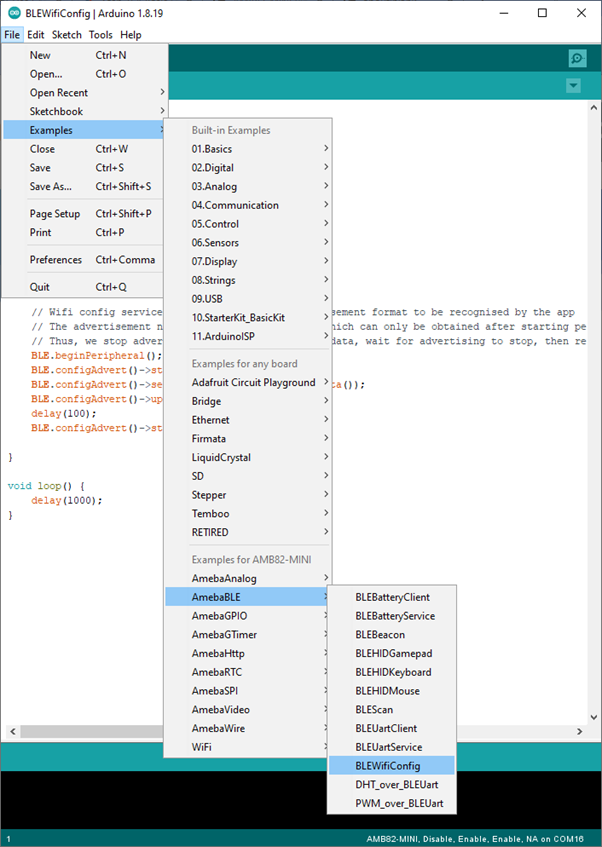
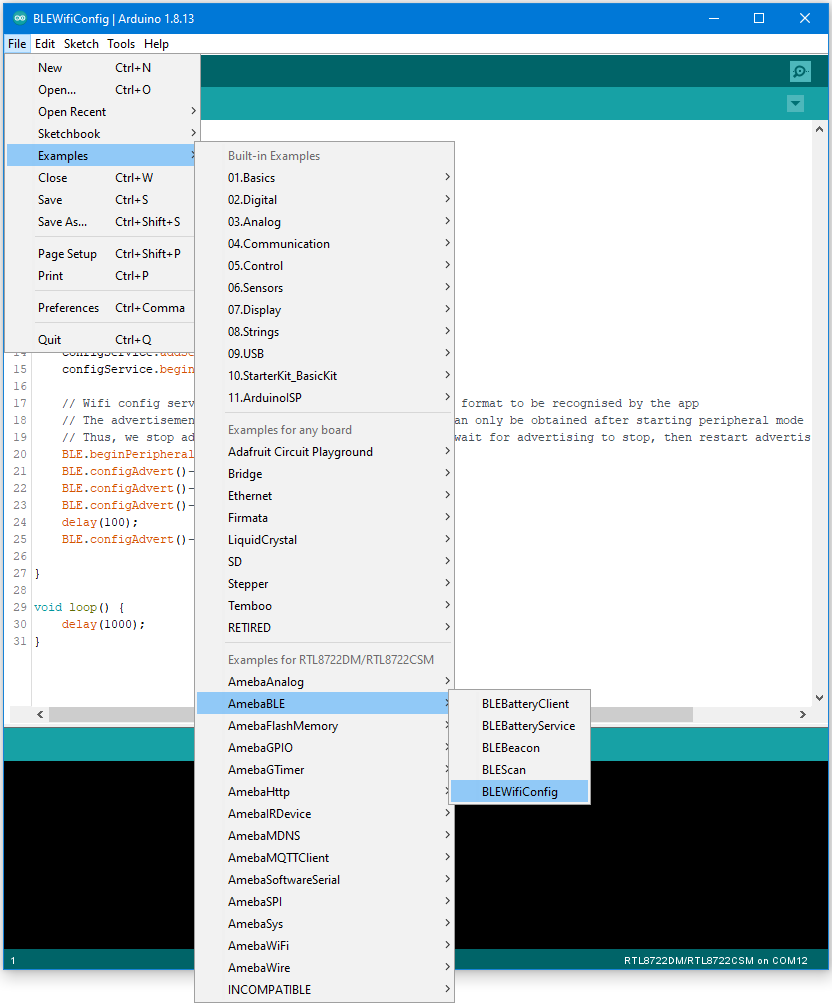
Upload the code and press the reset button on Ameba once the upload is finished.
On your mobile phone, open the Realtek WiFiConfig app and tap the round button to scan for Ameba boards.
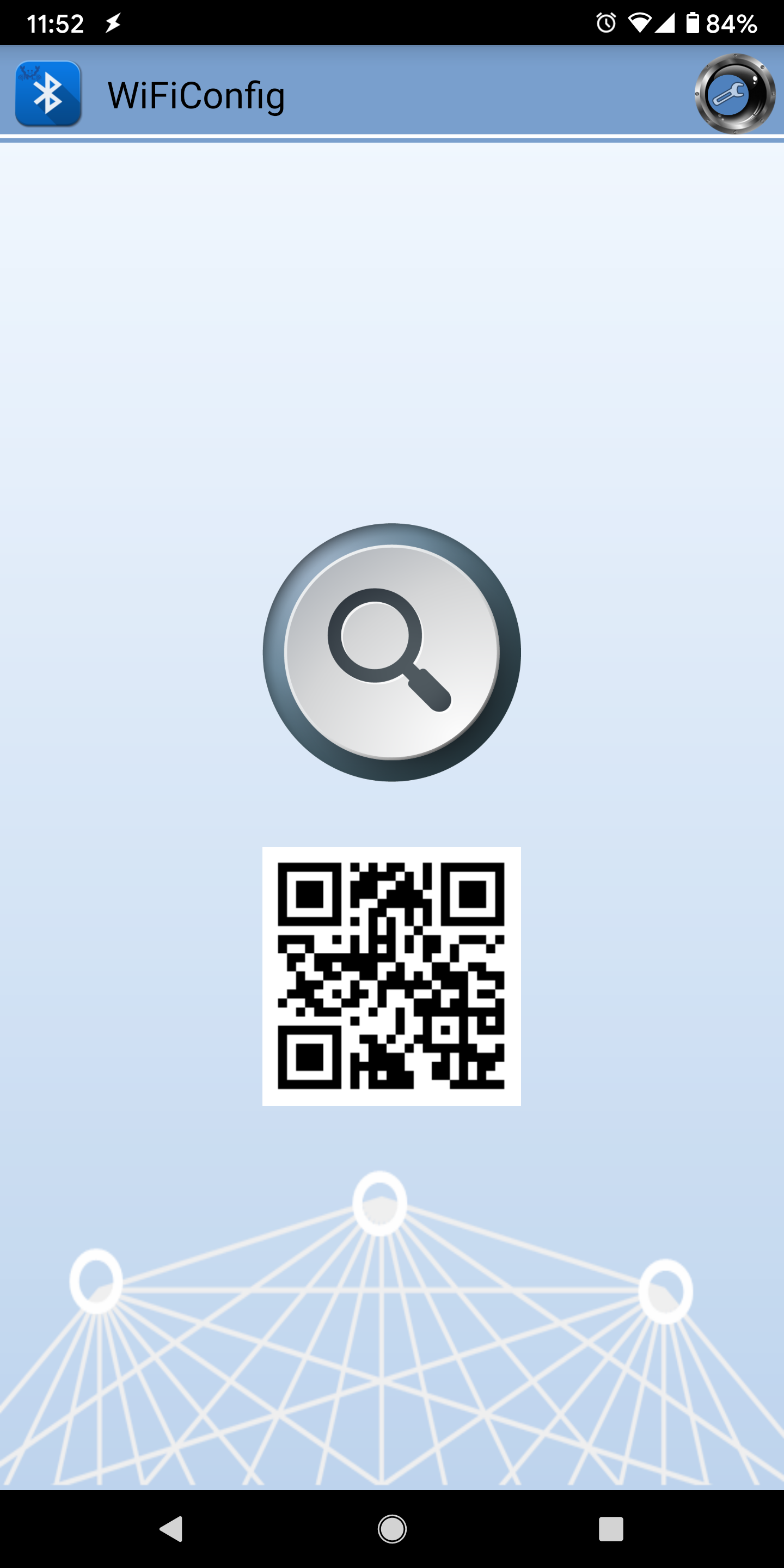
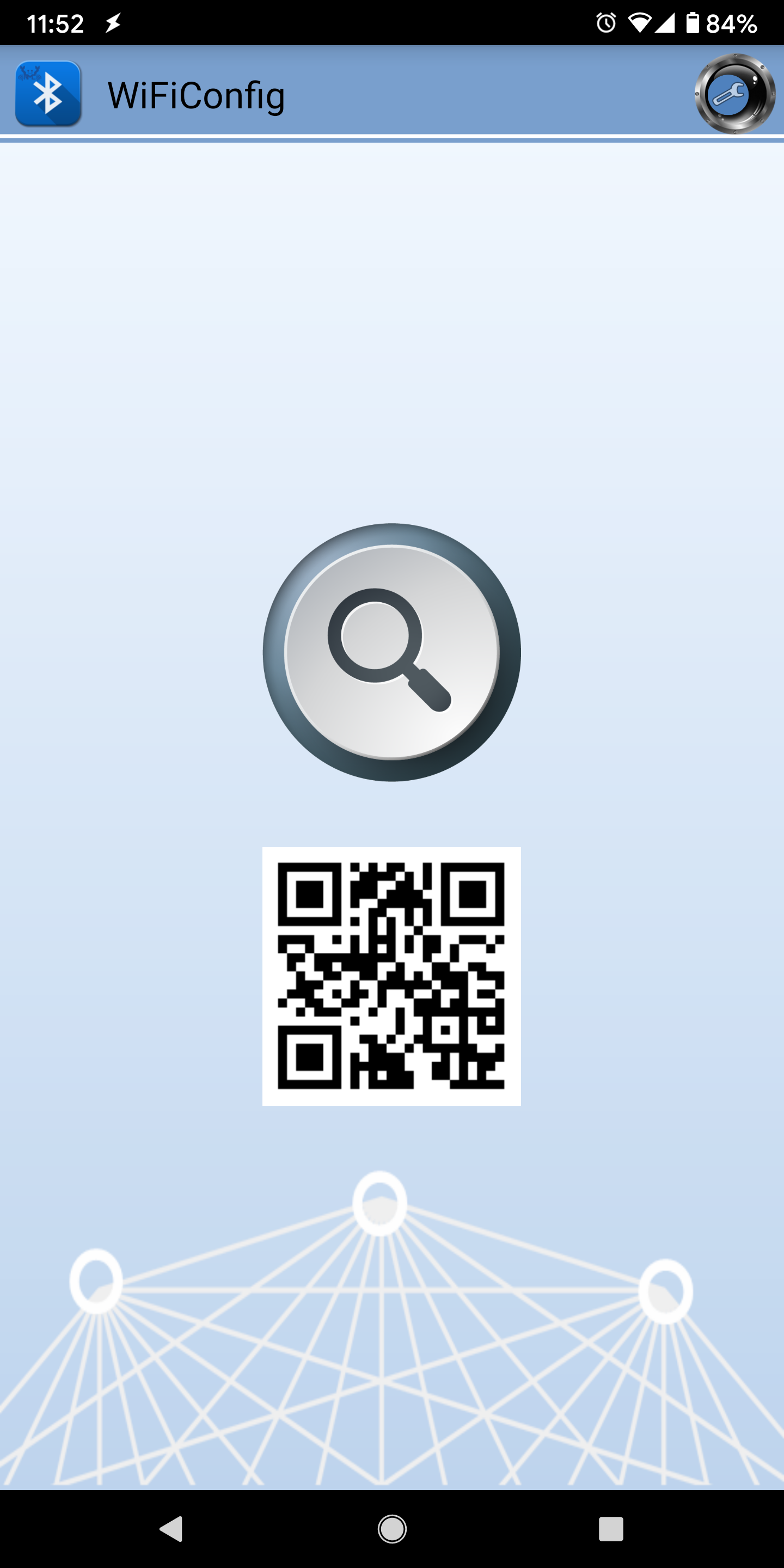
Select the correct Ameba board from the scan results. The app will connect to the Ameba board and ask the board to scan for WiFi networks and send the scan results back to the app using BLE.
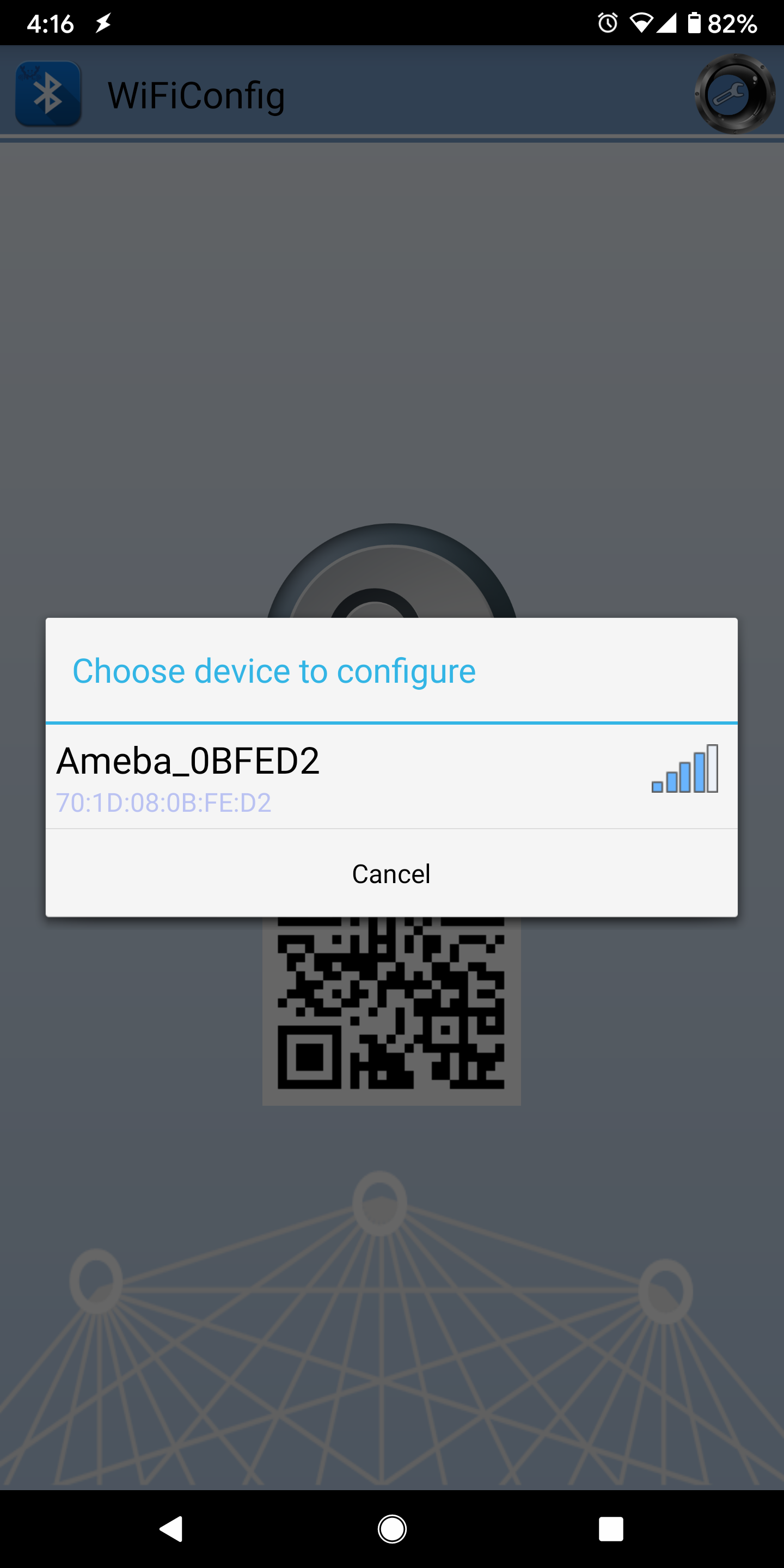
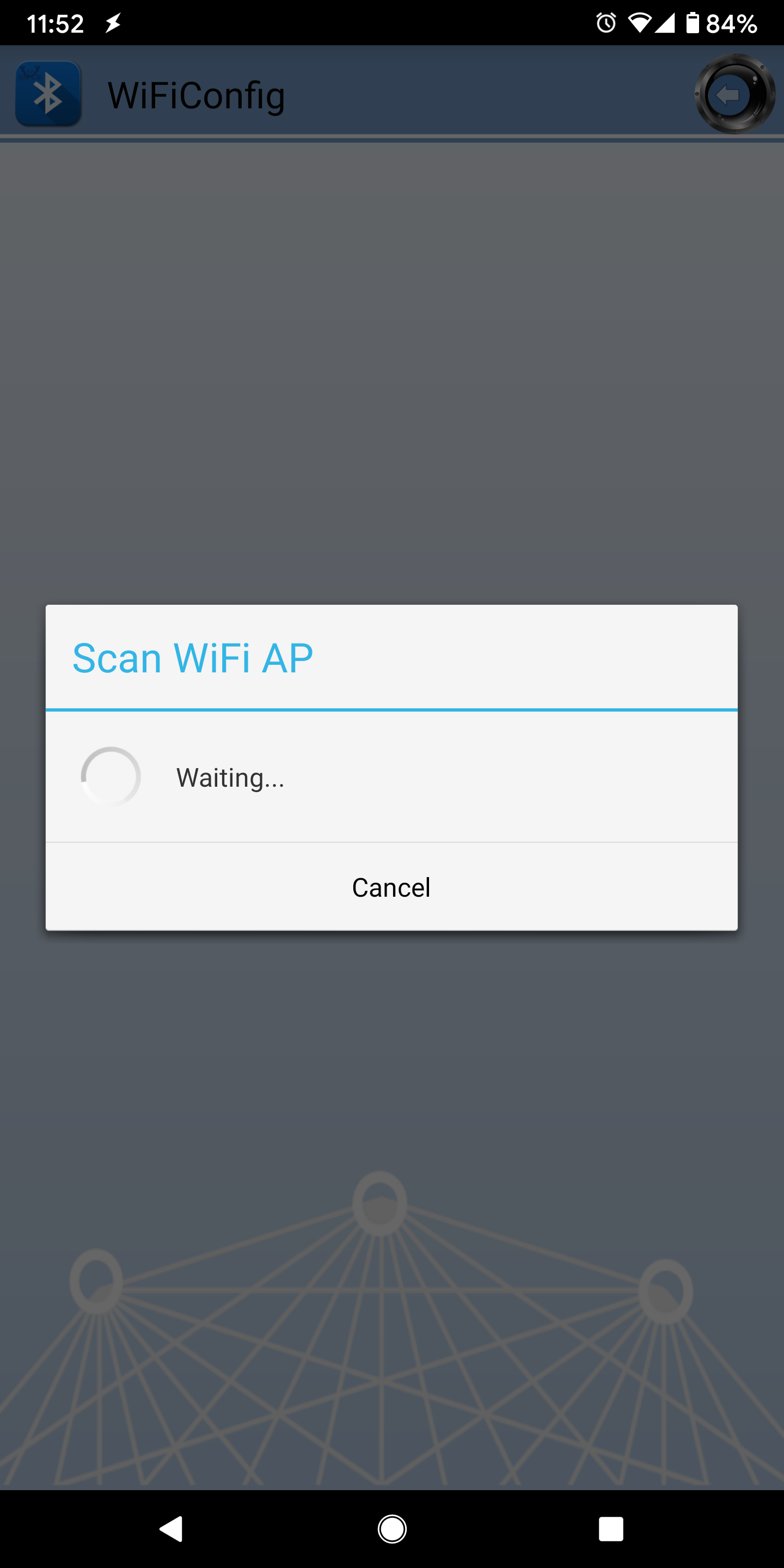
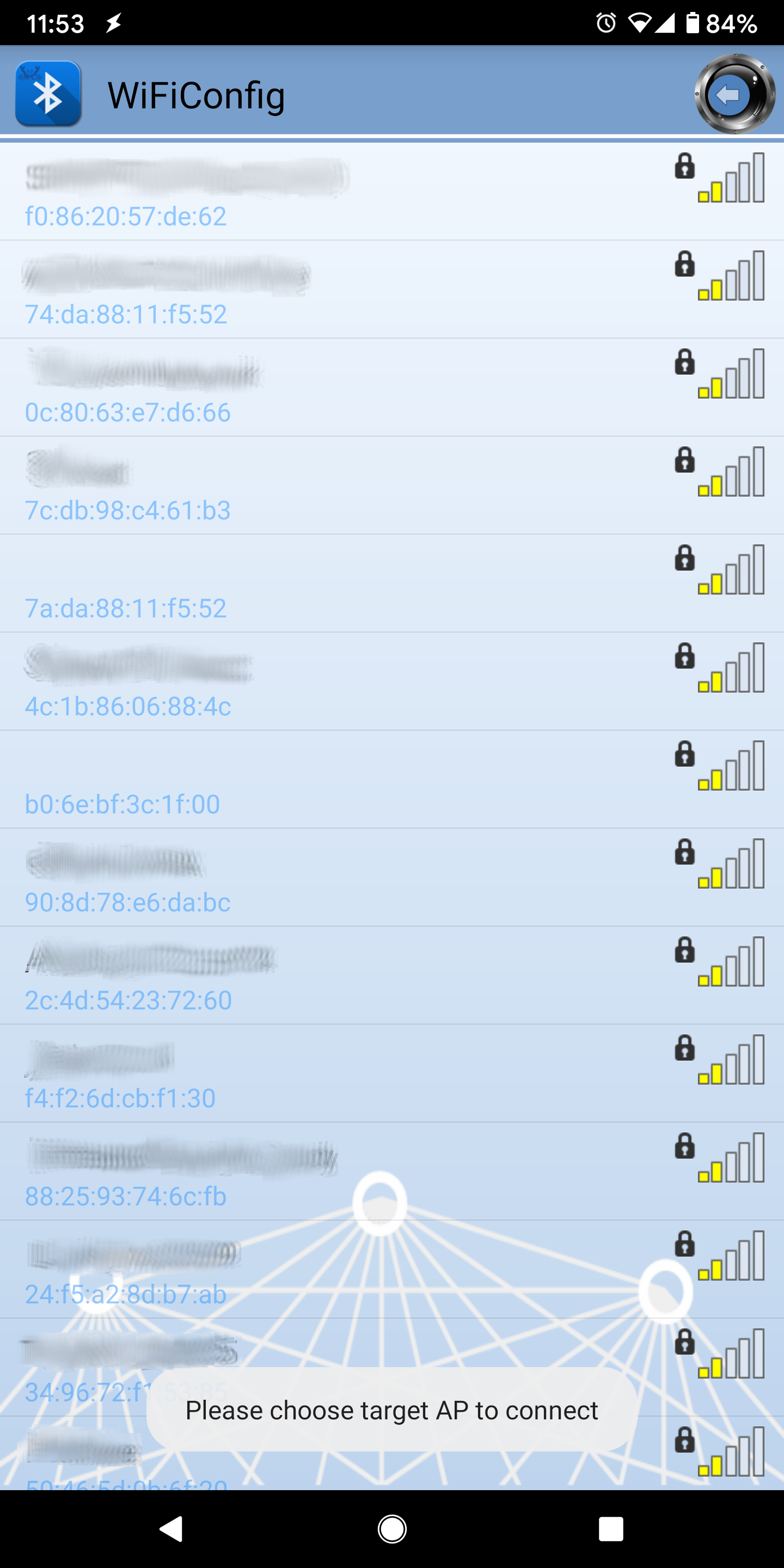
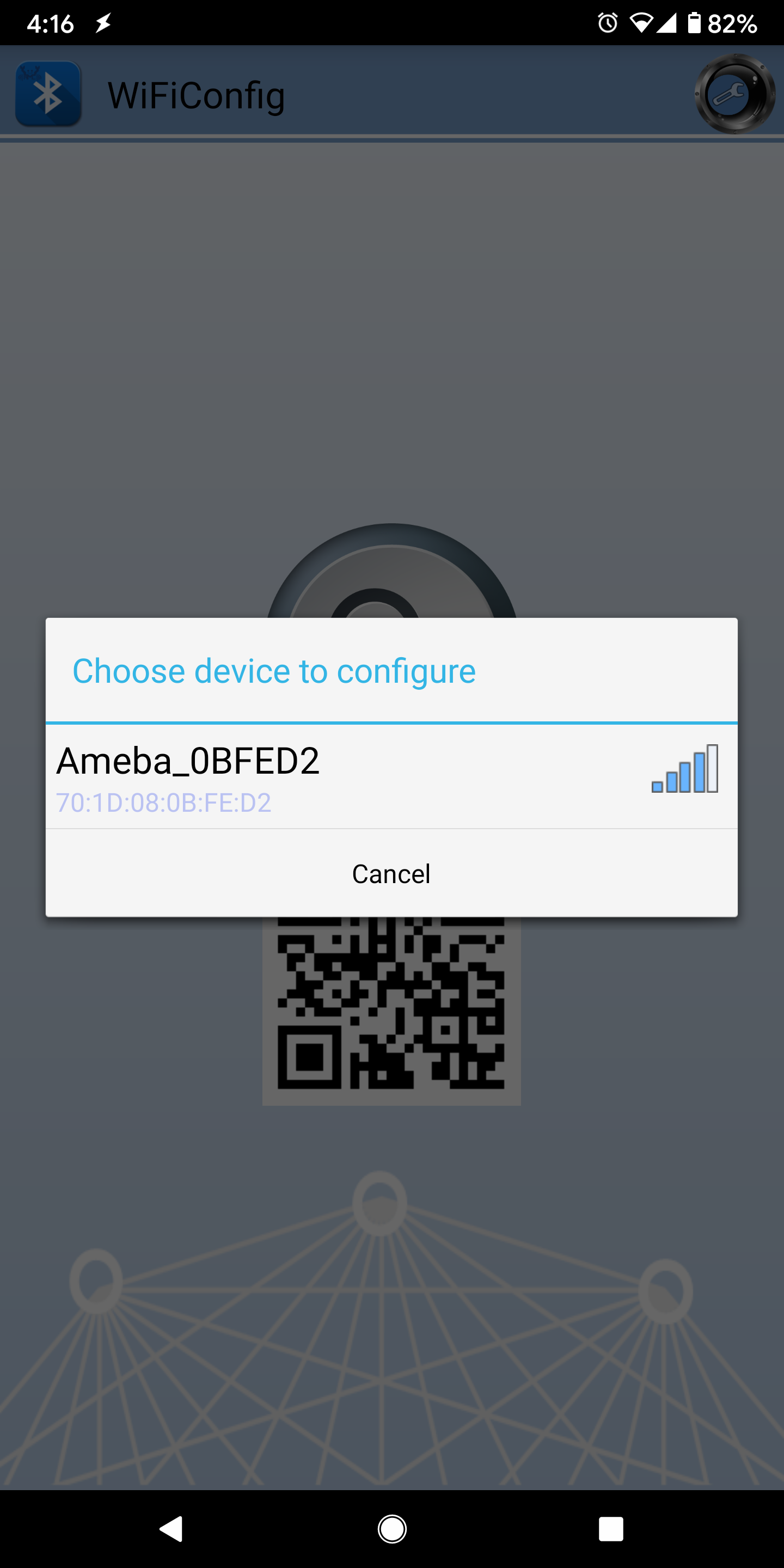
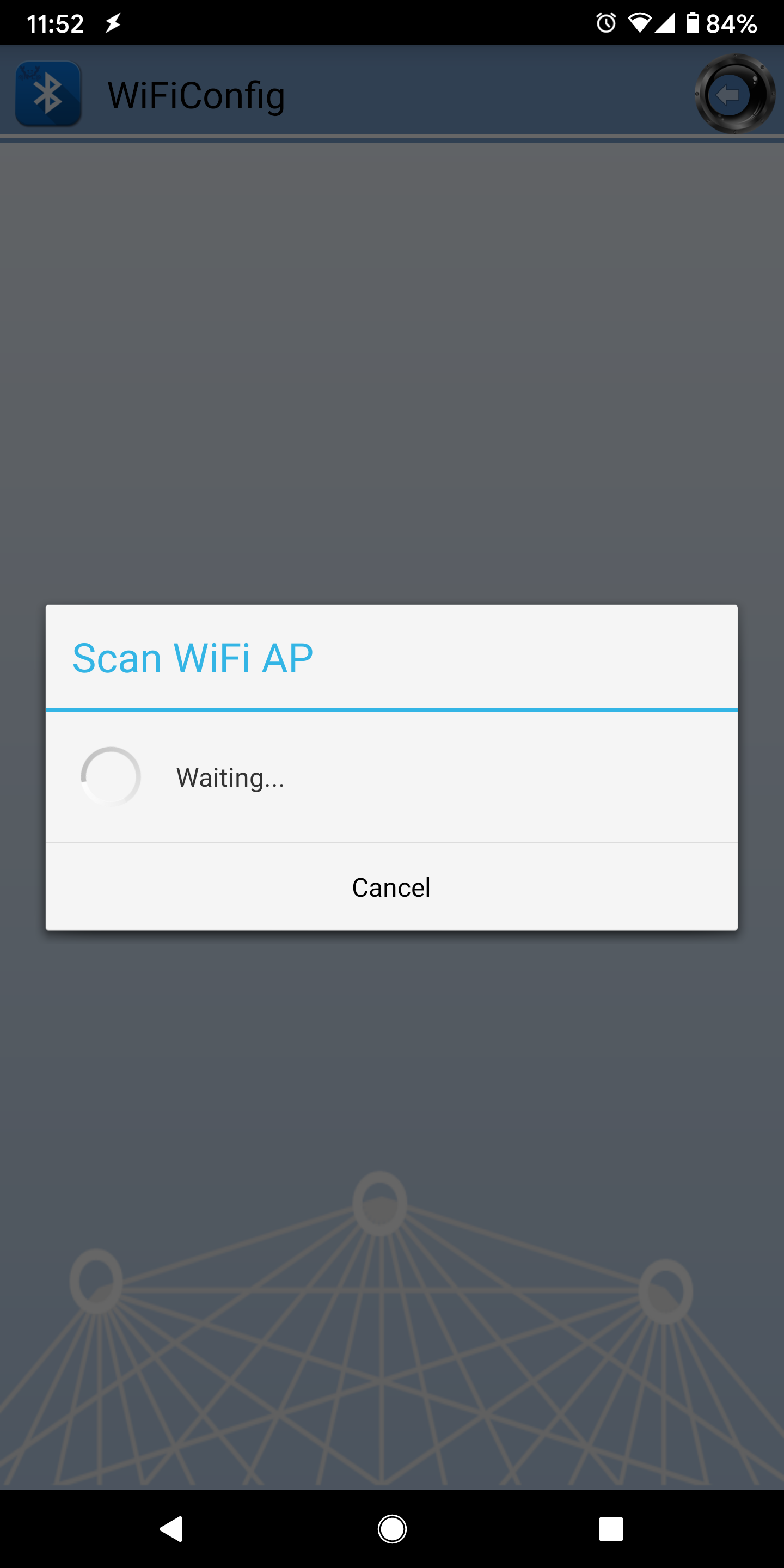
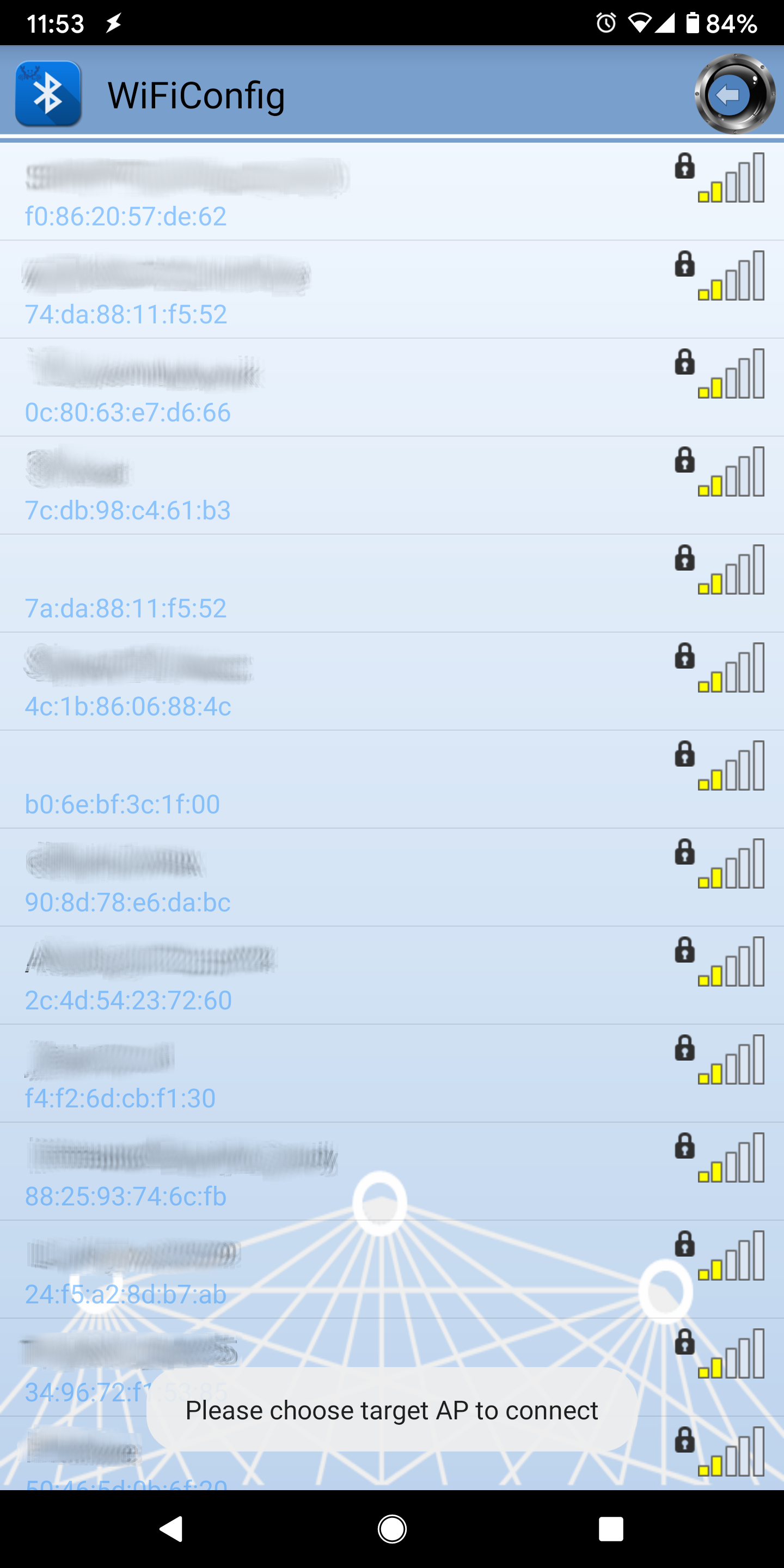
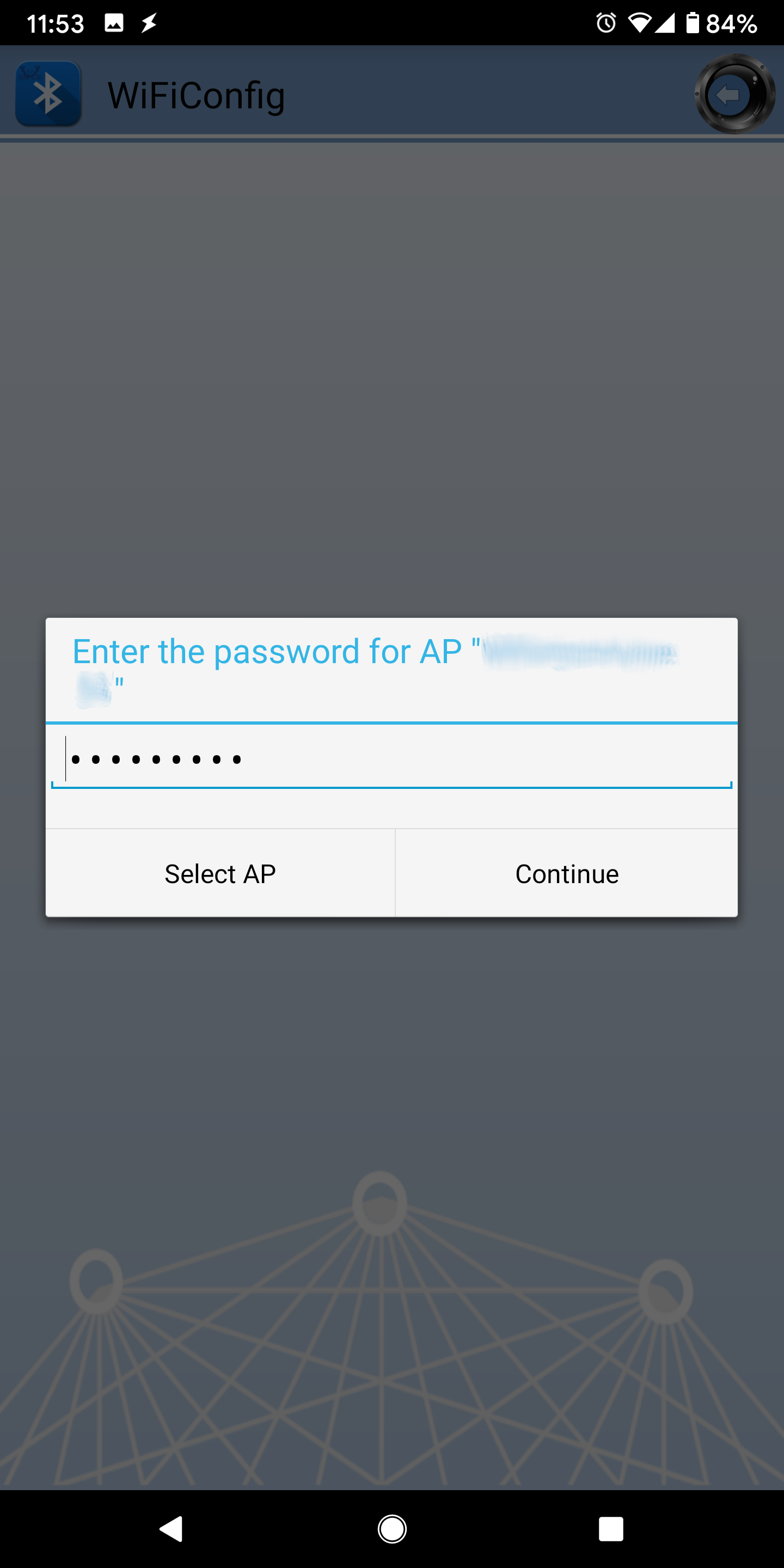
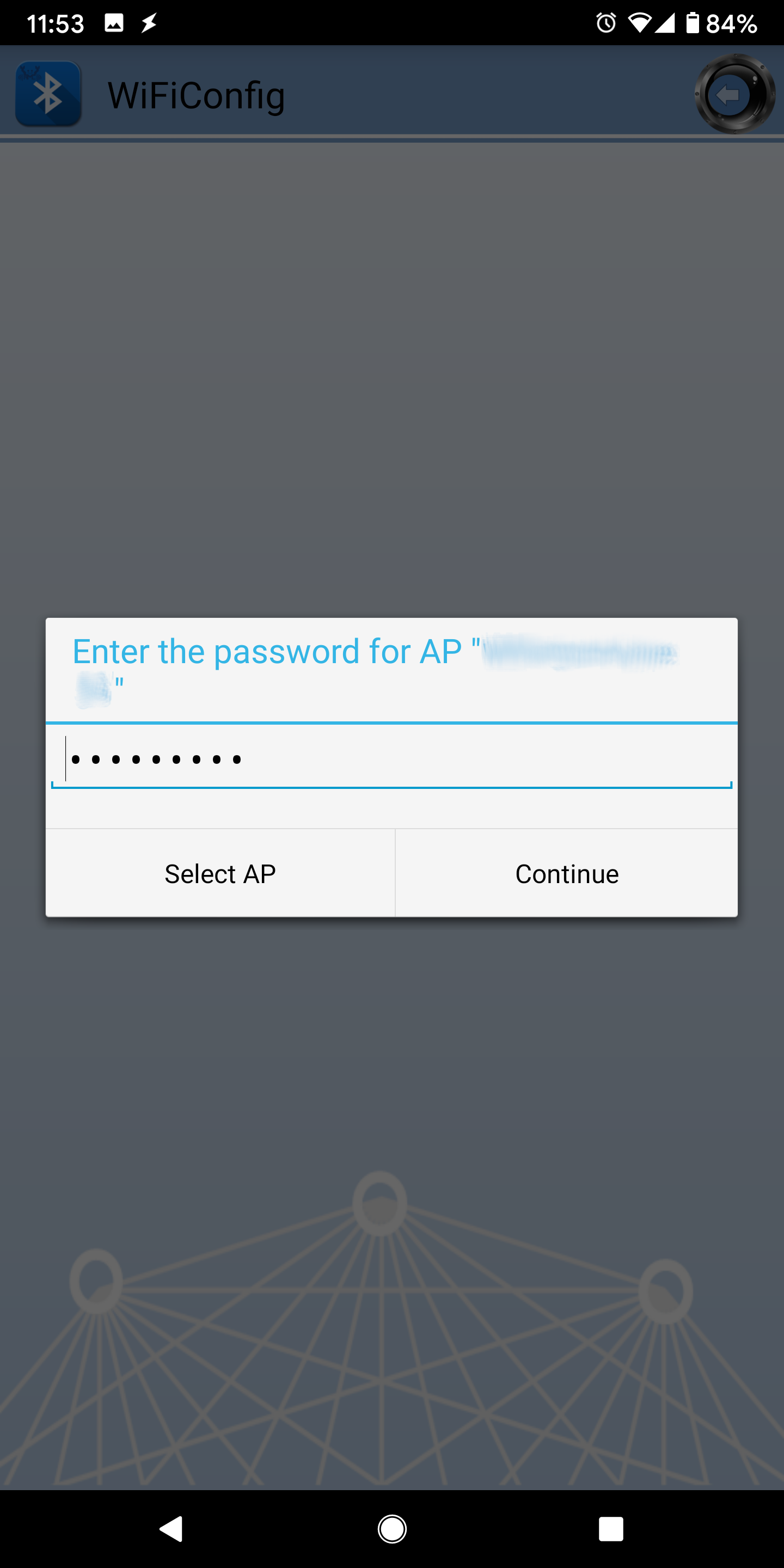
If your phone is currently connected to a WiFi network, the app will ask for the WiFi password to connect the Ameba board to the same WiFi network. Tap Select AP to choose another WiFi network, or enter the password and tap continue to connect Ameba to the selected WiFi network.
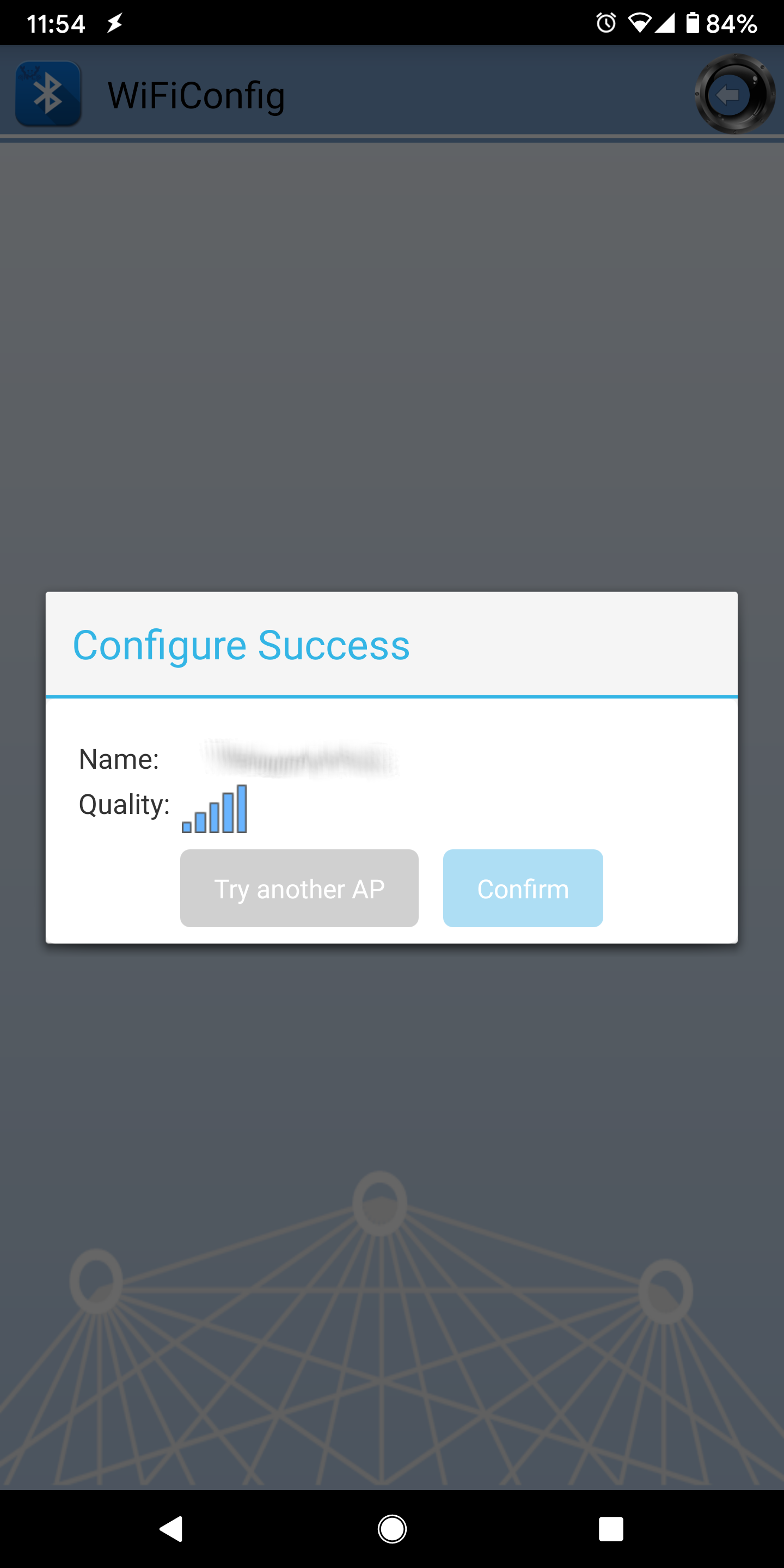
After the Ameba board connects to the WiFi network, the following message will be shown. Tap Try another AP to connect to another WiFi network or tap Confirm to keep the current WiFi network and disconnect BLE from the Ameba board.
Code Reference
BLEWifiConfigService is used to create an instance of the WiFi configuration service to run on the Bluetooth device.
BLE.configAdvert() -> setAdvType(configService.advData()) is used to set the correct advertisement data necessary for the phone app to find the Ameba Bluetooth device.