Door Unlock Over BLE Uart
Materials
Supported EVB x 1
SD card x 1
Button x 1
Green LED x 1
Red LED x 1
Servo (Ex. Tower Pro SG90) x 1
220 Ohm resistor x 2
10K Ohm resistor x 1
Android / iOS mobile phone
Example
Introduction
In this example, we will be using Ameba Pro2 development board to create a simple door access control system with BLE. Door can be unlocked remotely through BLE UART service.
Procedure
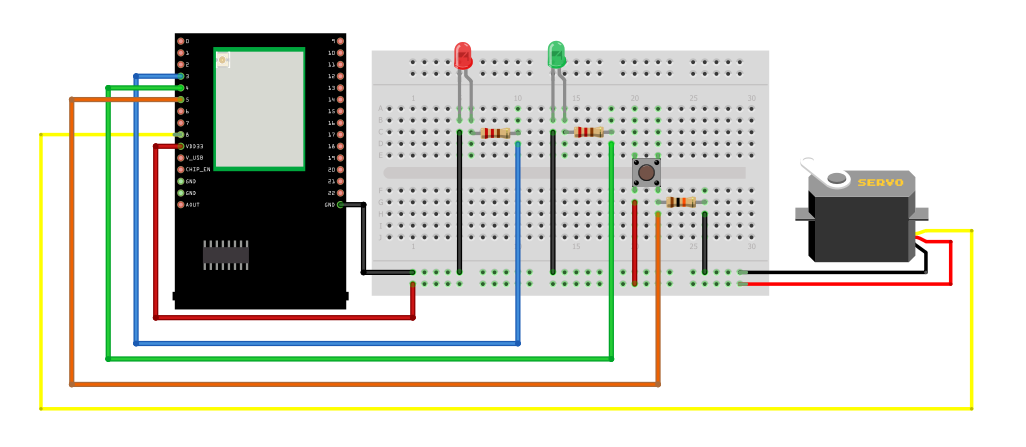
AMB82 MINI wiring diagram:
Ensure that a compatible BLE UART app is installed on your mobile phone, it is available at:
Google Play Store:
Apple App Store:
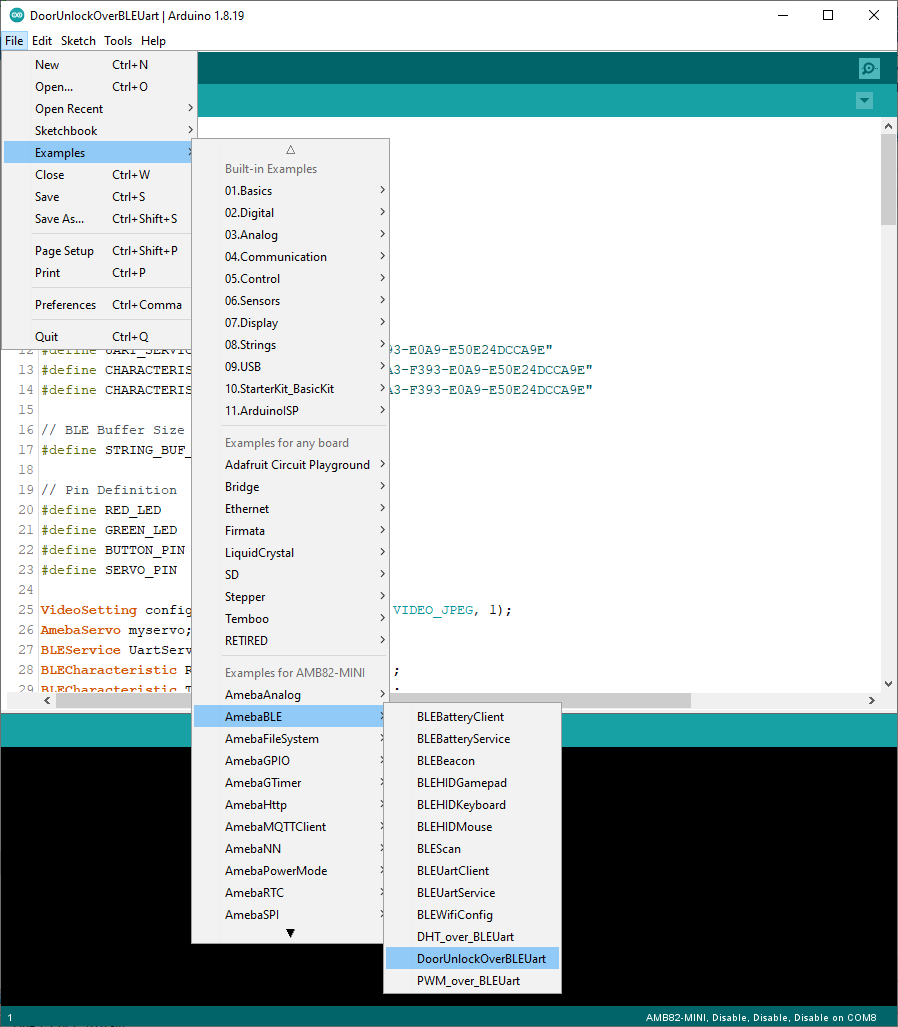
Open the BLE example in File -> Examples -> AmebaBLE -> DoorUnlockOverBLEUart
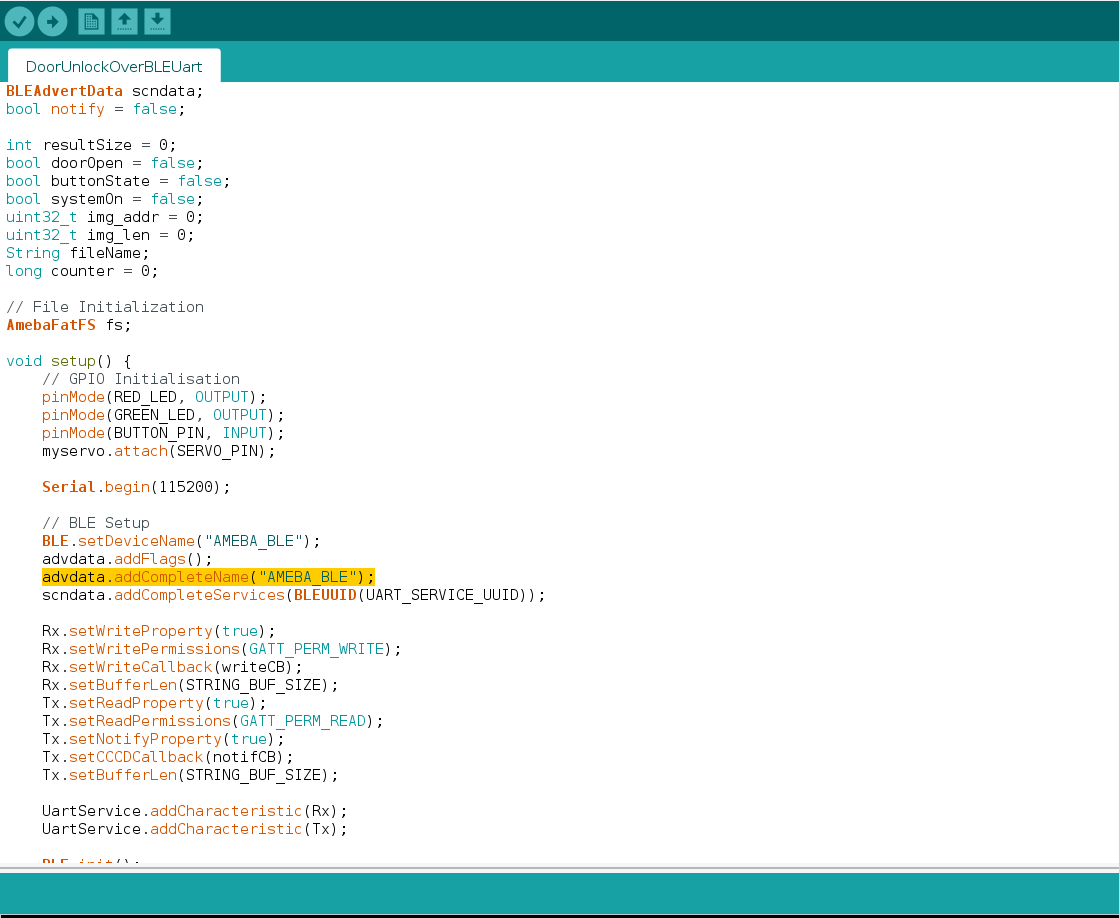
In the highlighted code snippet, set your preferred BLE Device Name.
Compile the code and upload it to Ameba.
Unlock door with BLE UART Service
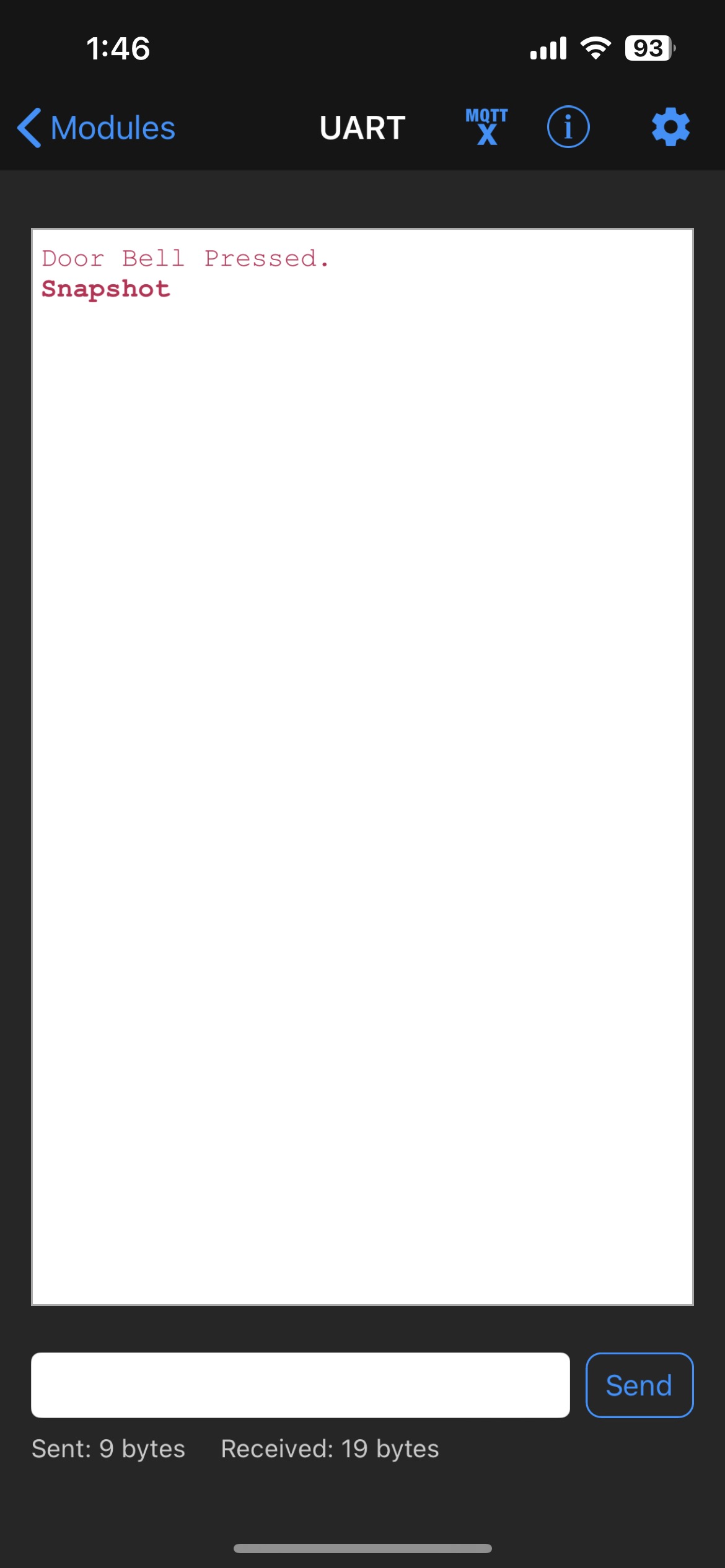
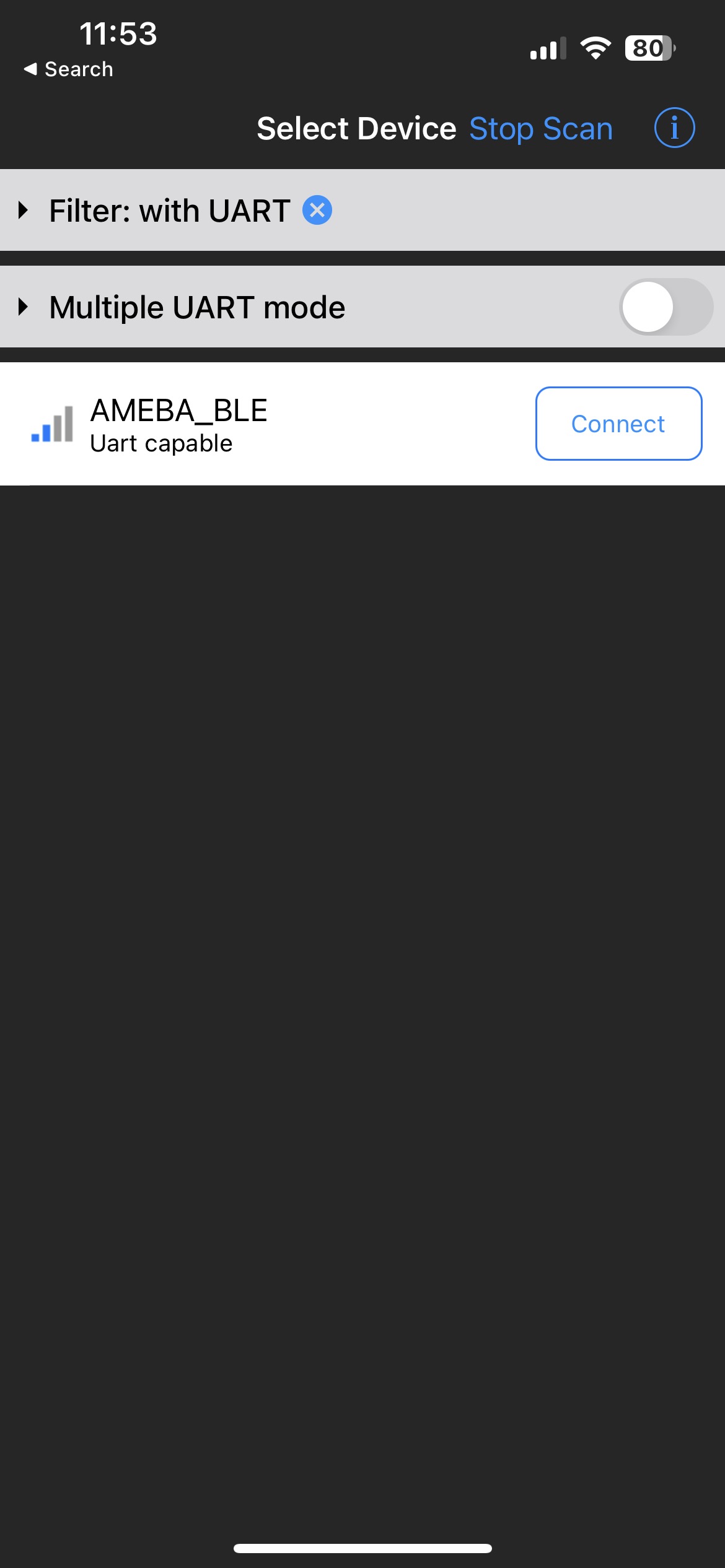
Open the Adafruit Bluefruit app on your mobile phone, scan and connect to the Ameba board shown as AMEBA_BLE or any BLE device name that has been set. Then, choose UART function in the app.
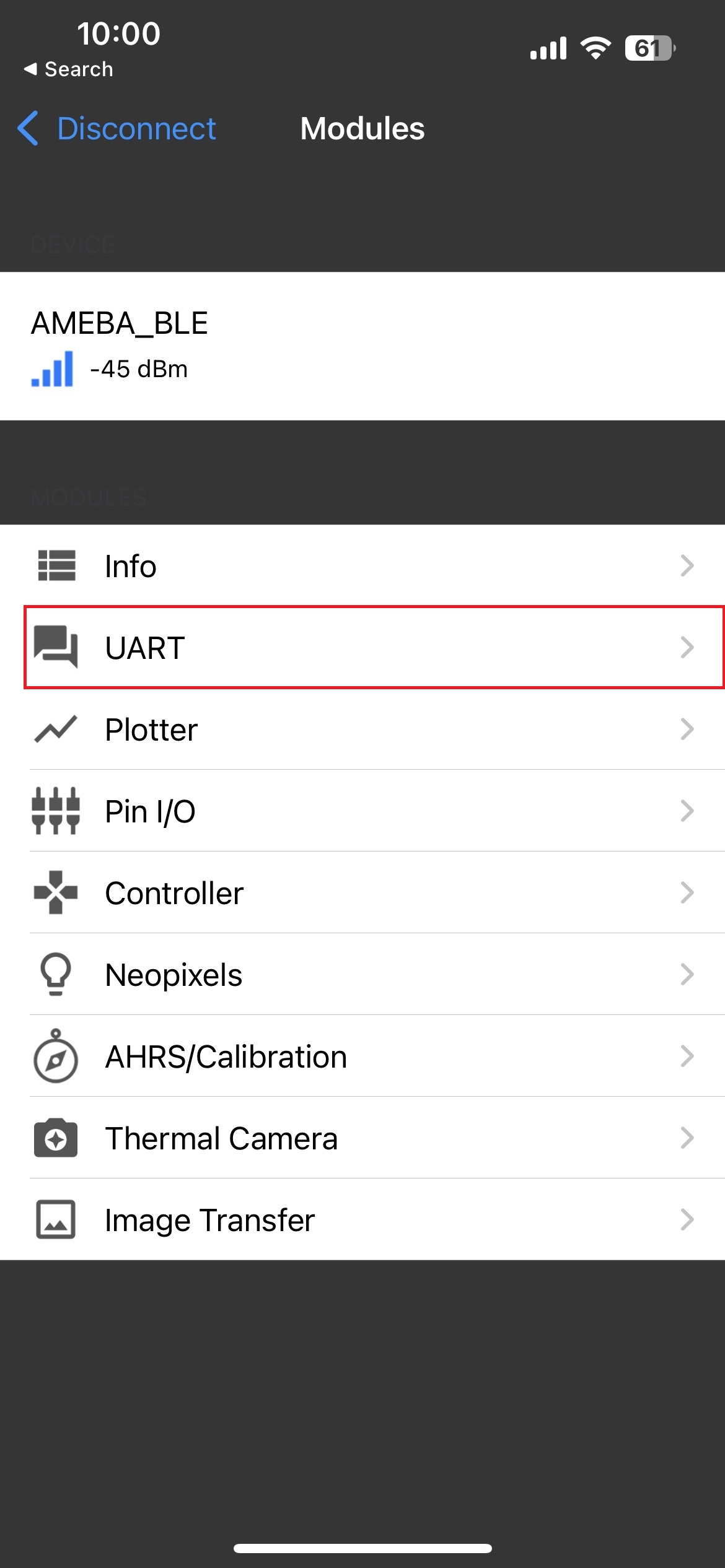
You should see the message Door Bell Pressed appearing in the UART terminal section of the app when button is pressed. Enter Open message and click send, this allows user to open the door and take a snapshot. The image will be saved to SD card and named as Authorized{counter}.jpg.
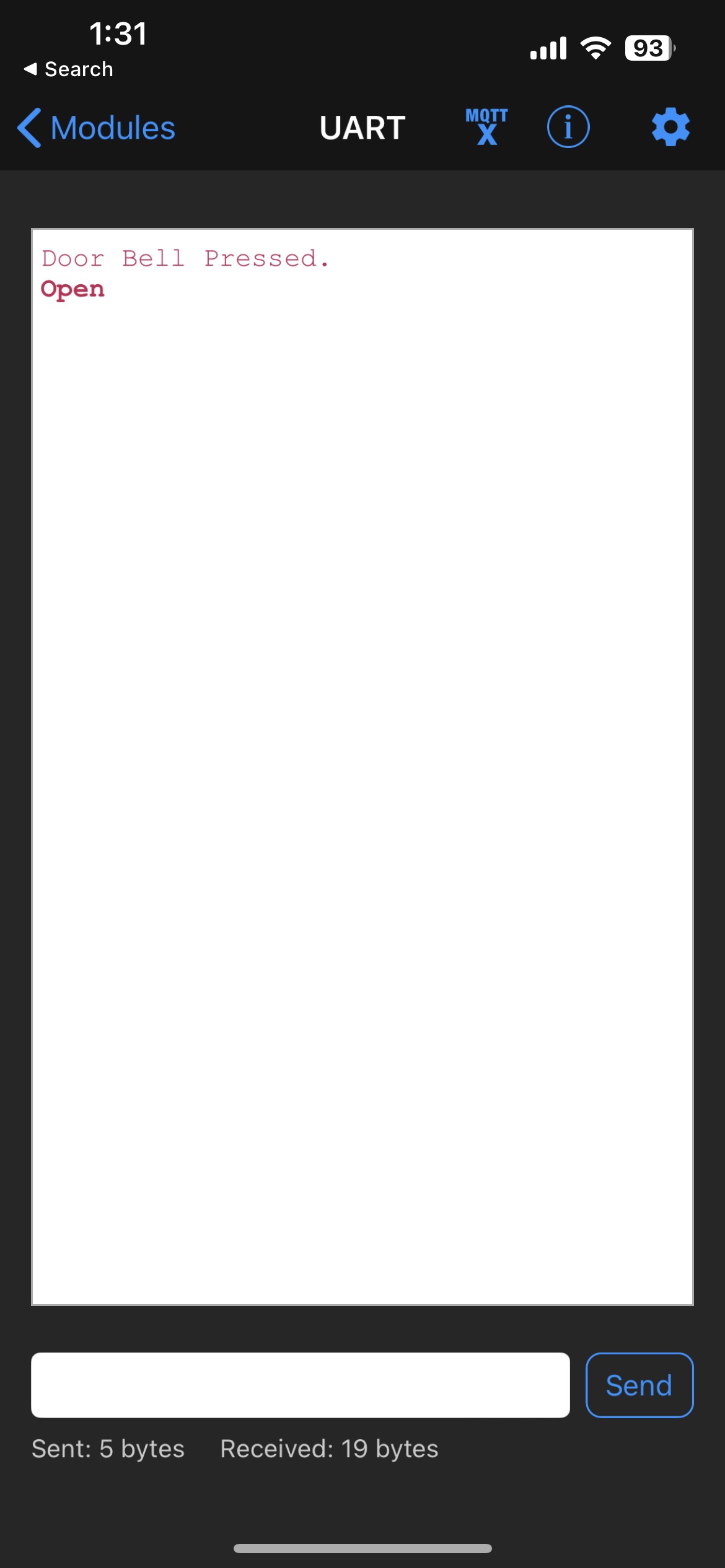
To take another snapshot, enter Snapshot message in the UART terminal section after pressing the button. Image will be named as SnapshotTaken{counter}.jpg and saved to SD card.